

Quick answer: To send a PDF for signature with reminders in DocHub, upload the document, add signature fields through Fields Manager, assign signers, and select Prepare Sign Request. Enable Automated Reminders before sending. DocHub can send up to three reminders, track pending signatures, and notify you when the document is finalized.
TL;DR:
- Automated reminders reduce manual follow-ups. DocHub can send up to three reminders to recipients who haven’t completed their signature requests, helping prevent delays in document workflows.
- Signing order matters for multi-party agreements. DocHub supports sequential and simultaneous signing, allowing teams to manage approvals based on their workflow requirements.
- Clear communication helps avoid signing delays. Customizable invitation emails and branded notifications help recipients recognize signature requests and understand what action is required.
- Real-time visibility makes follow-ups more effective. DocHub’s Manage and Audit tools help track pending signatures, review email delivery, and identify recipients who need reminders.
- Completion notifications simplify recordkeeping. DocHub sends the finalized PDF when all required signers finish, while audit trails provide a record of signing activity.
Sending documents for signature shouldn’t involve printing PDFs, exchanging attachments, or repeatedly asking recipients whether they’ve signed. With DocHub, you can prepare documents, request electronic signatures, configure reminders, and track signing progress in one workspace.
Whether you’re sending a client contract, an employee onboarding form, or a business agreement, a reliable signing workflow helps reduce delays and keeps everyone informed.
This guide explains how to send a PDF for signature with reminders in DocHub, customize email notifications, monitor pending requests, and collect eSignatures remotely.
How do you send and sign documents for remote signing with DocHub?
DocHub combines PDF editing, electronic signatures, and document-sharing tools, allowing you to collect signatures without requiring recipients to print or scan documents.
You can send a PDF to one person or create a workflow involving multiple signers.
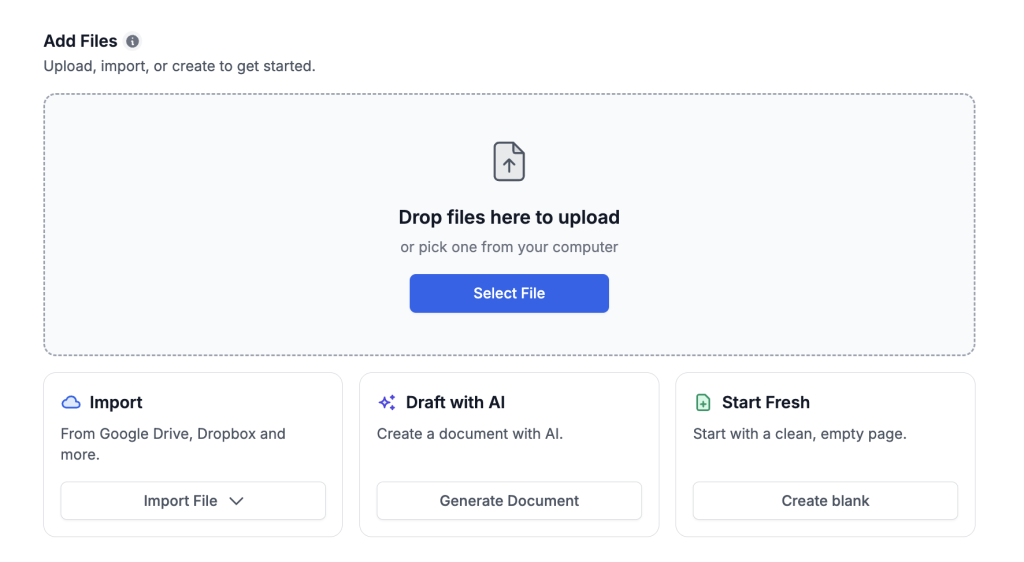
Step 1: Upload your PDF
- Visit DocHub and sign in or create an account.
- Upload a PDF from your device or a supported cloud storage service.
- Open the document in the DocHub editor.
- Review the contents before preparing the signature request.
You can edit text, add annotations, and work with PDF files to fill or prepare fields before sending.
For recurring documents, such as service agreements or employment forms, consider using a reusable template. Templates let you prepare a master document and create a new signing copy for each request.
Step 2: Add signature fields and assign signers
To prepare a PDF for electronic signing:
- Open the document in the DocHub editor.
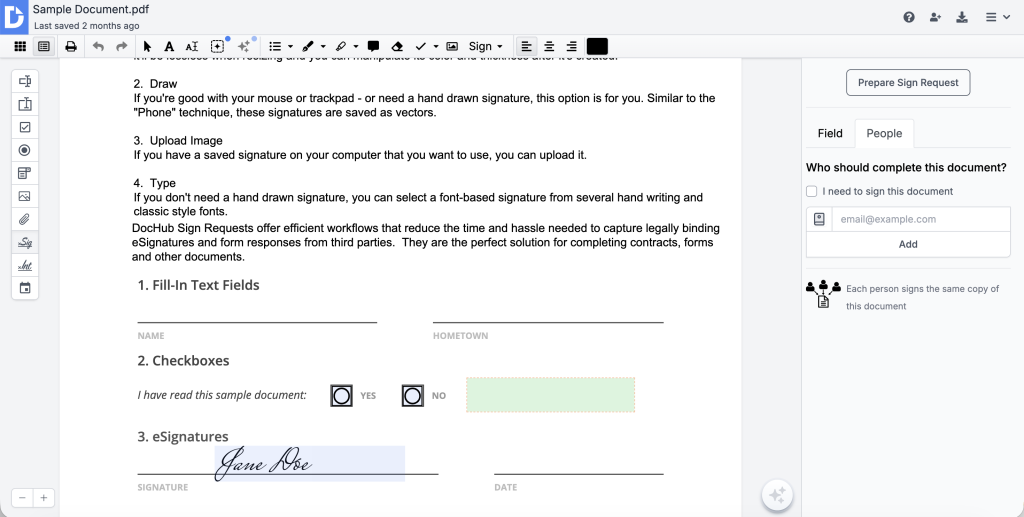
- Click Manage Fields on the left toolbar to open Fields Manager.
- Add signature, initials, date, text, or other required fields, then drag them onto the document where needed.
- In the right panel that opens automatically, select the People tab.
- Enter the email address of each person who needs to sign.
- Assign each field to the appropriate signer, including any drop fields for signatures, initials, dates, or text.
- Mark essential fields as Required.
Required fields help prevent recipients from finalizing documents without completing important information and any assigned fields.
For reusable templates, you can create generic signer roles instead of entering specific email addresses. Assign actual recipients when sending each request. If your document requires several signatures, see our guide on how to add multiple signatures in eSign workflows to learn how to assign fields and coordinate multiple recipients.
Prefer a faster setup? DocHub’s Signature Assistant can help you add signers and assign fields through chat, reducing the need for manual configuration.
Alternative: Set up a Sign Request with DocHub’s Signature Assistant
DocHub’s Signature Assistant simplifies Sign Request setup through chat, helping you add signers and assign fields without manual configuration.
To get started:
- Enable Signature Assistant in your Profile settings.
- Open a document you own and add the required fillable fields.
- Follow Signature Assistant’s prompt to prepare a Sign Request.
- Enter your signers’ email addresses in the chat.
- Let Signature Assistant identify unassigned fields and match them to signers.
- Review the setup, request any changes, and send the document.
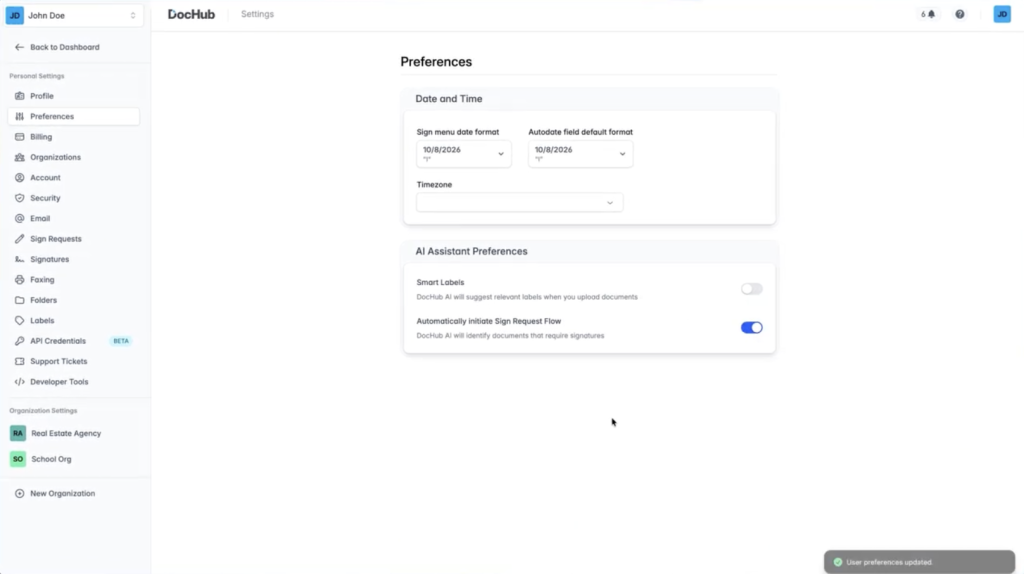
Note: Signature Assistant is available on the DocHub Pro plan for documents you own and must be enabled in your Profile settings.
Step 3: Configure document routing and signing order
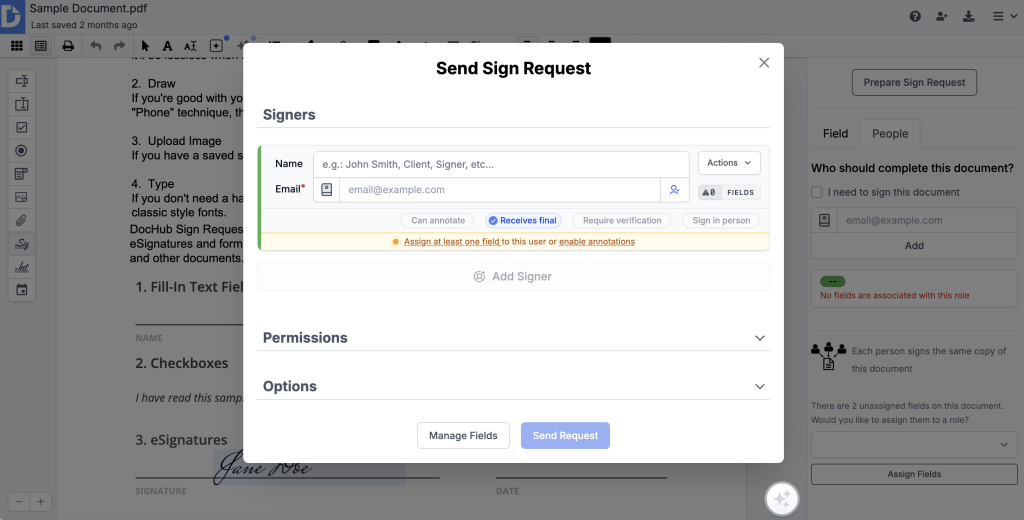
After assigning the required fields, click Prepare Sign Request in the right panel. You can also use Share or Send > Send Sign Request.
Note: Signing order configuration is available only for Sign Requests with two or more recipients.
Review the recipients and choose the signing order.
| Signing option | How it works | Best for |
|---|---|---|
| One at a time | Recipients are notified sequentially when it’s their turn | Contracts requiring approvals in a specific order |
| All at once | All recipients are notified and can complete their assigned fields simultaneously | Documents with independent signature or initials fields |
DocHub uses One at a time by default.
You can rearrange the signer order before sending by dragging recipients into the required sequence. The signing-order setting cannot be changed after the request is sent.
For a closer look at sequential and simultaneous signing, explore how to set signing order for multiple PDF signers.
Step 4: Customize the signature request email
Before sending, personalize the email subject and message to explain what recipients need to do.
A useful invitation should identify the document, explain why a signature is required, and communicate the expected completion date.
For example:
Subject: Signature requested — Service agreement
Hello,
Please review and sign the service agreement by October 30.
If you have questions about the document, reply to this email before signing.
Thank you!
You can customize these details using Customize Email Subject & Body in the Sign Request options.
Step 5: Enable automated reminders
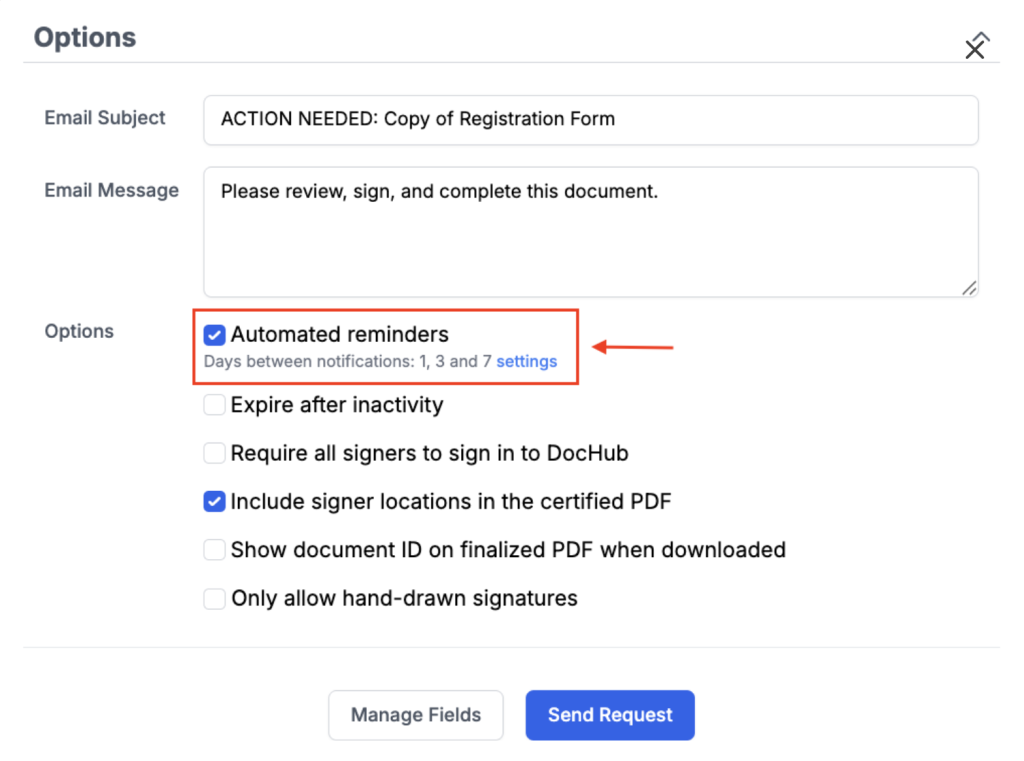
Before sending, locate the Automated Reminders option in the Sign Request settings.
Leave it enabled if you want DocHub to follow up with recipients who haven’t completed their requests.
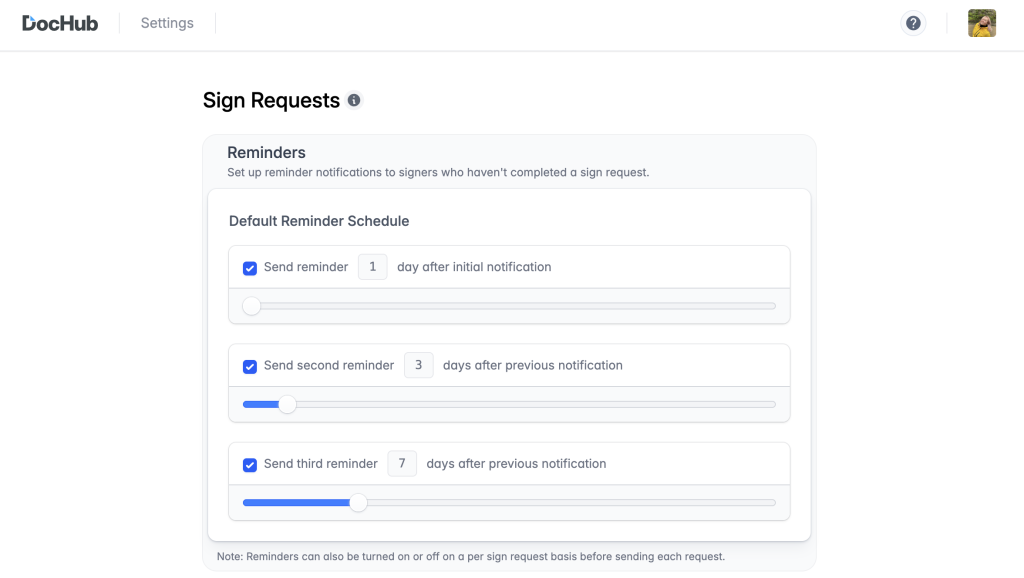
DocHub supports up to three automated reminders. You can configure the default reminder schedule in Sign Request Settings.
Step 6: Send the PDF for signature
Before clicking Send Request, verify that:
- All required fields are correctly assigned.
- Recipient email addresses are accurate.
- The signing order matches your workflow.
- Reminder settings are appropriate.
- The email subject and message are clear.
Click Send Request.
DocHub emails recipients secure, signer-specific links so they can open the doc from the email and complete it without printing or scanning. Signers generally don’t need a DocHub account to respond.
For detailed instructions, see How to request a signature: PDF workflows for multiple signers in DocHub.
How do you set up automatic signature reminders in DocHub?
Recipients don’t always sign documents immediately. They may overlook an invitation, need additional review time, or postpone signing.
DocHub lets you send signature reminders automatically so outstanding documents receive follow-up notifications without requiring you to contact each signer individually.
Configure automated reminders
- Open Sign Request Settings.
- Review or adjust the default reminder schedule.
- Open the PDF you want to send and prepare a Sign Request.
- Confirm that Automated Reminders is checked.
- Review the recipients and send the request.
DocHub can send up to three automated reminders. You can enable or disable them for individual Sign Requests.
For organization-owned documents, default settings are managed under Organization > Settings > Sign Requests.
How do you send a manual signature reminder?
Sometimes an outstanding document requires immediate attention, even when automated reminders are enabled.
To send a manual reminder:
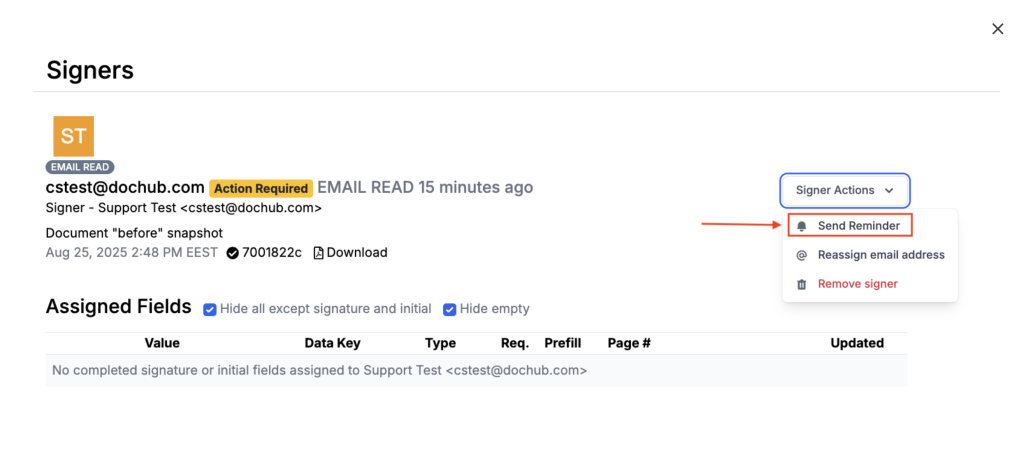
- Open the sent Sign Request.
- Click Manage and Audit.
- Find the recipient who hasn’t finalized the document.
- Open Signer Actions.
- Select Send Reminder.
DocHub sends another email notification asking the recipient to complete the request.
Can you set an expiration date for unsigned PDFs?
Yes. DocHub also supports Automatic Expiration for inactive Sign Requests.
You can configure an inactivity period from 1 to 90 days. The default duration is 30 days after the last email reminder, but expiration is disabled by default.
To enable it, select the Automatic Expiration checkbox and choose the appropriate period.
When an inactive request expires, the document is locked against further changes, and recipients can no longer sign it.
Expiration is useful for time-sensitive offers, agreements, and approvals that shouldn’t remain open indefinitely.
How do you customize signature request and reminder emails?
Clear, recognizable emails help recipients understand which document requires attention and why they should sign it.
DocHub supports customizing the initial Sign Request notification and applying branding to signing-related emails.
Customize the initial signing invitation
- Open your PDF and prepare a Sign Request.
- Add recipients and assign their fields.
- Click the Prepare Sign Request button.
- Select Options.
- Enter a descriptive subject and message.
- Review the details before sending.
How do you get notifications when a PDF is signed?
You don’t need to repeatedly check whether every recipient has completed a document.
DocHub sends a completion email when all required signers have finalized a Sign Request.
The sender receives the finalized PDF and signed documents, while signers can also receive copies according to the configured notification settings.
You can store completed files for later access.
Configure who receives the finalized PDF
- Prepare your document as a Sign Request.
- Open the sending options.
- Locate Receives Finalized Copy in the permissions settings.
- Review who should receive the completed document.
- Adjust the available recipient settings before sending.
By default, all parties receive the finalized copy.
For requests involving multiple signers, the document isn’t finalized until everyone has completed their required actions. The final completion notification is sent after the entire signing process finishes.
Authorized team members may also receive finalized documents when appropriate permissions are configured.
For more information, see Creating and sending a document as a Sign Request.
How do you track pending signatures in DocHub?
Tracking outstanding signature requests helps you identify which documents need attention and whether notifications were successfully delivered.
DocHub saves sent Sign Requests in the Sent folder. Adobe Acrobat also provides real-time status tracking for signature requests. Organization-owned requests appear in the organization’s Sent dashboard.
Check the status of a signature request
- Sign in to DocHub.
- Open the Sent folder.
- Select the document you want to review.
- Click Manage and Audit.
- Review the signer overview, available actions, and audit trail.
The Manage and Audit page lets you monitor recipient activity, send reminders, reassign email addresses, and manage the document.
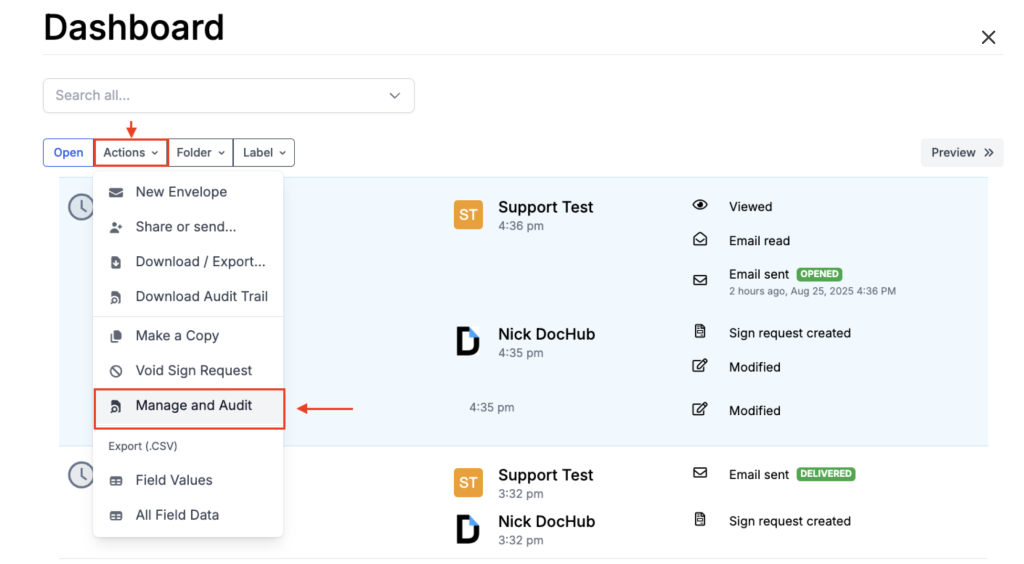
You can also access the page to Manage and Audit from your Dashboard by selecting the document and then opening the Actions drop-down menu on the Dashboard tab.
For more complex approval processes, learn how multi-party signature workflows and tracking mechanisms work, including recipient statuses, signing sequences, and audit trails.
Monitor email delivery notifications
DocHub records outbound email delivery results in the audit trail.
Relevant indicators include:
- Delivered: The recipient’s email server accepted the notification.
- Error or Failed: The notification encountered a delivery problem.
A delivered email doesn’t necessarily mean the recipient opened or signed the document.
If delivery fails, DocHub automatically emails the sender with the delivery information reported by the recipient’s server.
You can then verify the address and use Reassign Email Address when appropriate.
Download the audit trail
The audit trail records relevant document events and signing activity.
You can download it as a separate PDF or together with the finalized document for recordkeeping.
What should you do when a signature request remains unsigned?
An unsigned document doesn’t always mean someone is refusing to sign. The recipient may have missed the email, misunderstood the instructions, or encountered a technical issue.
Before sending repeated reminders, identify the likely problem.
| Problem | Recommended action |
|---|---|
| Recipient didn’t receive the email | Verify the address and check delivery information |
| Recipient forgot to sign | Send a manual reminder |
| Incorrect email address | Use Reassign Email Address |
| Another signer must act first | Review the signing order |
| Recipient needs clarification | Explain the required fields or signing instructions |
| Document contains incorrect information | Void the request, make a copy, correct it, and resend |
DocHub allows limited changes to an active Sign Request. You can send reminders, reassign eligible signers, or remove eligible signers, but you cannot freely edit the document’s content after sending.
Are PDF signatures sent through DocHub secure and legally binding?
Electronic signature workflows should support signer identification, document integrity, security, and appropriate recordkeeping.
DocHub provides electronic signing, optional signer verification, certified document functionality, and audit records that can support these objectives.
Electronic signatures are legally recognized in the United States, and eIDAS standards validate signatures in the EU and beyond.
However, whether a signature is legally enforceable depends on the document, applicable law, and circumstances of signing.
What does the ESIGN Act say?
The Electronic Signatures in Global and National Commerce Act (ESIGN Act) makes electronic signatures legally recognized in the United States and generally prevents them from being denied legal effect solely because they are electronic, which gives parties added confidence when signing digitally.
The Uniform Electronic Transactions Act (UETA) provides a complementary framework adopted in most U.S. states.
These laws address electronic records and signatures, although some document categories require additional formalities or are excluded.
What does eIDAS require?
The eIDAS Regulation establishes the EU legal framework and compliance baseline for electronic identification and trust services.
It distinguishes between simple, advanced, and qualified electronic signatures. Services such as Sign.com also emphasize compliance with eIDAS standards for legal signatures.
Advanced electronic signatures must meet requirements concerning unique linkage to the signer, signer identification, signer control, and detection of subsequent changes to signed data.
Are DocHub electronic signatures or digital signatures?
DocHub supports electronic signatures and offers certified PDF and signature-verification functionality.
In technical usage, a digital signature generally involves cryptographic mechanisms that help authenticate signed data and detect modifications. Adobe Acrobat uses tamper-proof technology for signed agreements.
A DocHub signing workflow may include digital-signature functionality in addition to electronic signing and eSignature workflows, depending on the certification and verification methods used.
The ESIGN Act does not establish the four eIDAS advanced-signature criteria as a general U.S. definition of a digital signature. Those criteria alone do not establish that every DocHub eSignature is a cryptographic digital signature or a qualified electronic signature.
For secure workflows, verify recipient addresses, consider additional signer verification when appropriate, restrict access, and retain relevant records.
Disclaimer: The information contained in this blog post is provided for general informational purposes only and does not constitute formal legal advice.
Final thoughts
Collecting signatures shouldn’t require endless email exchanges, printed paperwork, or constant manual follow-ups.
DocHub brings essential signing tasks into one workspace. You can prepare PDFs, request signatures, configure document routing, customize invitations, enable reminders, and track outstanding requests.
Completion notifications, audit records, and mobile access also help teams manage documents more efficiently.
Whether you’re handling client contracts, onboarding documents, vendor agreements, or everyday business forms, DocHub can help simplify remote signing and reduce administrative work.
Ready to streamline your signature workflow?
Start your free trial of DocHub and discover an easier way to send PDFs for signature, follow up automatically, and manage completed documents from anywhere.
Glossary
- eSignature: An electronic indication of a person’s intention to sign or approve a document.
- Digital signature: A cryptographic mechanism used to help authenticate signed data and detect subsequent modifications.
- Sign Request: A workflow for sending a document to one or more recipients for electronic signing.
- Automated reminder: A scheduled notification sent to a recipient who hasn’t completed a signing request.
- Audit trail: A chronological record of document-related activities that helps establish what happened during a signing workflow.
Frequently asked questions
1. Can I send a PDF for signature with automatic reminders?
Yes. DocHub supports up to three automated reminders for Sign Requests. You can configure a default schedule in Sign Request Settings and enable or disable reminders for individual requests.
2. How do I manually remind someone to sign a PDF?
Open the sent document, select Manage and Audit, locate the pending signer, and choose Signer Actions > Send Reminder. DocHub sends another email asking the recipient to complete the request.
3. Can I customize signature reminder emails in DocHub?
DocHub lets you customize the initial Sign Request email’s subject and message. Its Help Center doesn’t confirm separate customization of individual automated reminder emails. For a personalized follow-up, you can send a separate email.
4. How do I get notifications when a PDF is signed?
DocHub sends a completion email with the finalized PDF after all required signers have completed the Sign Request. You can also review signing activity through Manage and Audit, then save the completed file and store it for your records.
5. Can I send one PDF to multiple people for signature?
Yes. DocHub supports multiple signers in one request. You can assign fields to each person and configure sequential or simultaneous signing. Adobe Acrobat also supports bulk sending to hundreds of recipients.
6. Do recipients need a DocHub account to sign?
No. Recipients can generally open and complete a Sign Request through a signer-specific email link in a browser on mobile or desktop without creating a DocHub account, and the signing flow is easy to follow. Additional verification may be required if the sender enables it.
7. Are DocHub electronic signatures legally binding?
Electronic signatures may be legally binding under laws such as the ESIGN Act, UETA, and eIDAS. DocuSign also notes that it has over one billion users globally and supports signing in 44 languages around the world. It also highlights rigorous security standards and strong encryption for users. Enforceability depends on the applicable legal requirements, document type, and circumstances of signing.
- How do you send and sign documents for remote signing with DocHub?
- How do you set up automatic signature reminders in DocHub?
- How do you customize signature request and reminder emails?
- How do you get notifications when a PDF is signed?
- How do you track pending signatures in DocHub?
- What should you do when a signature request remains unsigned?
- Are PDF signatures sent through DocHub secure and legally binding?
- Final thoughts
- Glossary
- Frequently asked questions