

When more than one recipient must sign documents, the signing order determines whether they receive the request one after another or all at once. In DocHub, use sequential signing for dependent approvals or parallel signing for independent fields.
This guide explains how to arrange multiple signers and choose a route before you hit send. For more information about multi-signature workflows, see our guides: How to request a signature: PDF workflows for multiple signers in DocHub and How multi-party signature workflows and tracking mechanisms work.
TL;DR
After adding recipients and fields, open Prepare Sign Request. Choose sign in order for a signing sequence or all at once for parallel routing, then review the configuration before sending because it cannot be modified afterward. Keep reading for a more detailed overview of the process.
What does a signing order mean for multiple signers?
Signing order controls when recipients receive access. With sequential signing, one signer completes their fields before the next receives an email notification. With parallel signing, all recipients receive the request together.
Order controls timing; field assignment controls responsibility. Assign every form field to its intended signer.
For a detailed explanation, visit DocHub’s knowledge base article about signing order.
How do you set a signing order in DocHub?
The option is available for two or more recipients. Upload the document, add recipients, and assign at least one field to each signer.
Setting signing order in DocHub
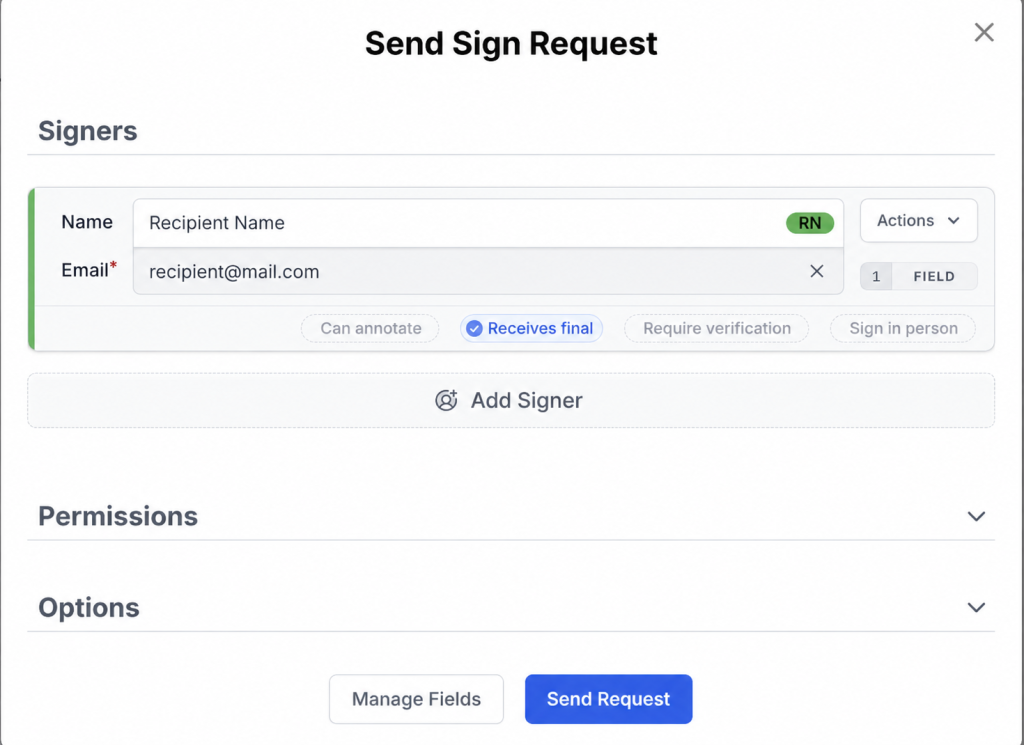
- Click Prepare Sign Request in the right panel. Alternatively, select Share or Send, followed by Send Sign Request.
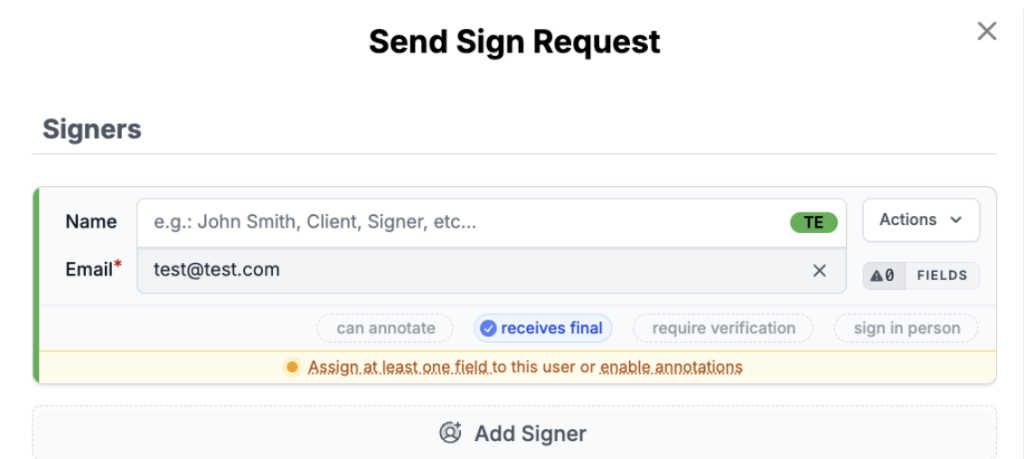
- Confirm the email address for each signer.
- Find the Signing Order option in the Sign Request window.
- Choose sign in order or all at once. By default, sign in order is active; toggle the option to change it.
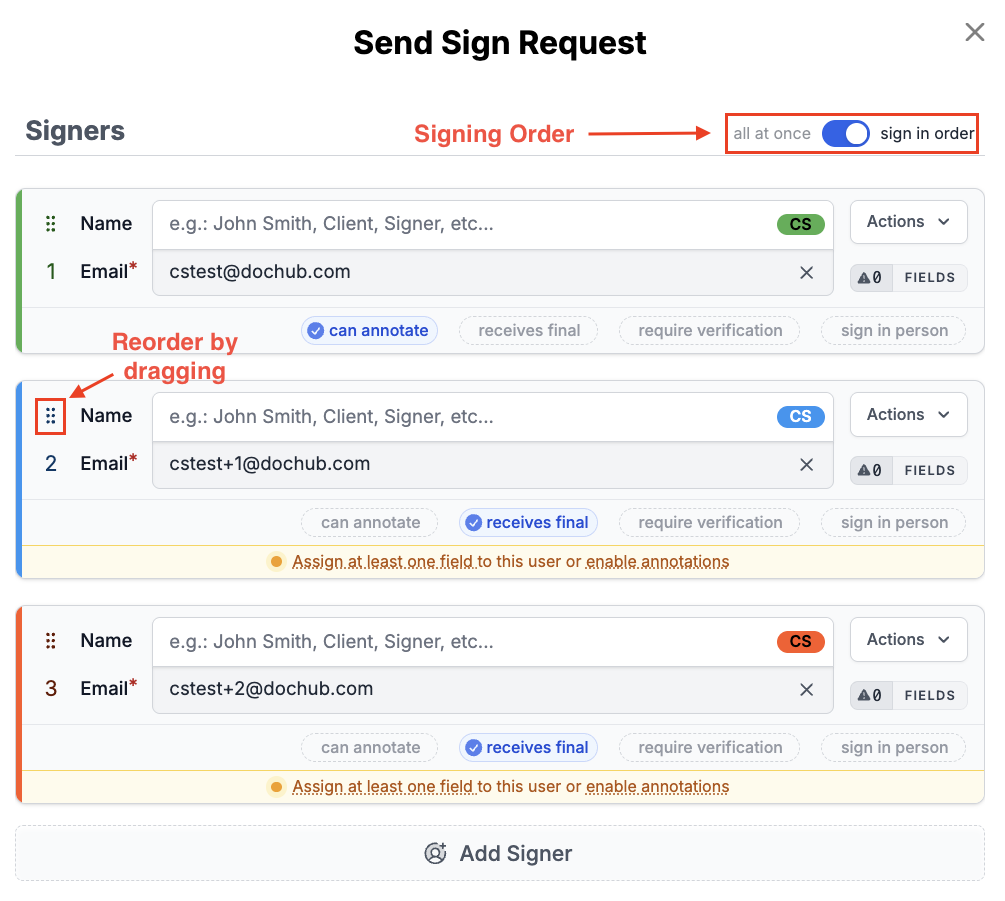
- If you select sign in order, drag signers up or down using the order handle until they appear in the correct sequence.
- Review the recipient list, assigned fields, email message, reminders, and other request settings.
- Click Send Request.
Set a default method under Settings > Sign Requests. You can change it while preparing an individual request.
How does sequential signing work?
Sign in order is the default. Only the current signer is notified; after they finalize their part, the next recipient is notified automatically.
For example, a contract could move through this signing sequence:
- The client enters the requested information and initials the relevant terms.
- A department manager reviews and signs the completed document.
- An authorized company representative provides final approval.
Use this route when each person reviews earlier input or a later approval depends on it. It provides tighter control but may take longer because recipients wait for the previous person.
How does parallel signing work?
With all at once, every recipient is notified when the request is sent and can complete assigned fields without waiting.
Parallel signing suits independent fields. Use caution with editable text or annotations because changes could affect the document’s meaning. Compare DocHub’s signing-order options in more details while reading the knowledge base article.
How do sequential and parallel routing compare?
The table shows how notifications differ.
| Signing option | How notifications work | Best suited to | Main consideration |
|---|---|---|---|
| Sign in order | The current signer is notified; the next receives an invitation after the previous signer finalizes | Approvals, negotiated agreements, and dependent steps | The complete process may take longer |
| All at once | All signers are notified when the request is sent | Independent signatures or initials on fixed content | Avoid parallel editing that could materially change the document |
How do you choose the right signing sequence?
Use sign in order when:
- A manager must approve the information supplied earlier.
- One person should review another person’s entries.
- The contract follows an approval hierarchy.
- Simultaneous edits could create errors.
Use all at once when:
- Recipients have separate fields.
- Signers only add signatures, initials, or dates.
- Completion order does not affect the agreement.
- Timely collection matters more than sequential review.
Even with all at once, assign each field to the person expected to complete it.
Can you change the signing order after sending?
No, there isn’t such a function. DocHub does not let you switch between sign in order and all at once, or rearrange the signing sequence, after the Sign Request has been sent.
If it is incorrect, copy the document and create a new request. Check signers, fields, and order before selecting Send Request. Explore how DocHub Sign Requests work.
How can you track signing activity with DocHub?
DocHub’s Audit Trail records document activity, including what changed, who performed the action, and when it occurred. This information helps teams review the signing process, confirm how the document progressed between recipients, and maintain a record of completed actions.
An audit trail can support internal recordkeeping and compliance-aware workflows, but it does not independently guarantee that a document is legally valid. Retain the completed document and its associated activity records according to your organization’s policies.
How can you avoid errors in a multiple-signer workflow?
- Give every signer a separate role or email address.
- Assign each field to the intended signer.
- Name reusable roles by function, such as Client or Approver.
- Match sequential or parallel routing to the dependency between recipients.
- Preview every page and confirm the order before sending.
- Use templates for recurring contracts or forms.
These checks help teams streamline routing while retaining control of each stage.
Manage the signing process with DocHub
DocHub combines PDF preparation, field assignment, eSignatures, reminders, and multi-recipient routing. Use sequential signing for dependent input and parallel routing for independent recipients.
Review the configuration and sequence before sending to avoid creating a replacement request.
Create a DocHub account to add recipients, set the signing order, and send documents for completion online.
Glossary
- All at once: A parallel routing option that notifies every recipient when the Sign Request is sent. Recipients can complete their assigned fields without waiting for another signer.
- Field assignment: The process of linking each fillable field to a specific recipient or signer role. It determines who is responsible for completing each part of the document.
- Parallel signing: A signing process in which multiple recipients receive access at the same time. It is suitable for independent signatures, initials, or approvals.
- Sequential signing: A signing process in which recipients act one after another in a defined order. Each recipient is notified after the previous person finalizes their part.
- Signing order: The configuration that controls when recipients receive access to a document and, for sequential routing, the order in which they act.
- Signing sequence: The arranged list of recipients in a sequential workflow. It should reflect the document’s review and approval requirements.
FAQ
1. How should I plan deadlines for sequential signing across different time zones?
Allow extra time because each recipient must finish before the next signer can begin. Confirm availability in advance and use reminders to keep the signing process moving. When timing is critical, include the expected completion date in the request message.
2. Should internal reviewers be included as signers?
Include an internal reviewer only if they must complete an assigned field, provide formal approval, or sign the document. If they only need to check the content, complete that review before sending the signature request. This keeps the signing sequence focused on recipients who must take action.
3. How can I test a recurring multiple-signer workflow?
Create a copy of the document and send a test request to internal email addresses. Check whether every recipient receives the correct fields, notifications, and access at the expected stage. After testing, use the verified setup as the basis for a reusable template.
4. Where should a witness or final approver appear in the signing order?
Their position depends on the document’s requirements and the action they must observe or approve. A witness may need to act after another signer, while a final approver usually follows the parties whose information they review. Confirm any legal or organizational requirements before configuring the signing sequence.
- TL;DR
- What does a signing order mean for multiple signers?
- How do you set a signing order in DocHub?
- How does sequential signing work?
- How does parallel signing work?
- How do sequential and parallel routing compare?
- How do you choose the right signing sequence?
- Can you change the signing order after sending?
- How can you track signing activity with DocHub?
- How can you avoid errors in a multiple-signer workflow?
- Manage the signing process with DocHub
- Glossary
- FAQ