
Is Google Drive HIPAA compliant? Your straightforward 2026 guide

If you work with protected health information (PHI), you can use Google Drive in a HIPAA-compliant way, but only when it’s set up properly. That means using a paid Google Workspace account, signing Google’s Business Associate Agreement (BAA), and locking down your sharing settings and app connections. DocHub adds an extra layer of control and tracking right on top of Google Drive.
- Google Drive can be HIPAA compliant, but only with a signed BAA and the right settings.
- The biggest risks: external sharing, weak passwords, unmanaged downloads, and risky third-party apps.
- Lock things down with 2SV, restricted sharing, shared drives, audit logs, and app access controls.
- DocHub adds safe PDF editing, signing, forms, and audit trails to make your Google Drive workflow simpler and more compliant.
- Always sign DocHub’s BAA before using it for PHI.
Main definitions and ready-to-use setup
- PHI: Health info tied to a person, covered by HIPAA.
- Business associate: A vendor handling PHI for you. You usually need a BAA with them.
Crucial steps to take when the “Is Google Drive HIPAA-compliant?” question arises
Here’s what your IT team should tick off first
- Use a paid Google Workspace account for anyone touching PHI (no free Gmail).
- Accept and keep a copy of Google’s HIPAA BAA.
- Tighten Google Drive sharing, especially links outside your organization.
- Enforce 2-Step Verification (2SV) for all users with PHI access.
- Turn on monitoring, audit logs, and reporting.
- Limit third-party apps and OAuth access, not just file permissions.
- For signing and PDFs, use a tool like DocHub (with a signed BAA) that works inside Google Drive and supports HIPAA workflows.
What does HIPAA require for Google Drive users?
HIPAA (the Health Insurance Portability and Accountability Act) focuses on keeping electronic PHI (ePHI) safe and available only to the right people. For daily document work, these are the key requirements:
- Access controls: Only let authorized individuals see, change, or share PHI. Remove access fast when people leave.
- Auditability: You need a way to prove who accessed or changed a file (audit logs and user tracking).
- Transmission security: When you send PHI across a network, use safeguards like encryption (as recommended by HIPAA).
- Policies and training: Tools are important, but people and policies matter as much.
Remember: just storing files in Drive isn’t safe from any point of view. Real HIPAA compliance takes a few more steps, especially if your workflow involves editing PDFs, collecting signatures, or sending files to patients.
Is Google Drive itself “HIPAA compliant”?
A better question: Can Google Drive ensure HIPAA compliance for your organization? The answer is yes, but only if you use the right plan, sign a BAA, and configure everything properly. Here’s what matters:
- Only paid Google Workspace plans offer the BAA: free Gmail isn’t enough.
- Review and accept the BAA in the Google Admin console.
- Check which services are covered (the BAA is for “Covered Services”: always double-check the fine print).
- Set strong access, sharing, and app controls.
Where can things go wrong? For example, downloading PHI to a personal laptop or sending open “Anyone with the link” files. That’s when breaches happen. So while Google Drive can support HIPAA compliance, watch out for common mistakes.
How to get and use Google’s BAA
- Use a paid Google Workspace plan for business.
- In the Admin console, find Legal and compliance, then accept the HIPAA BAA electronically.
- Save proof for audits (a screenshot or confirmation is handy).
- Make sure your team knows which Google services are covered: for example, apps usage may be restricted.
If you connect other tools to Drive and they touch PHI, you’ll need a BAA with them too. Google’s BAA won’t cover what those apps do.
Which Google Drive settings matter most for HIPAA?
Once your Business Associate Agreement is in place, focus on admin controls. Here’s a handy table with their list and explanations:
| Setting | Why it matters for HIPAA compliance | Recommended baseline |
|---|---|---|
| Enforce 2-step verification (2SV) | Stops account hijacks | Require for all PHI users; admins use the strongest methods |
| External sharing controls | Prevents accidental exposure | Default to internal-only; allow external for specific OUs/groups only |
| Link access defaults | Curb leaks from “Anyone with link” sharing | Use Restricted by default for PHI folders and shared drives |
| Shared drives | Keeps permissions consistent | Store PHI in shared drives managed by groups |
| Reports and audit logs | Proves the actions retrospectively | Enable and review reports (especially for external shares) |
| App access controls (OAuth) | Blocks risky apps | Allow only approved apps |
| Editor sharing permissions | Prevents unwanted access spread | Turn off re-sharing for PHI; train owners on folder structure |
| DLP/IRM Controls (Enterprise only) | Stops printing/copying/downloading (where needed) | Use where available for high-risk docs |
Pro tip: Manage users by groups, not one-by-one. Keep PHI in Drive, not in Chat or Calendar events. Write down your baseline so everyone’s on the same page.
Where Google Drive needs a boost for healthcare
Google Drive is a champ at storage and file sharing, less so for signatures, forms, and workflow tracking. Watch for these gaps while answering the question “Is Google Drive HIPAA-compliant?”
- Getting eSignatures or patient consent: Drive doesn’t have purpose-built eSignature workflows with audit trails.
- PDF editing with layout intact: Converting PDFs to Google Docs can mess up formatting.
- Controlled sharing: Drive is safe if you restrict access, but inherited permissions from folders can trip you up.
- Third-party app risks: If other apps connect to Drive, each needs a separate review and agreement.
The lesson? Use Drive as your HIPAA storage core, and add a workflow layer for signing and editing.
How DocHub keeps Google Drive HIPAA workflows on track
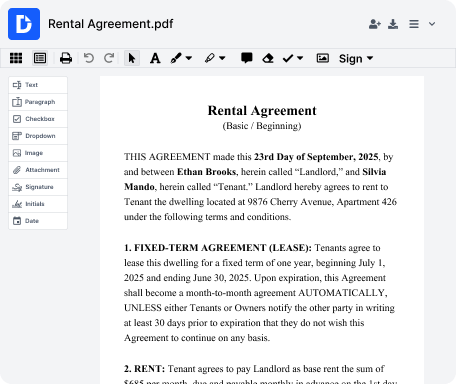
DocHub fits into Google Drive, allowing you to open, edit, and annotate PDFs, and sign files in the cloud without any downloads. Here’s how we keep things simple and secure:
- Edit and sign in the cloud: Open files from Drive, make changes or collect signatures, and save the result right back.
- Fillable fields and eSignatures: Standardize your forms and keep everything digital.
- Audit trail: Every change in DocHub is tracked, making review and compliance simple.
- BAA support: Sign DocHub’s BAA before using PHI so everything’s covered.
- Fax workflows: Some plans even let you fax straight from Drive.
Most importantly, DocHub doesn’t replace Drive. It enhances your familiar workspace, allowing you to stay in your flow while increasing safety.
| Parameter | Google Drive alone | Google Drive + DocHub |
|---|---|---|
| Good for storage | Yes | Yes |
| HIPAA workflows | Limited (needs BAA + settings) | Streamlined PDF, forms, eSignatures, audit trails |
| Audit trails | Basic (with audit logs enabled) | Full document history and signing evidence |
| Easy for teams | Needs careful setup and monitoring | Plug-and-play in your Drive workflow |
| Supports faxing | No | Supported in some regions/plans |
Connecting DocHub and Google Drive securely
Want a seamless workflow? Here’s your checklist:
- Install DocHub from Google Workspace Marketplace.
- Sign in with Google, review permissions.
Control and allow the approved apps for PHI access. - Open files with DocHub.
Right-click on your chosen file and select “Open with DocHub” to avoid risky downloads.
4. Lock down Drive sharing.
Set PHI files and folders to Restricted. Use groups for access control.
5. Choose where final files go.
Decide if you overwrite or save as new. Use clear naming for audits.
6. Sign DocHub’s BAA.
Get your BAA in place before handling PHI with DocHub.
What does a HIPAA-smart workflow look like for intake forms?
Let’s break it down:
- Store your intake PDF template in a restricted shared drive.
- Open with DocHub for editing.
- Add fillable/signature fields and save as a form template if you reuse it often.
- Send a Sign Request through DocHub’s eSigning functionality. Avoid attachments when you can.
- Receive and archive the signed form back in Drive.
- Keep the audit trail alongside your Google admin logs.
Quick Checkpoints:
- Use groups to manage access.
- Use paid Workspace only, no personal Google accounts.
- Review all app connections and remove any that aren’t approved.
- Monitor external sharing and fix problems fast.
- Standardize folders for signed docs and use clear naming.
Bottom Line
So, is Google Drive HIPAA compliant? It can be a solid foundation, but only when you do the setup right. If you spend your days getting forms signed and editing PDFs, DocHub adds the controls and trackability you need right inside your Google Drive flow.
Ready to get started? Create your DocHub account for free. Then install DocHub via the Google Workspace Marketplace, review your Drive settings, and document your process. You’ll be set for a workflow that’s both fast and compliant.
Disclaimer: The information contained in this blog post is provided for general informational purposes only and does not constitute formal legal advice.
Thank you!
Free Google Workspace HIPAA configuration checklist
Glossary
- HIPAA: Federal law for health info privacy and security.
- PHI: Protected health information.
- ePHI: PHI stored or sent electronically.
- Covered entity: Healthcare org (provider, plan, or clearinghouse) required to follow HIPAA.
- Business associate: Someone who touches PHI on your behalf.
- Business associate agreement (BAA): Contract covering how PHI is handled.
- Access controls: Who gets in and when.
- Audit logs: Records of who did what.
- OAuth 2.0: The permissions process for apps to access Google data.
- Shared drives: Team folders with managed permissions.
FAQ
Does the BAA cover all Google services?
The BAA only covers certain services by Google, such as Gmail and Google Drive. It is important to check with your healthcare organization’s legal team or compliance officer to determine which specific services are covered under the BAA.
Do I need a BAA for every app connected to Drive?
If an app handles PHI, you usually need a BAA with them. Signing a Business Associate Agreement (BAA) with any third-party vendor that will handle PHI on your behalf is crucial for HIPAA compliance.
Which Drive settings matter most?
Start with 2SV, restricted sharing, shared drives, app controls, and audit reporting. Then configure for your unique workflows and compliance needs.
Can I integrate DocHub with Google Drive?
Yes, DocHub seamlessly integrates with Google Drive. Once enabled through the Google Workspace Marketplace, you can access, edit, or sign documents directly within Google Drive.
Is DocHub secure for managing sensitive documents?
Absolutely. DocHub is designed with robust security features to ensure your documents remain private and protected, while simplifying your document management.
What benefits does DocHub provide for teams?
DocHub’s intuitive interface ensures your team can quickly adopt its tools, enabling everyone to collect signatures, edit files, and streamline workflows with ease.
- Main definitions and ready-to-use setup
- What does HIPAA require for Google Drive users?
- Is Google Drive itself “HIPAA compliant”?
- How to get and use Google’s BAA
- Which Google Drive settings matter most for HIPAA?
- Where Google Drive needs a boost for healthcare
- How DocHub keeps Google Drive HIPAA workflows on track
- Connecting DocHub and Google Drive securely
- What does a HIPAA-smart workflow look like for intake forms?
- Bottom Line
- Glossary
- FAQ