

Mastering text formatting is key to creating documents that are both visually appealing and easy to read. Whether you’re creating a report, presentation, or any other type of document in PDF format, knowing how to change fonts and format text is essential. Here are the key takeaways from this blog post:
- DocHub lets you change fonts. PDF content within the platform is editable due to the Edit Text feature.
- The platform auto-detects the original font and matches size and color when possible.
- To improve the layout, you can align text: PDF content in DocHub can be aligned by using Edit Text or Add Text features.
- To perform a function searched as “resize PDF objects” in DocHub, select the object, drag its handles, and adjust placement so that images, shapes, and text fit the page without crowding other content.
DocHub works in the browser, giving you all the benefits of online PDF editing, integrates with Google Workspace, and supports editing, signing, and sharing documents in a single workflow.
How to format PDFs for a cleaner look
To achieve the best results, it’s important to use the right tool for the job. Use direct text editing for changes to existing content, and annotation tools for layout adjustments or adding new text..
- Use Edit Text when the original text is editable
- Use Add Text when you need to add new content
- Use alignment icons to improve PDF text alignment
- Resize images and objects before the final review
- Check the file size before sharing or storing the updated file
For a more comprehensive view of editing and adding text to your documents with DocHub, see our blog: How to edit text in PDFs with DocHub.
What is the easiest way to change fonts in a PDF?
The easiest way to edit a PDF online is to modify the text directly, rather than covering up the old text and adding new content on top. DocHub’s Edit Text feature allows you to click on existing text blocks and revise them in place. It even preserves the original look by automatically matching the font, size, and color.
How to change fonts, alignment, and text style in DocHub
Create your DocHub account in just a few clicks. Sign up with your email or social media, and follow these simple steps to get started:
- Upload your file into DocHub from your device, Google Drive, or another connected source.
- Open the PDF file in the editor.
- Select Edit Text from the toolbar.
Hover over the document until you see a highlighted editable area.

5. Click inside the text block you want to update.
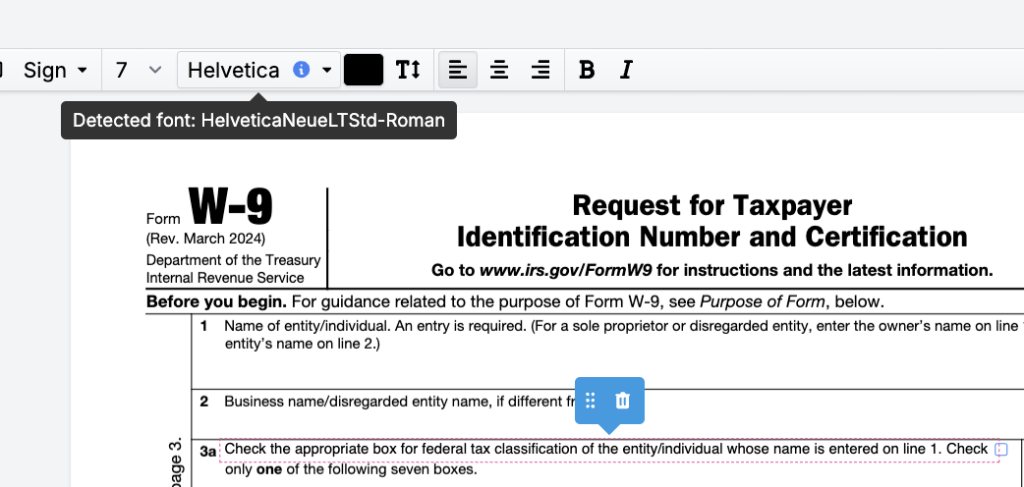
6. Edit the wording, selected text, or text styles as needed.
7. Review the font style, line spacing, and text alignment.
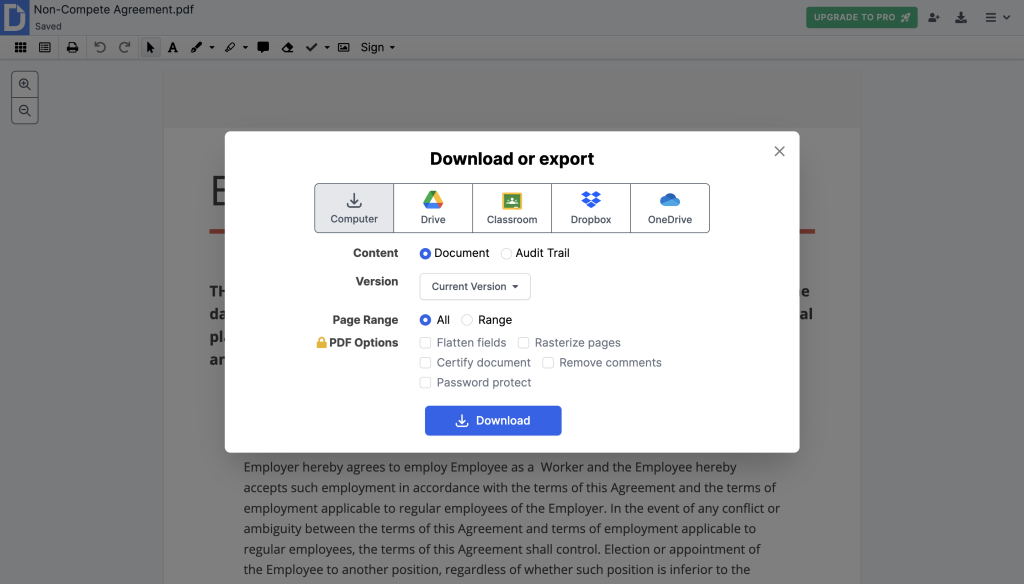
8. Save and download the updated file.
When you edit text, DocHub auto-detects the font based on available Google Fonts support. If the original typeface is one of the unavailable fonts outside that library, the system applies the closest visually similar option.
If your goal is a quick cleanup, this is a more reliable way to change fonts than manually recreating text in Adobe Acrobat or another PDF editor.
Watch the video guide below to see how our new Edit Text feature works:
| Task | Best DocHub method | For editable text already inside the PDF |
|---|---|---|
| Update existing wording | Edit Text | For editable text already inside the PDF |
| Add a new note or label | Add Text | When you need new content in open space or over the existing content |
| Improve PDF text alignment | Move or align text boxes | For headings, labels, and form layout |
| Resize PDF objects | Drag resize handles | For images, shapes, and placed elements |
| Reduce file size after edits with a PDF compressor | Use a function of a PDF compressor while exporting the file | Before sending, storing, or sharing |
This approach helps you choose the right tool, rather than forcing a single method for every edit.
How do you resize images and other objects in a PDF?
To resize PDF objects, select the object and drag the corner handles until it fits the surrounding layout. This applies to images, inserted graphics, shapes, signatures, and some text box elements.
Use this when:
- An image is too large for the page
- A logo needs to match the surrounding content
- A signature field takes too much space
- Multiple text boxes need a more balanced layout
- You want a consistent layout across pages
When resizing images, avoid stretching them disproportionately, as this can make your document look unprofessional. To preserve clarity and reduce file size, resize images while maintaining their original aspect ratio.
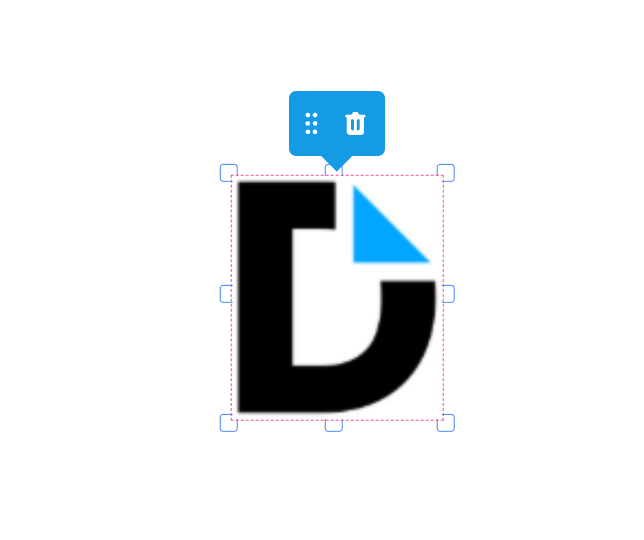
The option for image resizing in DocHub makes it easy to adjust the image size.
For more details on adding and resizing images using DocHub, see the blog: How to add and edit images in PDFs.
If the file becomes too heavy after adding images, you can use DocHub’s functionality as a PDF compressor while exporting the ready file. After you compress PDFs, you reduce file size, and make upload, download, and cloud storage easier. Many teams compress files after editing, so the final PDF online version is faster to share without losing quality.
How can you keep formatting consistent across a PDF document?
Consistency matters more than any single font choice. A polished PDF file should look intentional from the first page to the last.
Use these simple steps:
- Start with headings and labels
- Keep text alignment the same for similar elements
- Match font style and adjust text size carefully
- Review images and text fields together
- Check every page before you download
If you also need to convert other file formats into PDF before editing, do that first so your formatting work happens in the final version of the document.
Final thoughts
Need to change fonts, align text, or resize objects in a PDF without a complicated process? DocHub offers a practical solution, allowing you to make these edits in just a few clicks. With features like direct text editing, automatic font and formatting matching, and a browser-based secure workflow, it’s a powerful tool for teams that handle business documents daily.
Get started with DocHub, and turn your next PDF document into a clean, accurate, ready-to-share file.
Glossary
Edit Text: A DocHub feature that lets you edit text directly inside an editable PDF document.
Text box: A movable field used to add new text where direct editing is not available.
Text alignment: The position of text relative to the page or text box, such as left, center, or right.
Text block: A section of editable text grouped together in a PDF.
Rasterized text: Text that has been turned into an image and cannot be edited as live text.
PDF compressor: A tool used to compress PDFs and reduce file size for storage or sharing.
FAQs
What happens if the original font is unsupported?
When an original font is unavailable while editing a document, DocHub’s intelligent system automatically steps in. It replaces the missing font with the closest available match from the extensive Google Fonts library, which contains 1800+ high-quality fonts. This substitution process is designed to maintain the document’s original look, feel, and formatting as closely as possible, ensuring a seamless editing experience without a noticeable difference.
Can I edit text in a scanned document?
Generally, no. A scanned document is usually an image file, similar to a photograph of the page. This means the content is flattened, and your computer doesn’t recognize the shapes as editable letters or words. To edit the text, you would first need to use Optical Character Recognition (OCR) software to convert the image into an editable text document.
Is DocHub a browser-based online PDF editor?
Yes, DocHub is a comprehensive online PDF editor that runs directly in your browser, eliminating the need for software downloads. It fully supports various document workflows, allowing you to easily upload, edit, and sign your documents before downloading the finished version.
Can I resize images without affecting quality?
You can resize images to better fit your layout, but be aware that making them much larger or smaller can affect their quality. Extreme size changes, especially when enlarging a small image, can cause pixelation and reduce clarity. It’s always a good practice to review the final file before publishing or sharing to ensure your images still look sharp and professional.