

Managing multiple individual software licenses for your team leads to unnecessary administrative work and disconnected workflows. A centralized document management organization solves these issues by bringing your team into a single, cohesive environment.
- Setting up a shared workspace centralizes document management and streamlines user access.
- Administrators can manage all user licenses and billing from a single dashboard, eliminating the need to track individual subscriptions.
- You can assign specific roles (like Content Managers or Agents) to control who can view, edit, and share company documents.
- A centralized system improves security through audit trails, version control, and secure storage compliance.
- Creating a DocHub Pro Organization is a cost-effective alternative to managing individual Adobe Acrobat or Adobe Teams licenses.
This guide explains how to set up a shared workspace using DocHub, helping you move away from isolated accounts and transition toward an efficient, centralized system for all your PDF files and document workflows.
Why do teams need centralized document management?
Office managers frequently handle the frustration of juggling multiple individual licenses for document management software. When users have separate accounts, organizations face fragmented billing, inconsistent document storage, and security risks. If an employee leaves the company, recovering their digital files or transferring their software license can be difficult.
A centralized document management system eliminates these pain points. By bringing all users into a shared workspace, administrators gain full access control over company files. You can deploy workflow automation, ensure everyone uses the same file format, and track activity through audit logs. Centralized document management solutions also make it easier to stay compliant with industry regulations by keeping documents secure and providing clear audit trails.
Adobe Acrobat Teams vs. DocHub Pro: What is the best PDF editor for business?
When evaluating a PDF editor for business, cost and operational efficiency are primary considerations. Many large enterprises default to Acrobat Pro, but the costs quickly add up for small business teams.
Adobe Teams currently costs around $23 per user per month. For a mid-sized office, this represents a significant recurring expense, especially if many users only need basic tools to add text, sign PDFs, or manage standard digital files.
DocHub offers a highly functional alternative. DocHub bills your organization for DocHub Pro at the same per-user rate as DocHub Pro for individuals ($12 per month). It allows you to manage multiple users under one centralized billing dashboard. Instead of paying premium prices for complex processes your team rarely uses, DocHub provides the basics alongside comprehensive features such as advanced PDF text editing, secure storage, version control, and document capture.
How to set up your document management organization in DocHub
Creating a document management organization in DocHub takes only a few minutes. A free DocHub organization supports up to 5 members, while upgrading to DocHub Pro allows unlimited users.
Work better as a team with DocHub Organizations. Collaborate, manage, and store documents in one secure workspace. Here’s how to set it up:
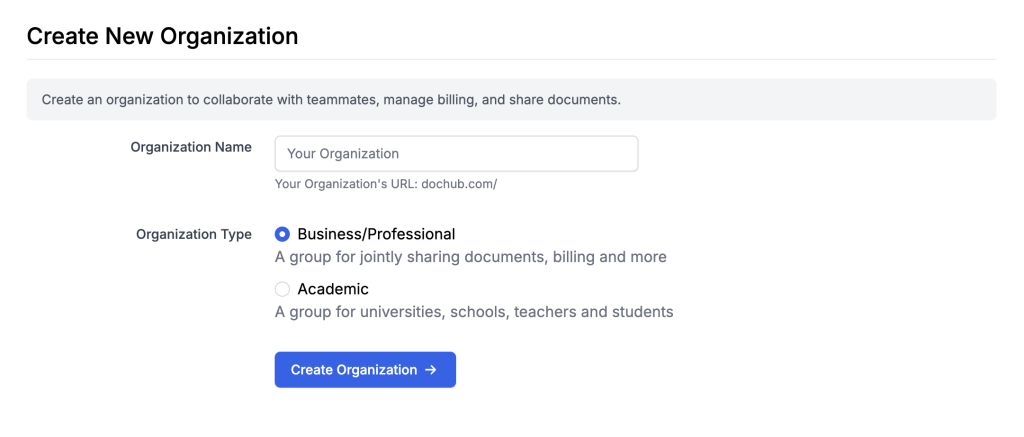
- Create your organization: Click Create New Organization in the left panel. Name your organization (this will create a custom URL) and select its type—Business or Academic. Click Create Organization to proceed.
- Invite your team: Add team members by entering email addresses individually, uploading a CSV file, or importing your contacts from Gmail.
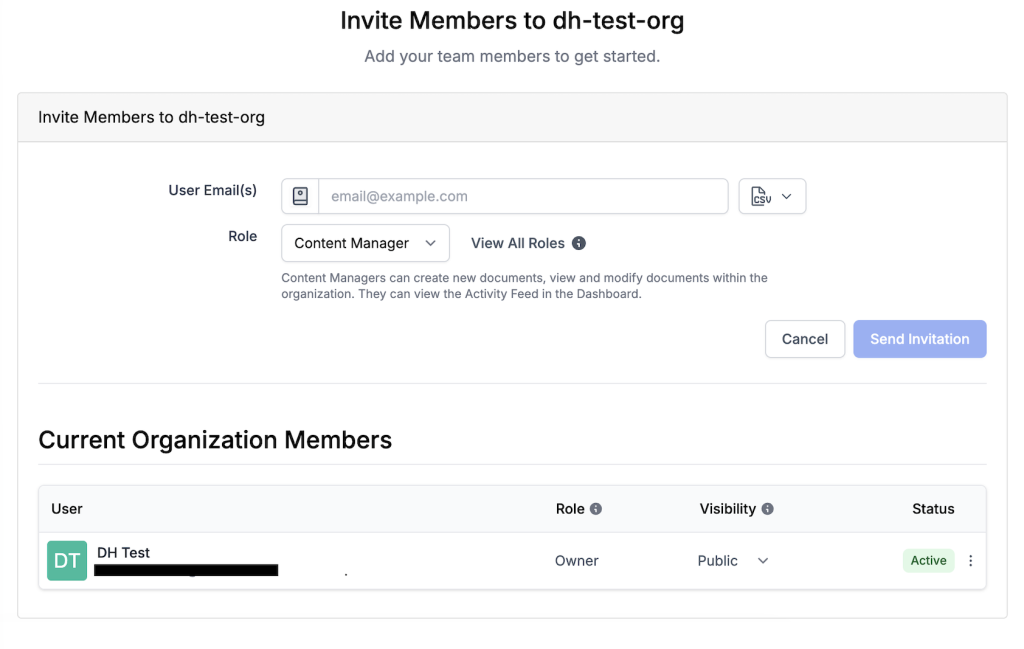
- Assign roles: Assign each member a role based on their responsibilities (e.g., viewer, creator, or administrator). As the owner, you can also manage who has access to Pro features.
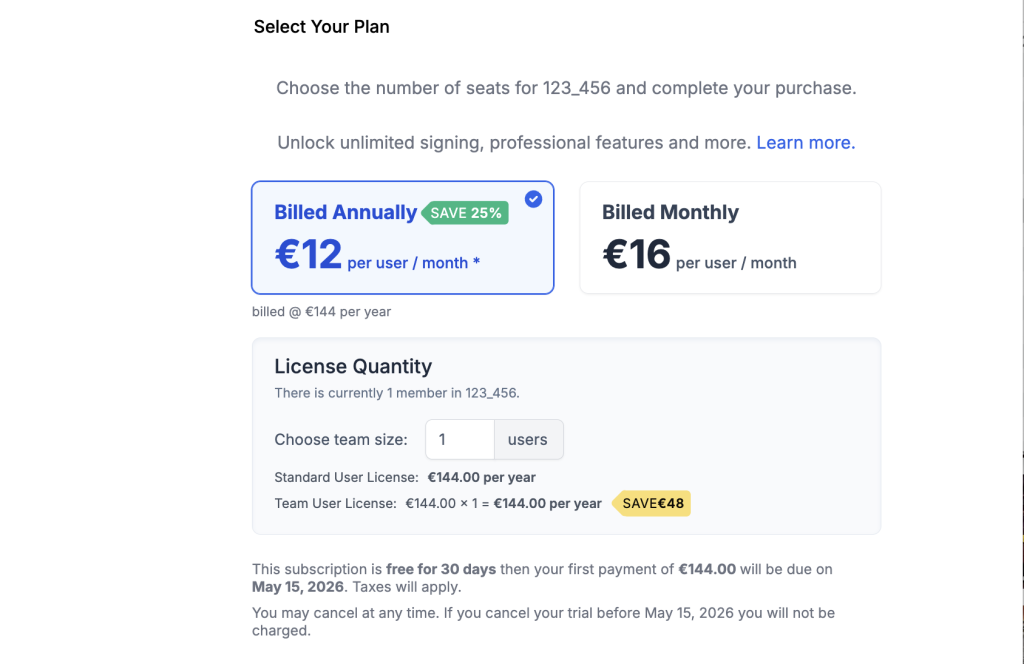
- Activate your plan: Proceed to checkout. Select the number of seats you need and choose a monthly or annual billing cycle. Complete the purchase to activate your organization. If you already have a personal Pro account, select Migrate DocHub Pro to Group.
- Personalize your workspace: After setup, you can customize your workspace by uploading a logo and choosing brand colors. You can also add faxing capabilities if required.
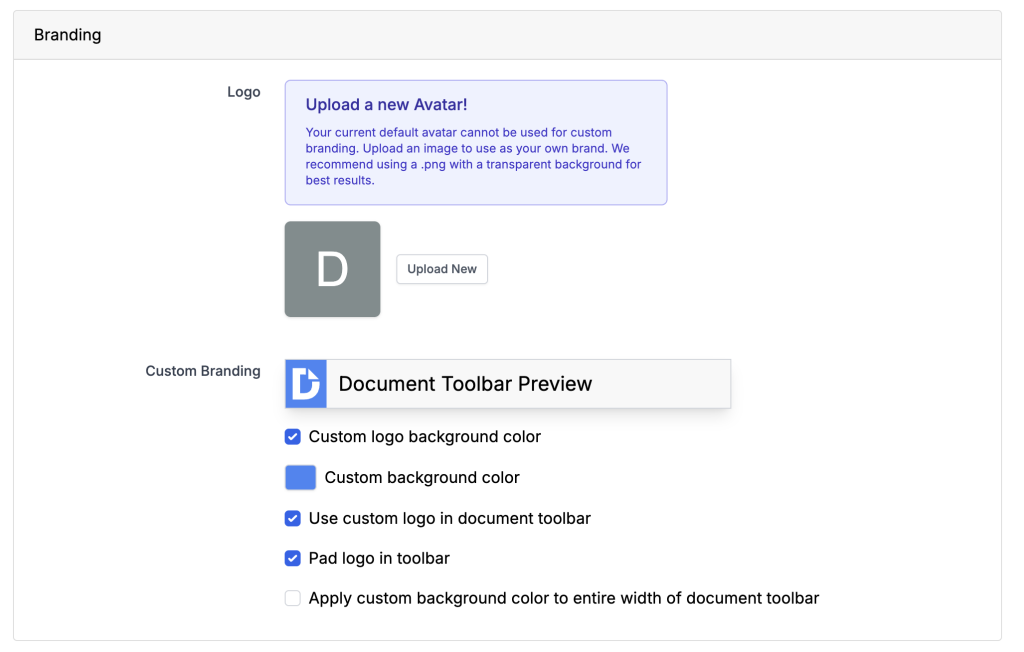
Now your organization is ready. Upload documents, collaborate with your team, and use all of DocHub’s tools to streamline your workflow.
For better organization and to move deals faster, create a Room for each transaction—keeping related documents, tasks, people, and activity all in one space so everything stays on track.
For more information about DocHub Pro for Organizations, visit DocHub Help Center.
How does workflow automation improve operational efficiency?
Once your shared workspace is active, your team can leverage the software to save time on manual PDF work. Centralized document management solutions allow you to automate workflows and standardize how paper documents are converted into digital records.
When you capture documents, they are stored securely in the cloud. Users can edit a PDF document directly in their browser without downloading it to local operating systems or mobile devices. This ensures everyone works on the most recent version of a PDF, eliminating confusion from managing multiple PDFs with conflicting edits.
Furthermore, integrating your document management software with tools such as Google Drive streamlines access to information. Users can seamlessly open a Google Docs document, convert it to a PDF file, and send it out for signatures without leaving the platform. This seamless transition between document creation and secure storage has a positive impact on both employee productivity and customer satisfaction.
Disclaimer: The information contained in this blog post is provided for general informational purposes only and does not constitute formal legal advice.
Final thoughts
Managing digital documents does not have to involve complex processes, scattered software licenses, or unmanageable expenses. By implementing a centralized document management organization, you secure your data, simplify user access, and streamline your entire billing process. DocHub provides a highly accessible, professional, and secure environment to handle all your PDF editing and signing needs.
Ready to simplify your document workflows and consolidate your team’s tools? Try DocHub Organizations today and experience the benefits of a truly centralized workspace.
Glossary
- Audit trail: A secure, chronological record that details all activity and changes made to a document, ensuring transparency and security.
- Centralized billing: A financial setup where multiple user licenses and subscriptions are consolidated into a single account and invoice.
- Access control: Security measures that determine which users have permission to view, edit, or share specific digital files within a system.
- Workflow automation: The process of using software to execute multi-step document processes automatically, reducing manual intervention.
- Document management system (DMS): Software used to receive, track, manage, and store documents while keeping a record of the various versions created and modified by different users.
Frequently asked questions
1. Can I change my organization name after creating it?
Yes. You can update your Organization Name and the corresponding Organization URL (domain) at any time through your organization settings.
2. How many users can I add to a free organization?
A free DocHub organization allows you to add up to 5 members. Upgrading to an organization DocHub Pro subscription unlocks unlimited users.
3. Can I pay for my organization subscription via invoice instead of a credit card?
While standard online upgrades require a credit card, you can arrange to pay by check, ACH, or wire transfer by contacting DocHub Support directly.
4. What happens if I already have a personal DocHub Pro subscription?
You do not have to pay twice. When setting up your organization billing, you will see an option to Migrate DocHub Pro to Group, which transfers your existing subscription into the new centralized billing structure.
5. How do roles differ between business and academic organizations?
The permissions are functionally similar, but the terminology changes to fit the environment. Business organizations use Content Managers and Agents, while academic organizations use Teachers and Students. Both types include Owner and Admin roles. For more info about organization roles, see: Organization Roles and Permissions
6. Does setting up an organization affect my personal documents?
No. Your personal documents remain separate from the organization’s workspace. You can choose to move personal documents into the organization if you wish to share them with the team, but they remain private by default.