Get and handle Purchase Order Forms online

Boost your file management using our Purchase Order Forms online library with ready-made form templates that meet your needs. Access your document template, change it, fill it, and share it with your contributors without breaking a sweat. Begin working more efficiently together with your forms.

The best way to manage our Purchase Order Forms:

  1. Open our Purchase Order Forms and search for the form you want.
  2. Preview your document to ensure it’s what you want, and click on Get Form to begin working on it.
  3. Modify, include new text, or highlight important information with DocHub tools.
  4. Complete your form and preserve the adjustments.
  5. Download or share your form template with other recipients.

Discover all the opportunities for your online document management using our Purchase Order Forms. Get a totally free DocHub account right now!


Video Guide on Purchase Order Forms management

video background

Commonly Asked Questions about Purchase Order Forms

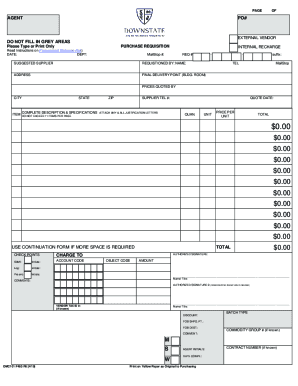
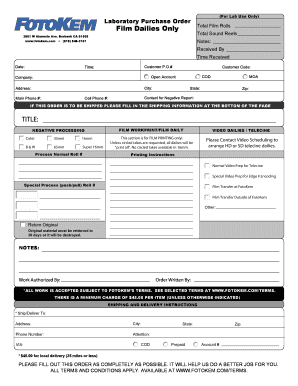
A purchase order form is used as an official record and contractual agreement of the business transaction between buyer and supplier, and outlines key information of the order. It is important for record keeping, auditing, and matching the PO to the invoice in order to issue payment.
Creating an order using Word First, open a Microsoft word document and click on the MS icon on the top left corner of the screen. From there, a drop-down list will appear, and then choose the option new. Under new, a list of template options will appear; choose the purchase order.
Steps to Create an Order Form Decide what to sell. Choose a form builder tool. Customize the template with proper fields. Add photos of the products. Customize the order form with branding. Set up a payment method. Set up a success message. Share the order form.
Creating Purchase Orders Manually On the Main Menu, click Inventory . Click Purchase Orders . Click New . Click either By PLU/X-Ref or By Vendor/SKU . Complete the appropriate fields at the top of the Purchase Order window: Complete the appropriate fields in the middle of the Purchase Order window.
Open a blank Excel spreadsheet. Click on the New tab in the top left corner of the software. Select the Purchase orders option from the list that appears. Click on the template that matches the type of PO you plan to create.
How to create purchase orders PO date. PO number. Delivery date. Shipping method. Buyer information (company name, email address, shipping address) Vendor information (company name, email address, and billing address) Items being ordered (SKU or item number, description, quantity of items, and price) The total price.
What To Include In A Purchase Order? Purchase order number (PO number) Company name and details - relevant contact information, business address, phone number. Purchase order date. Suppliers contact information. Item details - description, SKUs, quantity, unit measure, price. Expected delivery date.
Heres a breakdown of the typical purchase order form format: Header. Buyer and seller details, addresses, contacts, and a unique PO number. Date and delivery. Issue date and expected delivery date. Itemized list. Payment terms. Shipping/billing. Signatures. Logo and branding.