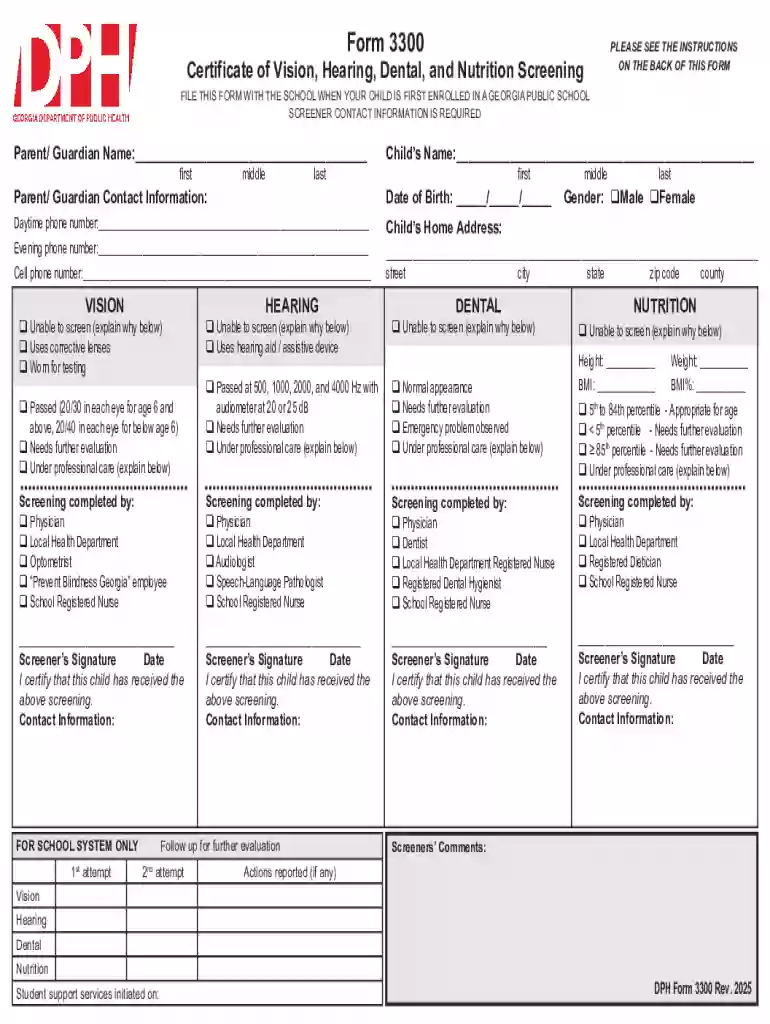
Unable to screen (explain why below) 2026

Get Form
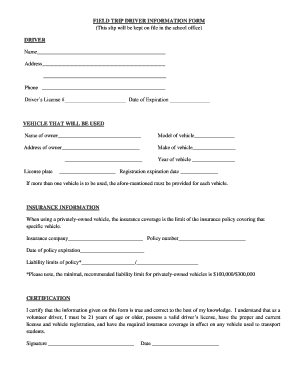
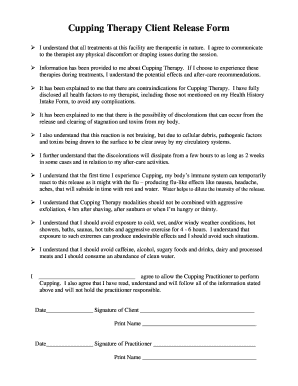
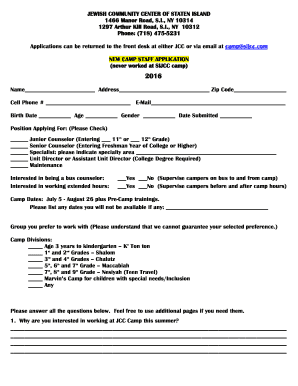
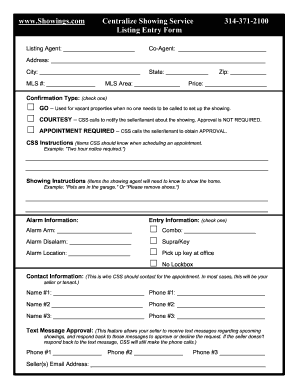
form 3231 and 3300 Preview on Page 1

Here's how it works

01. Edit your form 3231 and 3300 online
Type text, add images, blackout confidential details, add comments, highlights and more.

02. Sign it in a few clicks
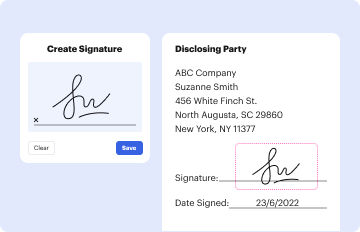
Draw your signature, type it, upload its image, or use your mobile device as a signature pad.
03. Share your form with others
Send form 3300 georgia via email, link, or fax. You can also download it, export it or print it out.

Definition and Meaning of "Unable to Screen (Explain Why Below)"

The phrase "Unable to Screen (Explain Why Below)" commonly appears in forms where certain screening processes cannot be completed due to various reasons. This potential option indicates that a required screening, such as a health assessment or background check, has not been performed, and the respondent is expected to specify the reason for the inability in the provided space. It is crucial to supply a clear explanation to ensure the form remains valid and that any necessary follow-ups or exemptions can be considered. This kind of notation is often seen in educational, medical, and occupational documents.

How to Use the "Unable to Screen (Explain Why Below)" Option

To use this option effectively, ensure that the context in which it is applied is legitimate and unavoidable. When checking this segment on a form, one must provide a detailed rationale in the accompanying explanation section. It's important to clearly articulate why the screening could not be completed, addressing potential future actions or alternative solutions, if applicable. This can involve logistical challenges, resource unavailability, societal restrictions, or personal reasons. Clear, concise explanations help maintain the integrity and usability of the form.

Steps to Complete the "Unable to Screen (Explain Why Below)" Section

  1. Identify the Screening Requirement: Review the specific screening process that was not completed.
  2. Check the Option: Mark the appropriate "Unable to Screen" section on the form.
  3. Provide a Detailed Explanation: Include clear and concise reasons for the inability in the space provided. This should cover the nature of the impediment and contextual information.
  4. Suggest Rectification Steps: Where feasible, note any steps to address the inability, such as alternate timelines or methods.
  5. Complete the Remainder of the Form: Ensure all other sections of the form are filled accurately.

Reasons and Scenarios for Using "Unable to Screen (Explain Why Below)"

There are various reasons why the screening process might be hampered, necessitating the use of this form option:

  • Technical Failures: Digital or technical problems that obstruct completion of electronic forms.
  • Resource Limitations: Unavailability of essential materials or personnel required for completing the screening.
  • Medical or Health Considerations: Sudden illness or medical conditions that prevent participation in required screenings.
  • Societal or Environmental Constraints: External situations such as a pandemic or natural disaster.

Importance of Explaining Inability to Screen

Providing comprehensive explanations is necessary to:

  • Ensure Form Validity: Detailed reasoning maintains the admissibility of the document.
  • Enable Potential Exemptions: Allows authorities to recognize genuine cases and possibly grant exception or alternative solutions.
  • Facilitate Future Correspondence: Preparing groundwork for any necessary follow-up actions or documentation.

Who Typically Uses the "Unable to Screen (Explain Why Below)" Option

This form section is frequently utilized by:

  • Health Professionals: Documenting instances where a patient cannot undergo a scheduled screening.
  • Educators or School Administrators: Handling cases where students are excused from certain health assessments.
  • Employers or HR Representatives: When staff are unable to complete mandatory checks pre-employment or during service.
decoration image ratings of Dochub

Legal Use of the "Unable to Screen (Explain Why Below)" Form Option

When using this form section, it is legally important to:

  • Provide Accurate Information: Any false representations could lead to legal challenges or penalties.
  • Comply With Copying Procedures: Ensure that the form is kept securely and shared with authorized personnel only.
  • Understand Any Legal Implications: Different jurisdictions may have varied rules regarding missed screenings, especially in health and education sectors.

Key Elements of the "Unable to Screen (Explain Why Below)" Section

  • Check Box for Inability: To indicate the unmet requirement.
  • Explanation Field: Area to articulate reasons for screening failure.
  • Signature and Date: confirming authenticity and awareness of the provided information.
  • Follow-Up Procedure Notes: Necessary actions or corrections for the issue.

State-Specific Rules for Using "Unable to Screen (Explain Why Below)"

Legal and procedural requirements for this form section can vary markedly across state lines, influenced by local regulations in health, education, and occupational standards. Understanding the specific state mandates helps ensure compliance and protects both individuals and institutions from legal repercussions. Some states might have rare exemptions or different methods for reporting similar situations, which should be factored into the explanation dynamics included in the form.

be ready to get more

Complete this form in 5 minutes or less

Get form

Got questions?

We have answers to the most popular questions from our customers. If you can't find an answer to your question, please contact us.
Contact us
How to fix computer screen size on Windows 10 Right-click on your desktop and choose Display Settings. Click on Advanced display settings. Select the Resolution drop-down menu. Choose the appropriate resolution value. Click Apply and Keep changes.
Check connections: Make sure your device is fully charged and/or plugged in. If you are using an external monitor, make sure the monitor is connected, plugged in, and powered on. Wake the screen: Press Windows + Ctrl + Shift + B to reset the graphics driver. You should hear a beep or see a screen flicker if successful.
Swipe up from the bottom of the screen. Tap Home or Home .
Change the screen resolution Stay in, or open, Display settings. Open your Display settings. Scroll to Scale and layout. Find Display resolution, and then choose an option. Its usually best to stick with the one thats marked (Recommended).

Security and compliance

At DocHub, your data security is our priority. We follow HIPAA, SOC2, GDPR, and other standards, so you can work on your documents with confidence.
Learn more
ccpa2
pci-dss
gdpr-compliance
hipaa
soc-compliance