Palco enrollment 2026

Get Form
palco enrollment Preview on Page 1

Here's how it works

01. Edit your palco enrollment online
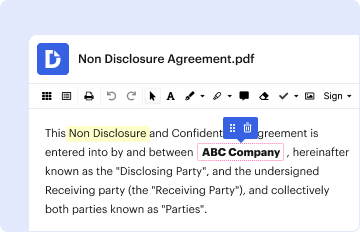
Type text, add images, blackout confidential details, add comments, highlights and more.

02. Sign it in a few clicks
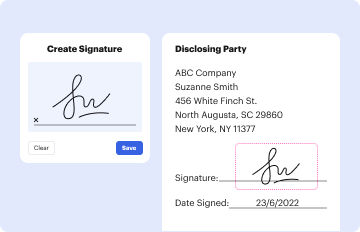
Draw your signature, type it, upload its image, or use your mobile device as a signature pad.
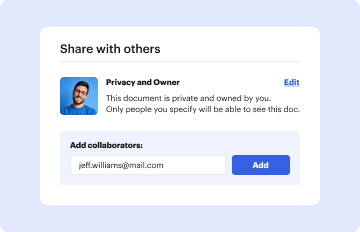
03. Share your form with others
Send enrollment palcofirst com via email, link, or fax. You can also download it, export it or print it out.

How to use or fill out palco enrollment with our platform

Form edit decoration
9.5
Ease of Setup
DocHub User Ratings on G2
9.0
Ease of Use
DocHub User Ratings on G2
  1. Click ‘Get Form’ to open the palco enrollment packet in the editor.
  2. Begin by filling out the Participant Referral Form. Enter the employer's information in the designated sections, ensuring all fields are completed accurately.
  3. Proceed to IRS Form SS-4. Fill in your full name, address, and Social Security Number (SSN) where highlighted. Ensure you sign and date at the bottom.
  4. Next, complete IRS Form 2678 by providing your name and address as required. Sign at the bottom to authorize Palco as your agent for tax purposes.
  5. Continue with IRS Form 8821, entering your information and signing at the end to allow Palco to communicate with the IRS on your behalf.
  6. Fill out the Authorization Agreement, ensuring you understand and agree to Palco's responsibilities as your fiscal/employer agent before signing.
  7. Finally, review all forms for completeness and accuracy. Submit them via fax, email, or mail as instructed in the packet.

Start using our platform today for free to streamline your palco enrollment process!

See more palco enrollment versions

We've got more versions of the palco enrollment form. Select the right palco enrollment version from the list and start editing it straight away!
Versions Form popularity Fillable & printable
2017 4.8 Satisfied (41 Votes)
2016 4.1 Satisfied (49 Votes)
be ready to get more

Complete this form in 5 minutes or less

Get form

Got questions?

We have answers to the most popular questions from our customers. If you can't find an answer to your question, please contact us.
Contact us
Palco Power Systems, located in Winfield WV, has been providing generator sales and service in and around our communities near Charleston West Virginia for decades. Palco Power Systems in West Virginia became a Kohler Generator distributor in 1982. One of 27 nationally.
The whole timesheet approval workflow is technically straightforward. The employee initiates the process by filling out the timesheet. They then submit their timesheet to their team lead, manager, or point of contact within the organization. The team lead or manager approves the timesheet if everything is accurate.
Should you need any assistance during this process, please contact a friendly customer support representative at 1.866. 710.0456 or at info@palcofirst.com. Visit our website at .palcofirst.com for more information on forms and frequently asked questions.
Every timesheet requires two approvals- one by the Worker and one by the Employer. Once a timesheet has been created and submitted, the individual remaining to complete the approval can access Connect in order to approve. When a timesheet is pending the Employer or Worker review, it will be locked for edits.
We provide coordinated Financial Management and Fiscal/Employer Agent Services, for older adults, people of all ages with a disability, veterans, foster children, and more. We work with government agencies, nonprofits, Managed Care Organizations, and the private sector.

Security and compliance

At DocHub, your data security is our priority. We follow HIPAA, SOC2, GDPR, and other standards, so you can work on your documents with confidence.

Learn more
ccpa2
pci-dss
gdpr-compliance
hipaa
soc-compliance

People also ask

After you have reviewed and approved Week 1 and Week 2, you are ready to Approve your employees time card. Click on Approve Timecard located in the upper right side of the screen, just above the time card. Notice that the Approved Time Card Button has changed to Approved with a green check mark. CONGRATULATIONS!
In order to approve timesheets, both the employer and worker must be registered in Palcos Connect application. In order to do this, they must be assigned an ID number by Palco. The ID number is issued via email after the enrollment process is complete.
In the Timesheet Policies section, under Task Status Manager Approval, choose Enabled if you want managers to be able to approve individual timesheet lines. You can also choose to Require line approval before timesheet approval. Click Save when you are done with your changes.

palcofirst com