Other methods of ordering on reverse side 2026

Get Form
reverser online Preview on Page 1

Here's how it works

01. Edit your reverser online online
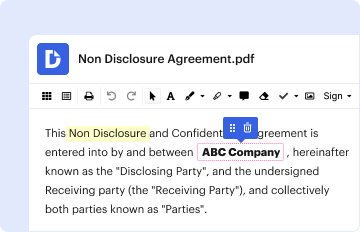
Type text, add images, blackout confidential details, add comments, highlights and more.

02. Sign it in a few clicks
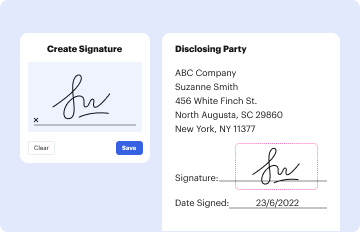
Draw your signature, type it, upload its image, or use your mobile device as a signature pad.

03. Share your form with others
Send it via email, link, or fax. You can also download it, export it or print it out.

How to use or fill out Other methods of ordering on reverse side

Form edit decoration
9.5
Ease of Setup
DocHub User Ratings on G2
9.0
Ease of Use
DocHub User Ratings on G2
  1. Click ‘Get Form’ to open it in the editor.
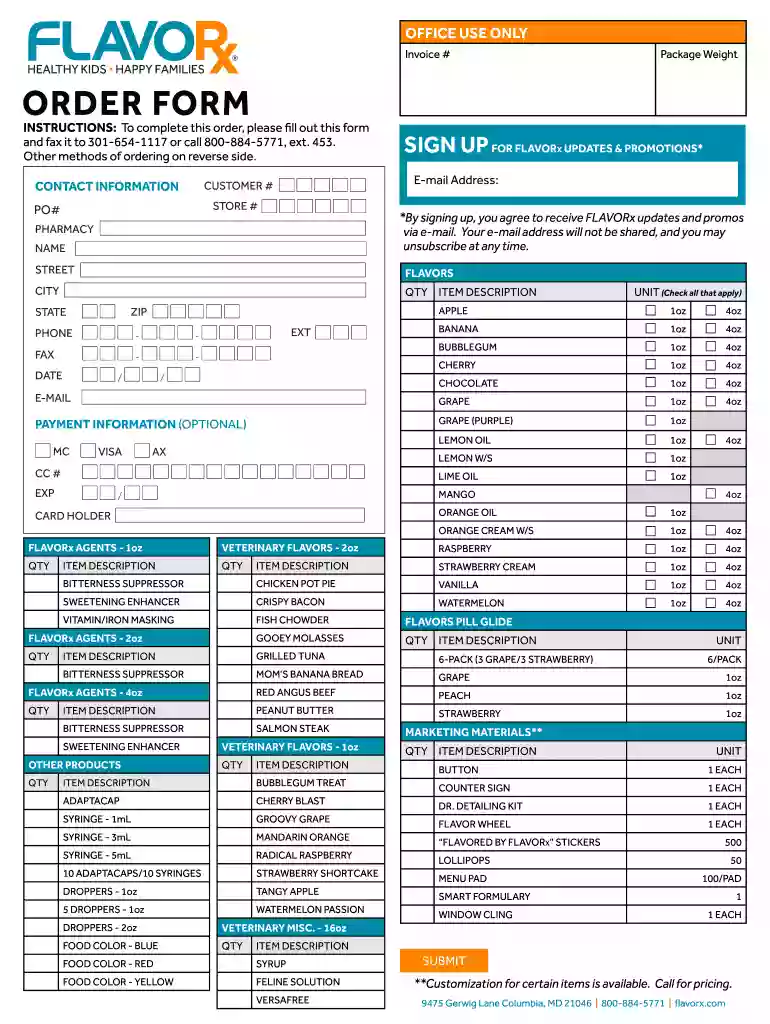
  2. Begin by entering your contact information. Fill in the STORE #, PHARMACY NAME, STREET, CITY, STATE, ZIP, and PHONE fields accurately.
  3. Next, specify the FLAVORS you wish to order. For each flavor listed (e.g., APPLE, BANANA), indicate the quantity (QTY) and select the appropriate UNIT (1oz or 4oz).
  4. If applicable, provide PAYMENT INFORMATION. Enter your credit card details including CARD HOLDER name, CC #, EXP date, and any additional required information.
  5. Review all entered information for accuracy before submitting. Ensure that you have checked any necessary boxes for updates and promotions.
  6. Once completed, submit your order via fax or email as instructed on the form.

Start using our platform today to streamline your ordering process for free!

See more Other methods of ordering on reverse side versions

We've got more versions of the Other methods of ordering on reverse side form. Select the right Other methods of ordering on reverse side version from the list and start editing it straight away!
Versions Form popularity Fillable & printable
2017 4.2 Satisfied (59 Votes)
2016 4.7 Satisfied (55 Votes)
be ready to get more

Complete this form in 5 minutes or less

Get form

Got questions?

We have answers to the most popular questions from our customers. If you can't find an answer to your question, please contact us.
Contact us
How to flip columns and rows in Excel Highlight your data range. Figure out what the first cell of your data range is and highlight it. Copy your data. Click on the first cell for your new location. Delete the original data range. Select blank cells. Type =TRANSPOSE( Type the range of the original cells. Finish the formula.
0:00 0:57 And name it reverse. And I will fill this column. With 1 to 15 since I have 15 data rows here. Now IMoreAnd name it reverse. And I will fill this column. With 1 to 15 since I have 15 data rows here. Now I will sort this column from descending to ascending order. And see all the data in reverse.
Sort from left to right Select any cell within the range you want to sort. On the Data tab, select Custom Sort. In the Custom Sort dialog box, select Options. Under Orientation, select Sort left to right. Under Row, in the Sort by drop down, select the row that you want to sort.
1:14 1:23 You want the data right click sort smallest to largest. There we go we get back the data the way it.MoreYou want the data right click sort smallest to largest. There we go we get back the data the way it.
Quickly reverse order of columns or rows while preserving Select the cells that you wish to reverse order, either by click-dragging, or hold CTRL to make multiple selections. Click Reverse columns

Security and compliance

At DocHub, your data security is our priority. We follow HIPAA, SOC2, GDPR, and other standards, so you can work on your documents with confidence.

Learn more
ccpa2
pci-dss
gdpr-compliance
hipaa
soc-compliance
be ready to get more

Complete this form in 5 minutes or less

Get form

People also ask

0:50 7:36 Then right click on a cell. Sort custom sort options sort left to right click on okay. And I want toMoreThen right click on a cell. Sort custom sort options sort left to right click on okay. And I want to sort by row four which has my numbers in sort by row four largest to smallest.

Related links