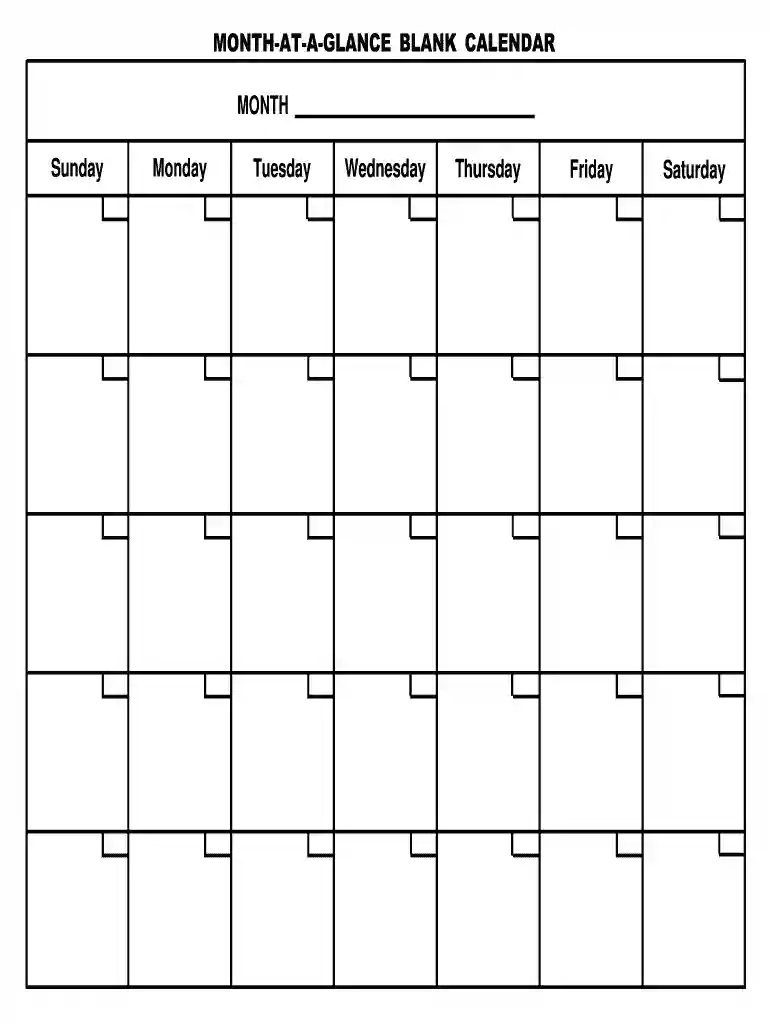
Month glance blank calendar printable 2026

Get Form
printable blank monthly calendar template Preview on Page 1

Here's how it works

01. Edit your printable blank monthly calendar template online
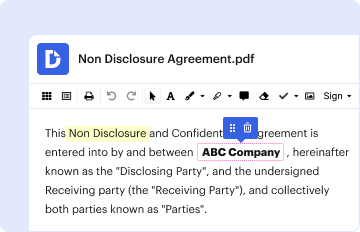
Type text, add images, blackout confidential details, add comments, highlights and more.

02. Sign it in a few clicks
Draw your signature, type it, upload its image, or use your mobile device as a signature pad.
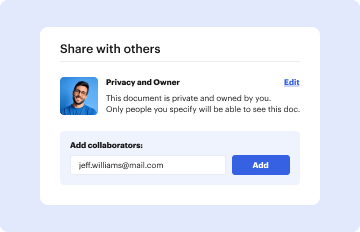
03. Share your form with others
Send month blank form via email, link, or fax. You can also download it, export it or print it out.

How to use or fill out month glance blank calendar printable with our platform

Form edit decoration
9.5
Ease of Setup
DocHub User Ratings on G2
9.0
Ease of Use
DocHub User Ratings on G2
  1. Click ‘Get Form’ to open the month glance blank calendar in the editor.
  2. Begin by selecting the month you wish to plan for. You can easily type in the name of the month at the top of the calendar.
  3. Next, fill in each day of the week starting from Sunday through Saturday. Click on each box under the corresponding day and enter your planned activities or appointments.
  4. Utilize additional features such as highlighting important dates or adding notes in designated areas if available. This will help you keep track of significant events.
  5. Once completed, review your entries for accuracy and clarity. Make any necessary adjustments before saving your document.

Start using our platform today to effortlessly create and manage your monthly plans for free!

be ready to get more

Complete this form in 5 minutes or less

Get form

Got questions?

We have answers to the most popular questions from our customers. If you can't find an answer to your question, please contact us.
Contact us
Create a new calendar On your computer, open Google Calendar. On the left, next to Other calendars, click Add other calendars. Create new calendar. Add a name and description for your calendar. Click Create calendar.
On the Insert tab, click Calendars, and then choose a design under either This Month or Next Month. Note: Some designs do not include a calendar object. If you need more options, such as more designs or the ability to choose a different month: On the Insert tab, click Calendars, and then click More Calendars.
On the File menu, click New. In the Publication Types list, click Calendars. Under Calendars, click the type of calendar that you want to create (for example, Full Page or Wallet Size), and then click the design that you want. In the Customize task pane, click the options that you want, such as color or font scheme.
Customize print your calendar On your computer, open Google Calendar. To select a date range, at the top right, click: Day. Week. Month. Schedule. 4 days. At the top right, click Settings menu. Print. On the Print preview page, change details such as font size or orientation. Click Print.
On your computer, open Google Calendar. In the top right, choose a view: Day, Week, Month, Year, Schedule, or 4 days.