Co 1068-2026

Get Form
ct direct deposit form Preview on Page 1

Here's how it works

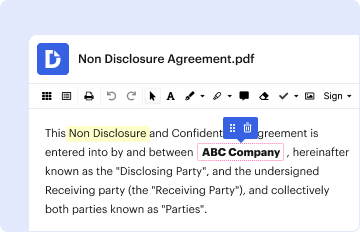
01. Edit your ct direct deposit form online
Type text, add images, blackout confidential details, add comments, highlights and more.

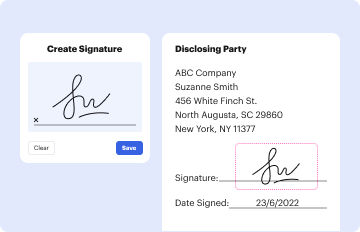
02. Sign it in a few clicks
Draw your signature, type it, upload its image, or use your mobile device as a signature pad.
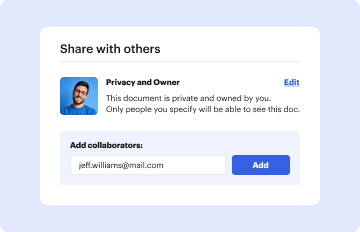
03. Share your form with others
Send co 1068 via email, link, or fax. You can also download it, export it or print it out.

How to use or fill out co 1068 with our platform

Form edit decoration
9.5
Ease of Setup
DocHub User Ratings on G2
9.0
Ease of Use
DocHub User Ratings on G2
  1. Click ‘Get Form’ to open the CO-1068 in the editor.
  2. Begin by checking the box if you are a retired municipal employee. This is crucial for proper identification.
  3. Enter your Retiree/Annuitant Number, which was formerly your employee number, followed by your full name (Last, First, M.I.).
  4. Provide your Social Security Number to ensure accurate processing of your direct deposit.
  5. Fill in your current mailing address. If there’s a change, complete Form CO-1082 as well.
  6. In the Direct Deposit Account Information section, specify the bank name and routing transit number (ensure it has 9 digits).
  7. Select the account type (Savings or Checking) and enter your account number.
  8. Review the authorization statement carefully before signing. Ensure you understand all terms regarding direct deposits.
  9. Sign and date the form, then provide your telephone number for any follow-up communication.

Start using our platform today to easily fill out and submit your CO-1068 form for free!

See more co 1068 versions

We've got more versions of the co 1068 form. Select the right co 1068 version from the list and start editing it straight away!
Versions Form popularity Fillable & printable
2016 4.8 Satisfied (80 Votes)
2011 4.3 Satisfied (115 Votes)
be ready to get more

Complete this form in 5 minutes or less

Get form

Got questions?

We have answers to the most popular questions from our customers. If you can't find an answer to your question, please contact us.
Contact us

Sure, and it’s really easy! DocHub is an online PDF editor with advanced document processing functions that allow you quickly adjust your paperwork, complete blank fields and insert new ones for others to fill out, and create electronic signatures in several ways. Upload your retirement direct deposit form pdf, provide information as requested, and select how you want to eSign your template - by typing your name, drawing your signature, uploading its picture, or utilizing a QR code.

If you are looking for a state-specific retirement direct deposit form sample, you will find it in our DocHub Forms & Templates catalog. Use the search field, key in your form’s name, and search through the results for your state. You may also filter out irrelevant results while exploring our catalog by categories.

How to start your own pension Step 1: Check if you can join a workplace pension. Step 2: Understand how personal pensions work. Step 3: Compare pension providers, charges and products. Step 4: Sign up to a pension scheme. Step 5: Decide how much to pay into your pension. Step 6: Regularly review your pension savings.
How to set up direct deposit step-by-step Choose a direct deposit provider. Complete setup paperwork. Gather employee information. Upload employee data. Sync direct deposit with a payroll schedule. Process payroll.
There are two ways to sign up for direct deposit: By mail - Complete and mail the Direct Deposit Authorization (PDF) to CalPERS. Online - Log in to myCalPERS. Go to the Retirement tab and select Payment Options.

Security and compliance

At DocHub, your data security is our priority. We follow HIPAA, SOC2, GDPR, and other standards, so you can work on your documents with confidence.

Learn more
ccpa2
pci-dss
gdpr-compliance
hipaa
soc-compliance
be ready to get more

Complete this form in 5 minutes or less

Get form

People also ask

FAQs Log in to your BroncoDirect Student Center. Go to the Student Financials section and select Bank Accounts or Enroll in Direct Deposit. Enter your U.S. bank routing and account number. Select the account type (checking or savings). Confirm your information and submit.
Written confirmation of your monthly retirement benefit may be obtained at any time by contacting the Retirement Services Divisions Customer Service Center by phone at 860-702-3480, by fax at 860-702-3489 or by email at osc.rsd@ct.gov.
Deposits can be as large or as small as you like. Bear in mind that tax-deferred retirement accounts are subject to yearly contribution limits, however. Note that Direct Deposit purchases into an Individual Retirement Account (IRA) are for current-year contributions only.

Related links