



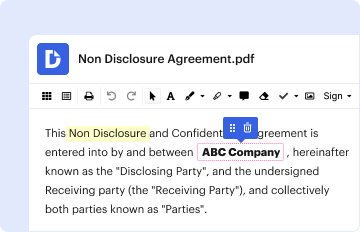
01. Edit your form online
Type text, add images, blackout confidential details, add comments, highlights and more.

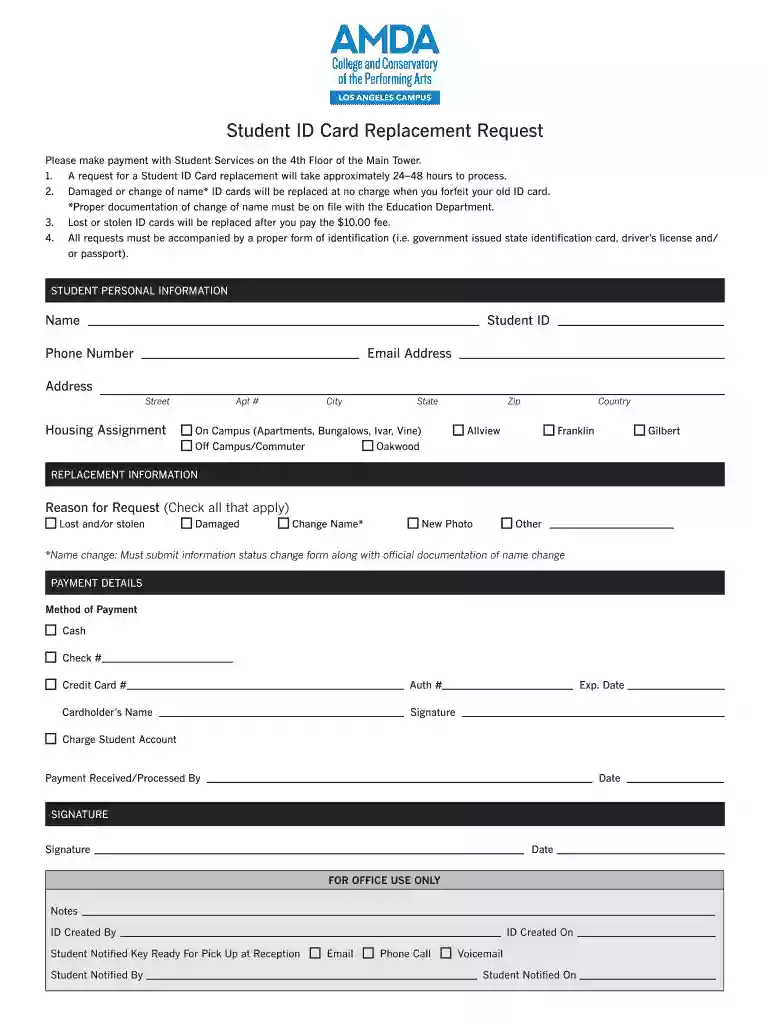
Type text, add images, blackout confidential details, add comments, highlights and more.
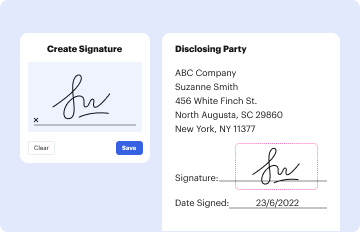
Draw your signature, type it, upload its image, or use your mobile device as a signature pad.
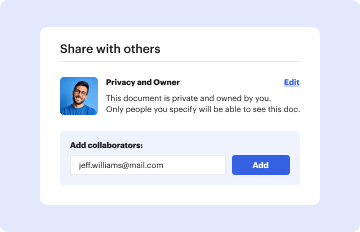
Send it via email, link, or fax. You can also download it, export it or print it out.
In this section, explore the frequently asked question regarding visibility issues with payment requests within the EdGrants system. Understand potential reasons behind this challenge and how it affects users.
Several factors might contribute to not seeing your payment request in the EdGrants system:
Ensure your account has the correct permissions to view all related requests. Contact IT support for assistance if needed.
Understanding the critical components of payment requests enhances submission accuracy and expedites processing.
Ensuring each payment request adheres to legal standards is crucial:
Explore how various organizations and individuals typically utilize EdGrants payment requests in real-world scenarios.
Schools often use EdGrants to request funds for educational projects or infrastructure improvements. They detail projected impacts on learning outcomes and track the allocation of resources.
Nonprofit organizations may rely on EdGrants for funding community engagement programs or research initiatives. They must articulate the societal benefits and report progress consistently.
While EdGrants is federally managed, individual states might have specific guidelines impacting payment request procedures.
Set realistic expectations for approval and fund disbursement by understanding typical timelines.
For urgent funding needs, contact EdGrants administrators to inquire about potential expediting options.
Adhering to these guidelines will enhance your EdGrants experience and help resolve common issues related to payment request visibility.
We've got more versions of the EdGrants FAQs 1 2 Why cant I see my Payment Request form. Select the right EdGrants FAQs 1 2 Why cant I see my Payment Request version from the list and start editing it straight away!
At DocHub, your data security is our priority. We follow HIPAA, SOC2, GDPR, and other standards, so you can work on your documents with confidence.
If you want to print out your payment request, go back in to the payment request by clicking the orange folder (you should now see a date and time stampRead more
How to Apply for Federal Funding Opportunities Are You Eligible for Federal Funding Opportunities? Ways to Get Help When Using Grants.gov Grant Writing Tips.Read more


