





Definition & Meaning
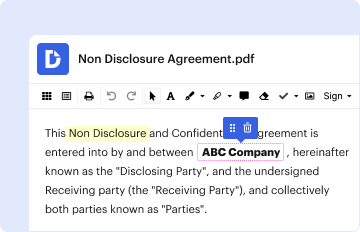
Forms are structured documents typically used to collect specific information from individuals or organizations. The concept of filling out a form online refers to the process of completing these structured documents via an internet-enabled platform. It allows users to submit data electronically, facilitating more efficient data processing and storage. This digital approach replaces traditional paper-based methods, offering convenience and speed.
Types of Online Forms
Online forms vary greatly based on their purpose. Here are some common categories:
- Registration forms: Used for signing up for events, websites, or services.
- Application forms: Employed by entities like schools, employers, or programs to collect detailed information from applicants.
- Surveys and feedback forms: Designed to collect opinions, preferences, or feedback from users.
- Order forms: Utilized by businesses for transactions, capturing purchase details and payment information.
The process of completing forms online is governed by principles that ensure data security, accurate collection, and legally binding submission.
How to Use the Form Online
Filling out forms online involves a straightforward process that maximizes user convenience. Here's a general guideline:
-
Accessing the Form: Find the form on the specific website, usually under a relevant section like 'Forms' or 'Applications'. This can involve logging into a secure portal.
-
Filling the Required Fields: Enter information into compulsory fields, typically marked with an asterisk (*). Fields may include personal details, contact information, and specific data relevant to the form's purpose.
-
Optional Sections: Some forms have fields that are optional, allowing the user to provide additional information if desired.
-
Review and Edit: Before submission, review all entered data to ensure accuracy and completeness. Most platforms allow editing before finalizing the form.
-
Submit the Form: Click the 'Submit' button to complete the online submission. Many systems confirm receipt with a notification or email.
Advanced Tools and Features
- Save Progress Functionality: Allows the user to save a partially completed form for later completion, ensuring data isn't lost.
- Error Alerts: Immediate notifications for incorrectly filled fields or missing information, relevant for ensuring form completeness.
How to Obtain the Form Online
Securing access to online forms is a simple process that hinges on knowing where to look:
-
Official Websites: Head to the official site of the organization issuing the form. Look for easily recognizable sections related to documents or forms.
-
Search Feature: Utilize the website's search bar by typing the form name or number, streamlining the process of locating the required document.
-
Downloads Section: Descargar archivos form provides an option to download or fill forms directly on the platform, offering flexibility depending on user preference.
-
Email Requests: Some organizations allow users to request forms through email, providing a direct link or attachment in response.
-
Third-Party Platforms: In some instances, government or educational forms might be housed on partner sites for easier access.
Versatility and Convenience
Forms are often available in multiple formats, supporting diverse user needs:
- Printable PDFs: For those preferring offline completion.
- Interactive Templates: For direct online filling, eliminating the need for downloads.
- Mobile Optimization: Ensures accessibility from smartphones or tablets.
Steps to Complete the Form Online
The task of filling out forms online can be broken down into methodical steps ensuring clarity and efficiency:
-
Gather Information: Compile necessary data and documents beforehand to streamline the process.
-
Form Access: Navigate to the form through the appropriate website or portal. Ensure that secure connections are used when dealing with sensitive data.
-
Input Data: Carefully enter required information, ensuring each field is accurately filled. Utilize dropdowns and selectors for precise entries when available.
-
Review and Validate: Re-check all entered information, correcting any mistakes highlighted by error alerts. Validation helps in preventing common issues like mismatched data or incomplete sections.
-
Submit Form: Once all necessary fields are filled and verified, proceed with submission. Ensure that the submission is confirmed by the system.
-
Save Confirmation: Keep a copy of the confirmation, either through a downloaded receipt or an email acknowledgment, for your records.
Common Challenges
- Technical Issues: Ensure consistent internet connection to avoid being logged out or losing progress.
- Understanding Terms: Some forms may contain legal or technical jargon—users should clarify with relevant authorities if unsure.
Who Typically Uses the Form Online
The audience for online forms is diverse, encompassing various sectors and demographics:
- Individuals: For personal, educational, or job applications.
- Businesses: Leveraging forms for registrations, feedback, and data collection from clients.
- Government Bodies: Utilizing online forms for public services, tax filings, and information dissemination.
- Educational Institutions: Employing forms for student admissions, course enrollments, and staff recruitment.
This widespread adoption illustrates the utility of online forms across different societal segments, supporting their growing popularity and ease of use.

Important Terms Related to Form Online
Understanding certain key terms can enhance your experience with online forms:
-
Fillable Fields: Sections within the form designed for user input, ranging from text boxes to drop-downs.
-
Validation: A built-in process ensuring input data adheres to required formats, which might include email addresses or phone numbers.
-
Authentication: Security measures designed to verify user identity before granting access to the form, ensuring data protection.
-
Encryption: The process of encoding data during transmission to protect sensitive information from unauthorized access.
-
Submission Acknowledgment: A notification confirming the form has been successfully submitted, providing assurance of process completion.
These terms guide users on what to expect and how to navigate the process effectively.
Key Elements of the Form Online
Online forms can vary greatly in complexity, but they often contain several common elements:
-
Personal Information Section: Collects basic identification details, such as name, birthdate, and contact information.
-
Data Entry Fields: Dedicated spots for entering specific details required by the form purpose. They range from short response fields to larger text areas.
-
Instructions and Guidelines: Directions provided to ensure the form is completed correctly. This might include submission deadlines, required documents, or specific data formats.
-
Submission Button: A clear method for sending the completed form, sometimes accompanied by an option to save or preview responses.
The inclusion of these elements ensures the form is user-friendly and meets the objectives set by the issuing entity.
Digital vs. Paper Version
Transitioning from paper to digital forms has both benefits and drawbacks, each worthy of consideration:
Advantages of Digital Forms
- Instant Submission: Online forms provide immediate submission and confirmation, reducing delays typical with postal services.
- Environmental Impact: Less paper usage contributes to environmentally-friendly practices.
- Accessibility and Convenience: Access from anywhere enhances flexibility, catering to busy schedules.
Challenges with Digital Forms
- Technical Barriers: Not all individuals are comfortable navigating online platforms or may lack internet access.
- Data Security: Online forms are subject to hacking risks, underscoring the importance of effective encryption and authentication.
Comparatively, paper forms remain relevant for those without digital access or in instances where a physical copy is legally required.