



Definition and Meaning
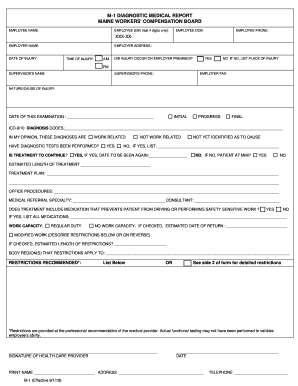
"Admin checklist excel" refers to a structured list or form used primarily for administrative tasks, created and maintained within an Excel spreadsheet. This checklist is designed to streamline and organize administrative duties such as tracking key dates, managing employee tasks, or overseeing project milestones. By leveraging Excel's functionality, users can easily sort, filter, and analyze data, ensuring that all tasks are accounted for and completed on time.
Key Features of an Admin Checklist
- Task Management: Prioritizes and tracks the completion of administrative tasks.
- Time Efficiency: Reduces the time spent on managing responsibilities by centralizing information.
- Data Analysis: Utilizes Excel's tools to create visual representations such as charts and graphs.
- Customization: Allows users to tailor the checklist according to specific needs.
How to Use the Admin Checklist Excel
Using an admin checklist in Excel involves setting up and maintaining the spreadsheet for optimal task management. This process includes organizing tasks, deadlines, and responsible parties within a structured Excel sheet to ensure efficiency and accountability.
Step-by-Step Guide
- Set Up the Spreadsheet: Open Excel and create a new sheet. Define columns based on the tasks, due dates, responsible individuals, and status.
- Enter Data: Populate the spreadsheet with relevant data for each task. Include deadlines and designate responsibilities to ensure clarity.
- Utilize Excel Functions: Use conditional formatting to highlight tasks based on urgency or completion status. Employ formulas to calculate deadlines or summarize task completion rates.
- Regular Updates: Continuously update the checklist with new tasks and mark completed ones, maintaining its validity and utility.
Steps to Complete the Admin Checklist Excel
Completing an admin checklist requires a systematic approach to ensure all necessary tasks are fulfilled. Follow these steps to achieve comprehensive task completion.
Completion Procedure
- Review Tasks: Begin by reviewing all tasks listed in the checklist for clarity and understanding.
- Prioritize Tasks: Identify high-priority tasks that need immediate attention and mark them accordingly.
- Assign Responsibilities: Ensure that each task has a clear owner who is responsible for its completion.
- Track Progress: Regularly update the status of each task, noting any challenges or delays.
- Quality Check: Upon completing tasks, conduct a review to ensure that all checklist items meet quality standards.
Why You Should Use Admin Checklist Excel
Using an admin checklist in Excel offers numerous benefits, primarily in boosting efficiency and accuracy in managing administrative tasks.
Advantages
- Organized Workflow: Provides a clear framework for tracking tasks, improving overall organization.
- Enhanced Productivity: Streamlines task management, allowing for more efficient completion of duties.
- Accountability: By assigning responsibilities within the checklist, team members remain accountable for their respective tasks.
Key Elements of the Admin Checklist Excel
An admin checklist in Excel includes various components essential for thorough task management and monitoring.
Essential Components
- Task Details: A comprehensive description of each task to ensure clarity.
- Due Dates: Clearly defined deadlines to guide timely completion.
- Assigned Personnel: Identification of individuals responsible for each task.
- Progress Indicators: Status updates to track task progression and completion.
Digital vs. Paper Version
Deciding between a digital and paper version of an admin checklist has implications for usability and accessibility.
Comparisons
-
Digital Version:
- Pros: Easily editable, shareable, and integrates well with other digital tools.
- Cons: Requires electronic devices and can be vulnerable to technical issues.
-
Paper Version:
- Pros: Tangible and accessible without technology.
- Cons: Prone to physical damage and lacks advanced data analysis capabilities.
Software Compatibility
An admin checklist created in Excel is compatible with various software applications, enhancing its functionality and accessibility.
Compatible Software
- Google Sheets: Offers real-time collaboration and cloud-based storage.
- Microsoft Office Suite: Seamless integration with other Microsoft applications for expanded functionality.
Examples of Using the Admin Checklist Excel
The admin checklist excel finds versatile applications across various administrative domains, providing structure and efficiency.
Real-World Scenarios
- Event Planning: Manage vendors, schedules, and logistics using a checklist format.
- Project Management: Track project milestones, responsible teams, and deadlines.
- Inventory Management: Maintain a record of inventory levels and reorder schedules.
By incorporating these elements and strategies, users can maximize the utility of an admin checklist in Excel, greatly enhancing workflow management and productivity.