




01. Edit your form online
Type text, add images, blackout confidential details, add comments, highlights and more.

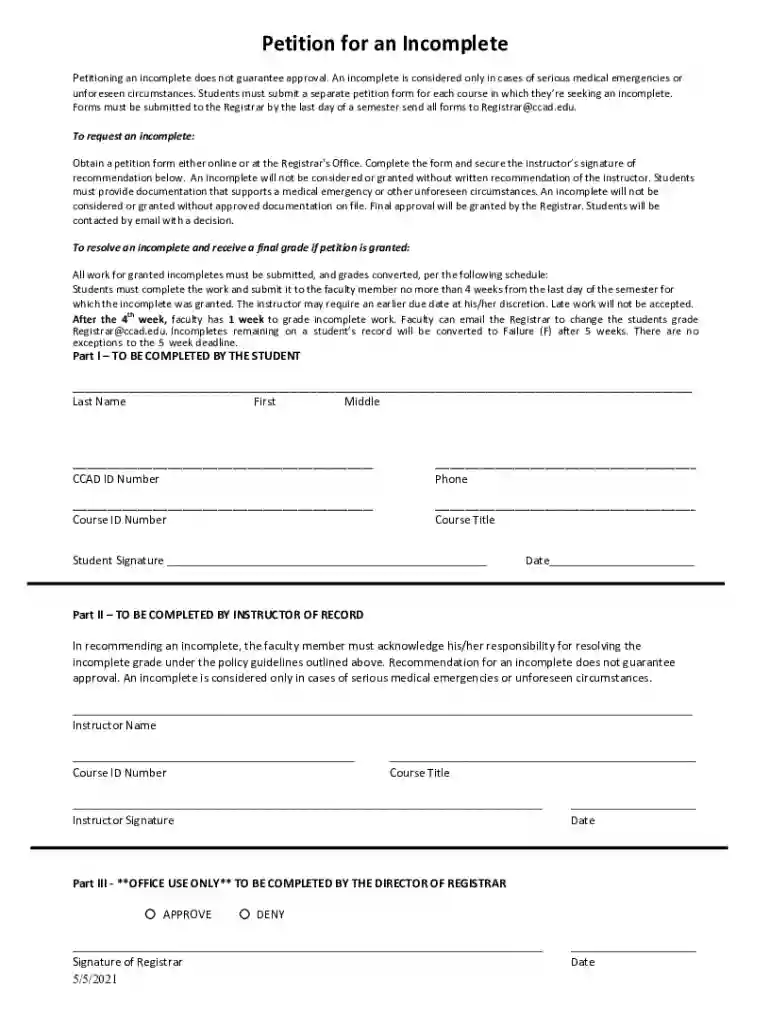
Type text, add images, blackout confidential details, add comments, highlights and more.

Draw your signature, type it, upload its image, or use your mobile device as a signature pad.

Send it via email, link, or fax. You can also download it, export it or print it out.
The "Student Registration and Records" form at the University of South Florida (USF) is a critical component of the administrative processes that support students' academic journeys. This form is a central hub for students to manage their enrollment, maintain their academic records, and perform various related activities. It serves as a documentation tool that ensures students' academic information is accurately recorded and accessible for activities such as class registration, transcript requests, and graduation verification. Understanding its significance helps students navigate academic requirements at USF effectively.
Securing the "Student Registration and Records" form at the University of South Florida is a straightforward process. You can access the form through the Registrar's Office portal on the university's official website. Students can log into their MyUSF accounts to download the form directly. For those preferring physical copies, they may visit the Registrar's Office on campus, which provides in-person assistance and printed versions of the form. This ensures that all students have various access points, catering to different preferences and technological accessibility levels.
Filling out the form accurately is essential to avoid any disruption in your academic activities. Here are the key steps:
Access the Form: Begin by logging into your MyUSF account and locating the form under the Registrar's Office section.
Personal Information: Enter your full name, student ID, and contact details. Ensure all information matches your USF records.
Course Selection and Changes: Indicate your desired classes, any changes to your current schedule, or leave of absence requests.
Supporting Documents: Upload or attach any required supplementary documents, such as instructor permissions or medical notes, if applicable.
Review and Confirm: Double-check all entries for accuracy before submission. Ensure any required fields are completed.
Submit: Send the form electronically through the portal or hand it in at the Registrar's Office if providing physical documentation.
The form includes several crucial sections:
Each element plays a vital role in maintaining accurate student records and ensuring seamless academic operations.
The primary users of the "Student Registration and Records" form are current USF students. It is essential for:
This diverse user base underscores the form's versatility in addressing various academic scenarios.


USF provides multiple ways to submit the "Student Registration and Records" form. Most students opt for the online method, utilizing the MyUSF platform for seamless electronic submission and immediate confirmation. This method is ideal for students who prefer digital convenience.
Alternatively, students can submit the form in person. This option supports those who prefer face-to-face interactions with Registrar staff to resolve any questions instantly. Both methods are designed to accommodate student preferences while ensuring timely processing.
Specific documents might be required when submitting the form to ensure all changes or requests are supported by credible sources. Some common documents include:
Gathering these documents ahead of submission assists in smooth processing without delays.
The "Student Registration and Records" form is also an official document recognized within the educational framework. This form is vital for legal compliance, as universities must maintain accurate records reflecting students' academic status and progress. Institutions use these records for accreditation review, federal reporting, and academic audits. By completing this form, students ensure that their academic pursuits are formally documented, protecting their educational rights and facilitating services like financial aid and scholarships.
Legal accuracy in form completion also safeguards students' credits and ensures all academic pursuits align with university policies and standards. Misrepresentation or misinformation could lead to administrative holds or delays in academic services, underscoring the significance of responsible form use.
We've got more versions of the Student Registration and Records - University of South Florida form. Select the right Student Registration and Records - University of South Florida version from the list and start editing it straight away!
At DocHub, your data security is our priority. We follow HIPAA, SOC2, GDPR, and other standards, so you can work on your documents with confidence.



Access your class schedule, registration, and academic records all in one place with Student Self-Service. Its your go-to hub for managing your USF journeyRead more
Oct 5, 2022 The voter registration system has its own data. This database contains address, citizenship, age, mental fitness, and other records, as well asRead more
USFs focus on student success continues to bring high-achieving and academically accomplished students; this falls incoming class broke records for


