01. Edit your form online
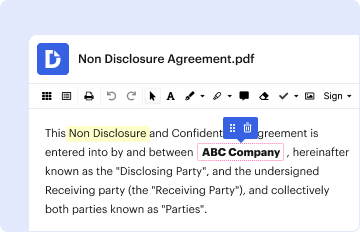
Type text, add images, blackout confidential details, add comments, highlights and more.

Type text, add images, blackout confidential details, add comments, highlights and more.
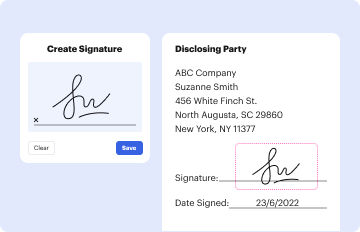
Draw your signature, type it, upload its image, or use your mobile device as a signature pad.

Send it via email, link, or fax. You can also download it, export it or print it out.
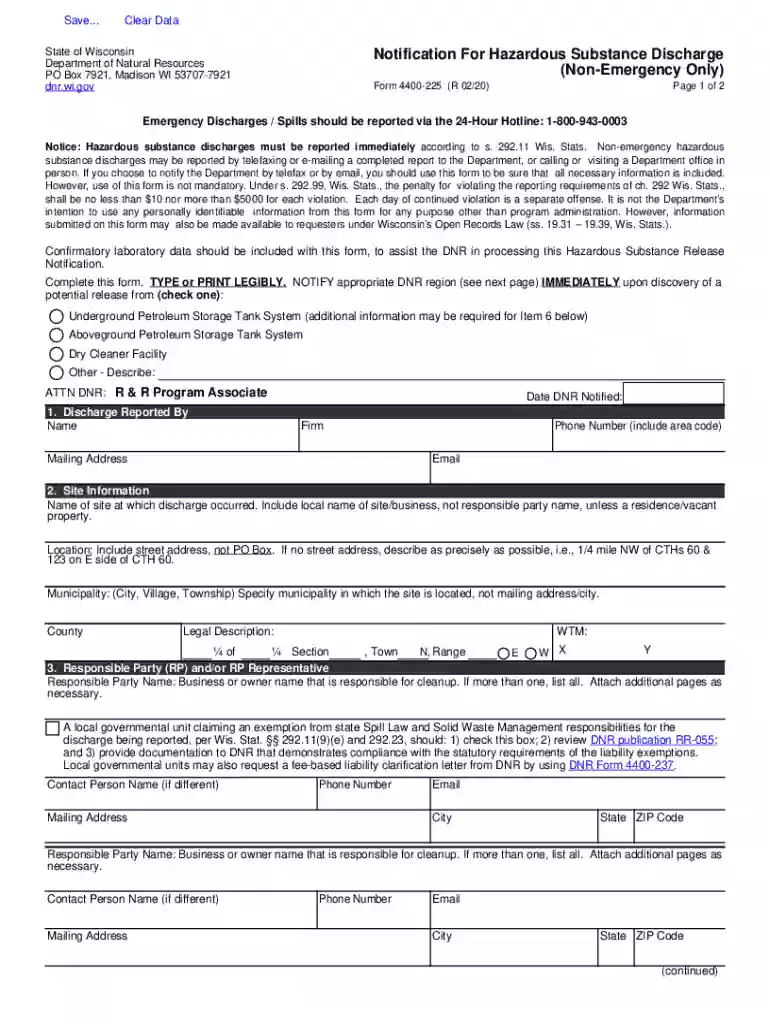
This title marks the core requirement for electronically managing certain PDF forms. The phrase indicates a necessity for using specific software, Adobe Reader or Acrobat, to ensure that the form can be effectively filled out and saved. This requirement underscores the compatibility limitations that may exist with generic or default PDF viewers that often do not support advanced form-saving functionalities.
Form Functionality: Many PDF forms utilize interactive fields that allow users to input data directly. Adobe Reader and Acrobat offer robust support for such forms, ensuring that users can fill, save, and retrieve information without losing data.
Security Features: These Adobe applications provide enhanced security for handling sensitive information that the form may require, adding another layer of protection with access controls.
Formatting Consistency: Using the specified software ensures that the form retains its intended format and layout, preventing any potential misalignment or data distortion that might occur with other viewers.
Successfully filling out this form involves a series of methodical steps that ensure all required fields are correctly completed and saved.
Open the Form in Adobe Reader or Acrobat: Navigate to the file location on your computer and ensure the form opens within one of the specified Adobe applications.
Enter Data in Fillable Fields: Utilize the tools within the software to input text, numbers, or other required data into the designated interactive fields.
Save Progress Regularly: To avoid data loss, save your work periodically. Use the "Save As" option to create a backup version if needed.
Final Review: Once all fields are completed, conduct a thorough review to ensure that all entries are accurate and no sections are inadvertently overlooked.
Secure the Document: After confirming that all data is entered, consider encrypting the document or setting a password for additional security before final distribution.
Understanding software compatibility is vital for effectively managing electronic forms. While Adobe Reader and Acrobat are recommended, it's important to note how software compatibility influences usability and data integrity.
Alternative Viewers: Other PDF viewers might not support form-saving capabilities, leading to potential data loss or incomplete submissions.
Cross-Platform Usability: Adobe applications are available for various operating systems, ensuring broad accessibility and functionality across different devices.
Integration with Other Software: Adobe Reader and Acrobat often integrate seamlessly with other document management solutions, providing an efficient workflow for users who manage numerous forms or documents regularly.
Recognizing the critical components of this form enhances understanding and streamlines the completion process.
Fillable Fields: These may include text boxes, date pickers, and dropdowns, essential for structured data collection.
Instructional Text: Guidance on how to effectively use the form, including any embedded tips or notes.
Mandatory Sections: Certain fields may be compulsory, and the software often flags these to prevent submission without completion.
Filling out this form correctly is essential not only for personal reasons but also for adhering to any legal or regulatory requirements, which could be state-specific.
Compliance: Ensures that the form meets statutory requirements, which could relate to personal reporting, business operations, or other governmental necessities.
Authentication: Adobe applications provide options for digital signatures, which can be crucial for verifying authenticity and acceptance in legal contexts.
The directive to use Adobe Reader or Acrobat is more than a mere suggestion. It is an essential step in ensuring the document's legitimacy, functionality, and acceptance, particularly for official or regulated submissions.
Data Integrity: Preserves the authenticity of user input and ensures no fields are accidentally altered post-submission.
Official Recognition: Many institutions explicitly require forms submitted to be completed using authorized software to safeguard against tampering or misinterpretation.
The effective use of Adobe Reader or Acrobat for managing forms is advantageous across diverse business sectors.
Corporate Offices: Need standardized and secure methods to handle sensitive documents across departments.
Freelancers and Remote Workers: Benefit from the ease of access and the ability to complete forms without physical presence.
Healthcare Organizations: Require stringent data management practices to protect personal health information.
While Adobe Reader and Acrobat are recommended, there are circumstances where other solutions might be viable or even preferable depending on specific user needs.
Third-party PDF Editors: Some may offer partial compatibility, although often lacking defined saving capabilities.
Web-based Solutions: Certain platforms may provide sufficient functionality for simple forms but are typically less reliable for complex documents requiring extensive interactive features.
By adhering strictly to this guidance and utilizing the specified software, users can ensure their form submissions are accurate, secure, and compliant with the necessary requirements.
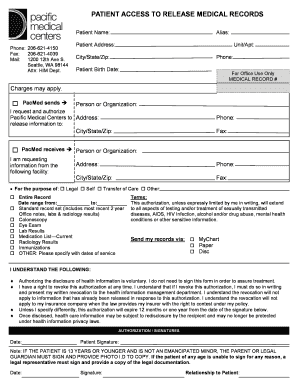
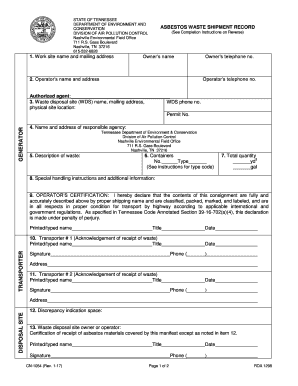
We've got more versions of the Note: In order to fill and save this form electronically, it must be opened using Adobe Reader or Ac form. Select the right Note: In order to fill and save this form electronically, it must be opened using Adobe Reader or Ac version from the list and start editing it straight away!
At DocHub, your data security is our priority. We follow HIPAA, SOC2, GDPR, and other standards, so you can work on your documents with confidence.