
Highlight text in PDF extension for Microsoft Edge or Google Chrome.

No more need to acquire PDF document management software to highlight text in pdf. With DocHub’s extension, the required capabilities are just a click away.
DocHub logo
Gmail logo

Do more with your PDF documents directly from your Chrome or Edge browser

Connect DocHub

Edit and annotate your PDF

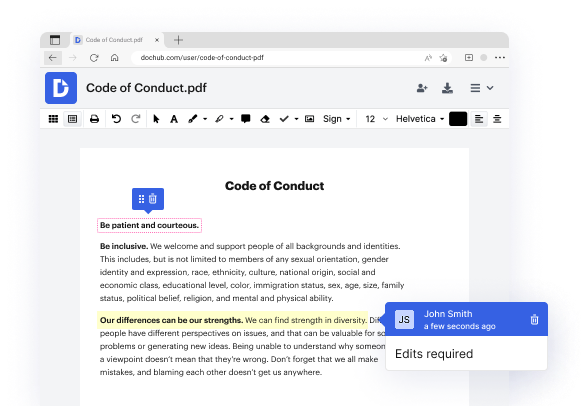
Easily open and edit PDFs from your browser. Add texts, images, drawings, comments, and highlights to your document. Swipe your cursor to white out, underline, or strike out text.
Edit PDFs

Organize PDFs with ease

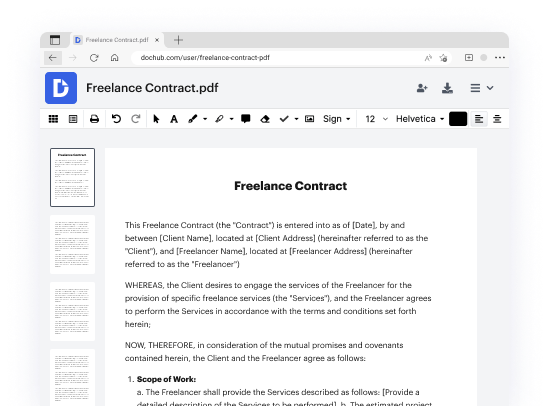
Enhance your PDF directly from Edge or Chrome. Easily remove unneeded pages, insert new ones, correct misoriented pages, or rearrange them with a quick drag and drop to make your PDF cohesive.
Sign eSignatures

Sign, request, and track signatures

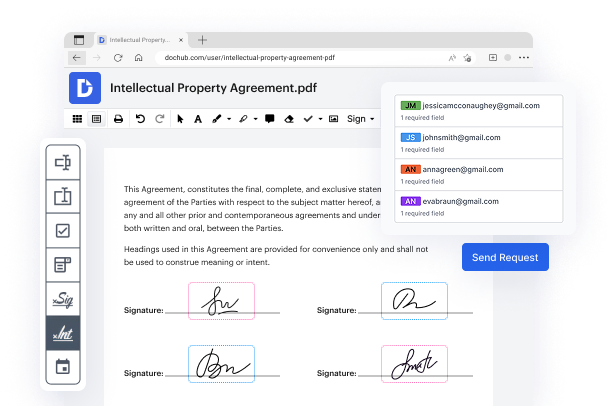
eSign documents right from your browser. Choose your preferred method to add a legally-binding eSignature and request signatures from others in a specific order or all at once and track them in real-time.
Build PDF forms

Create and share PDF forms and templates

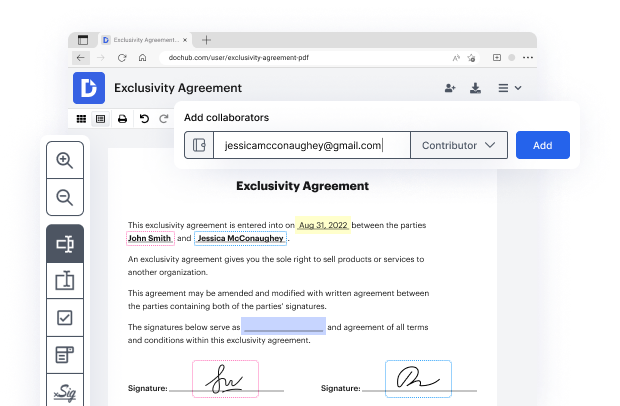
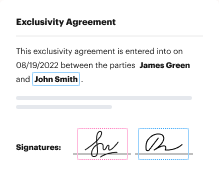
Turn any PDF into a fillable form straight from your Chrome or Edge browser. Add signature or data fields and convert it into a reusable template. You can make it public, set editing permissions, or share it with recipients. It’s as simple as that.
Build PDF forms

Export or download PDF

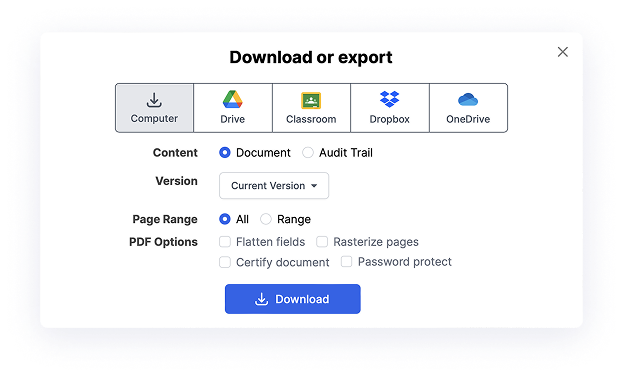
Once finalized, you can export your PDF to the cloud storage service of your choice, store it securely in DocHub, or download it to your device. If you need a physical copy of your PDF, print it out from DocHub with a single click.

Take your document workflow anywhere with DocHub’s extension for Chrome and Edge.

Stay connected with your team

Boost team productivity. Open PDF from Edge or Chrome, add comments, and share with specific permissions for others to view or edit.
benefit card decoration
Get more work done

Experience PDF editing, eSigning, and form creation on Chrome and Edge. Create documents, collect data and signatures while web browsing.

Ensure document security

Secure PDFs in your browser with DocHub’s encryption and two-factor authentication while complying with data security regulations.

Seal the deal from anywhere

No more chasing contracts. Sign a PDF yourself, or invite others to sign it in any order. Track signatures with real-time alerts.

benefit card decoration

Simplify online document management like never before with the DocHub extension

What other users say about DocHub's eSignature

Great solution for PDF docs with very little pre-knowledge required.
"Simplicity, familiarity with the menu and user-friendly. It's easy to navigate, make changes and edit whatever you may need. Because it's used alongside Google, the document is always saved, so you don't have to worry about it."
Pam Driscoll F
Teacher
A Valuable Document Signer for Small Businesses.
"I love that DocHub is incredibly affordable and customizable. It truly does everything I need it to do, without a large price tag like some of its more well known competitors. I am able to send secure documents directly to me clients emails and via in real time when they are viewing and making alterations to a document."
Jiovany A
Small-Business
I can create refillable copies for the templates that I select and then I can publish those.
"I like to work and organize my work in the appropriate way to meet and even exceed the demands that are made daily in the office, so I enjoy working with PDF files, I think they are more professional and versatile, they allow..."
Victoria G
Small-Business

Got questions?

Here are some common questions from our customers that may provide you with the answer you're looking for. If you can't find an answer to your question, please don't hesitate to reach out to us.
Contact us
To create a highlight, the user simply needs to select the text, right-click on it, select highlights in the menu and choose the desired color. Highlights can also be created using a pen, or keyboard.
Simply go to the PDF editor in Adobe Acrobat online services from any web browser and follow these three easy steps: Select the highlighter tool from the horizontal toolbox located at the top of the PDF editor. Select the desired color of your highlighter tool.
Select the Highlighter (second icon) to highlight. Again, you can change the colour of the highlight and size of nib by clicking on the little arrow to the bottom right of the highlighter image. Delete all the ink on the screen by clicking on the eraser (third icon).
Fixes 1: Turn Off PDF Read-Only Mode If the PDF highlighter not working, it might happen if document is in read-only mode. This feature prevents users from making modifications like highlighting, text annotation, etc. Ensure saving the PDF document without allowing this mode.
How To Highlight Online PDFs Step 1: the PDF Web Highlighter extension. Web Highlights is a simple tool for highlighting text on any website or PDF. Step 2: Visit any online PDF in your browser. Step 3: Click the Highlight this PDF popup. Step 4: Select text and highlight it.
Web Highlights is an excellent Chrome extension for highlighting and organizing text on web pages and PDFs. Its easy to use features like colors coding, tagging, bookmarking and note-taking options, make it ideal choice for students, researchers, and professionals.
Open any PDFs hosted on the web and click the Glasp icon at the top right. It refreshes the page and allows you to start highlighting. When you select a sentence, you can see a popup showing up, so please click any color you want. Tips: If you click the Glasp icon on a PDF, you can see a menu below.

Learn how to Highlight text in PDF with DocHub’s extension

Managing files can be so much simpler! With our robust extension for your browser, you can easily Highlight text in PDF and take control of your PDFs. Here are eight actions to move to the most user-friendly online document management:

  1. Go to the Chrome Web Store or Edge Add-ons and search for ‘DocHub.’
  2. For Google Chrome, select Add to Chrome, or for Microsoft Edge, select Get.
  3. Pin the extension to the toolbar for fast access.
  4. Click the DocHub icon to make modifications to a PDF in your browser.
  5. Follow the prompts to create a free account, or log in if you currently have one.
  6. Once signed in, your document will be displayed in the editor and be set for you to use.
  7. Highlight text in PDF with the user-friendly tools in the toolbar.
  8. Store or distribute your completed document immediately from your tab.

That’s it! Whether you need to modify, annotate, or distribute your files, DocHub has got you backed.