
Scan to PDF with a simple mobile app
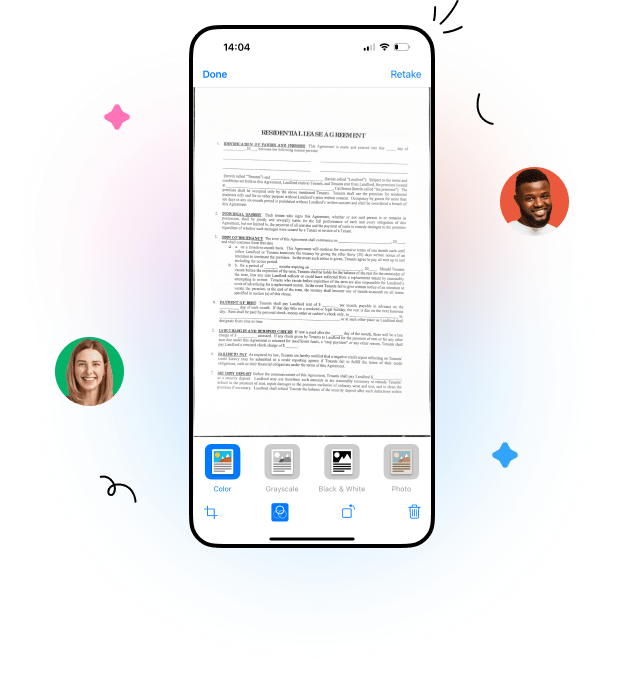
Use DocHub mobile app to snap a photo of any paper document and turn it into an editable PDF you can sign and share directly from your phone.


Experience the benefits of mobile document scanner
Watch how easy it is to scan paper to PDFs
Scan your key documents on the go

Contracts and agreements
Got a paper contract you need to sign and send back? Scan it in seconds with your phone, sign it electronically on mobile, and send it to your team or client to keep deals moving.
Receipts
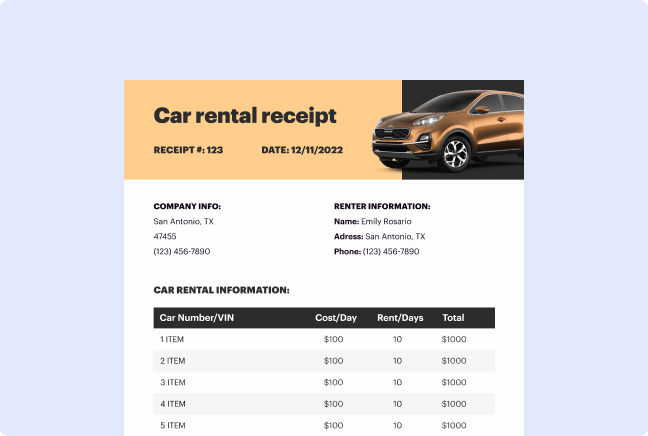
Clear out the clutter in your wallet. Scan receipts, share them with your accountant, and keep them organized for easy expense tracking, reimbursements, or taxes.
Invoices
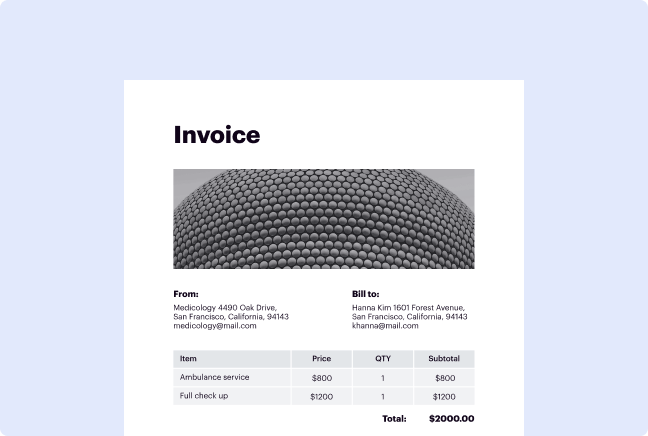
Don’t wait to get back to the office to handle billing. Scan paper invoices on the spot, make them fillable, and send them to clients right away for faster payment.

Notes
Jot down ideas in a meeting or class? Scan your handwritten notes and turn them into professional PDFs you can share with others or save in the cloud for future use.
How to scan documents to PDF in 4 easy steps

With the DocHub mobile app, you can easily turn physical papers into high-quality digital files. Say goodbye to bulky scanners and tedious processes–here's how you can scan papers in just a few clicks.
Follow the steps below to quickly scan a document to PDF:
- Get the app. Download the DocHub mobile app for your iPhone or Android device and sign in to your account.
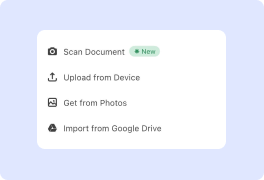
- Start a new scan. Tap the plus (+) icon and select the camera option to open the PDF scanner.
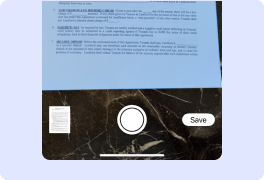
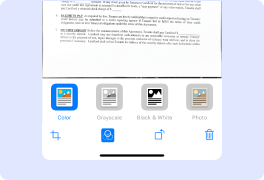
- Capture your document. Position the page in the frame and capture the image. Our application will automatically crop and enhance the image for clarity. For multi-page documents, simply continue scanning each page.
- Save and edit. Once you're done, convert your scanned file to an editable PDF. Your new digital document is automatically saved to your account. You can now edit, sign, and share it from anywhere.
Digitize documents on the go and create a paperless office with DocHub’s powerful mobile scanning tools.
Get PDFs done faster – easier than ever
Explore the benefits of DocHub.






Drive efficiency with the DocHub add-on for Google Workspace
How to Add Text to a PDF in a Few Clicks
When it comes to creating a document, any text editor will do the job. But after it is converted to a different format, experience with default editing tools may be frustrating. DocHub is a tool created specifically to edit [Form Name] online. All you need to start working with documents is to create a DocHub account. When in the editor mode, all the instruments are before your eyes, and there is no need to worry about the formatting of the document that may turn out messy.
Use the intelligible toolbar to edit your form or create one from scratch. Mark the field that must be filled as such or specify the content to be added to these fields. If you need to make changes to the existing file, upload it to the interface and choose to recognize all the necessary fields as fillable. Finally, if you need your document signed, you can also do it in the interface by adding a specific signature field.

Got questions?
Can I scan documents to PDF using my phone?
How do I convert a scan to a PDF?
Can I scan multi-page documents into a single PDF?
Does the app enhance the quality of my scans?
What is the best way to digitize documents for a paperless office?
Can I edit a document after I scan and save it as a PDF?
How can I share my scanned files?
Is it better to use a flatbed scanner or a phone app?
Can your app recognize text in my scanned documents?
How are my scanned documents stored and secured?
See why our customers choose DocHub




