
Upload PDF to storage in macOS in no time



How to upload PDF to storage in MacOS with DocHub
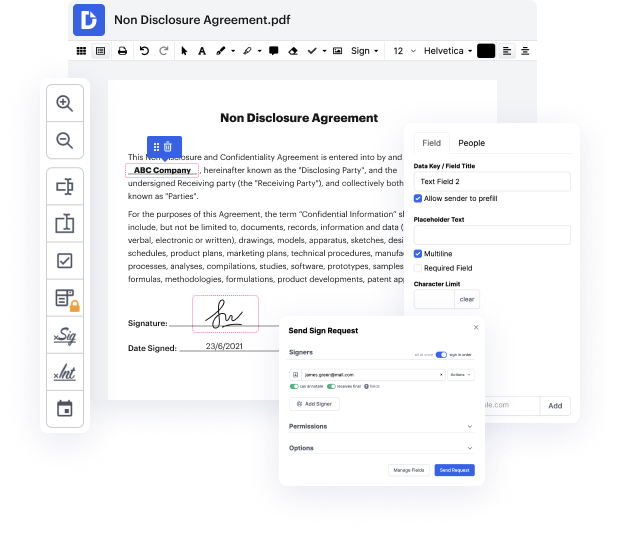
DocHub is a powerful online platform that streamlines document editing, signing, distribution, and forms completion, making it easy to manage your PDFs effectively. With deep integration into Google Workspace, users can effortlessly import, modify, and export documents directly from their favorite Google applications. Whether you're using iOS 17, iOS 18, or iOS 19, our platform is designed to enhance your document workflow, ensuring that you can access and manage your files with convenience and efficiency.
Follow the steps to upload your PDF to storage in MacOS
- Open your preferred web browser and navigate to the DocHub website. Log in to your account using your credentials.
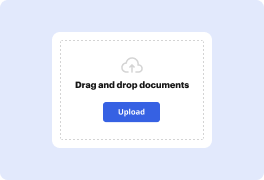
- Once logged in, locate the option to upload a document. This usually involves selecting a designated area or menu item dedicated to adding new files.
- Choose the PDF file you wish to upload from your MacOS storage. Make sure the document is accessible and ready for editing.
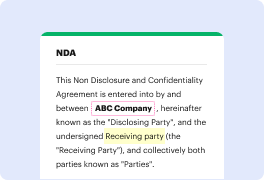
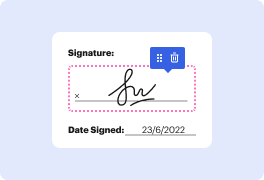
- After the upload is complete, you will be directed to the editor where you can make necessary modifications, annotate, or sign your document.
- Once you finish editing, look for options to download or export your document. You can also opt to print or share it directly from the platform.
Get started with DocHub today and experience the convenience of managing your PDF documents effortlessly!
PDF editing simplified with DocHub






Drive efficiency with the DocHub add-on for Google Workspace
Got questions?
How to upload a PDF file on Mac?
Can you upload PDF to iCloud?
What is the best way to store PDF files?
Where is the best place to store private documents?
Where do I store my PDF files?
What is the best way to save a PDF?
How do I save a PDF to my Mac hard drive?
Should you store PDF in database?
See why our customers choose DocHub


Security and compliance
At DocHub, your data security is our priority. We follow HIPAA, SOC2, GDPR, and other standards, so you can work on your documents with confidence.
Learn more


