
Unlock PDF and Secure PDF File on Samsung mobile device
Aug 6th, 2022

0
forms filled out

0
forms signed

0
forms sent
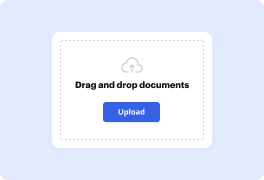
01. Upload a document from your computer or cloud storage.
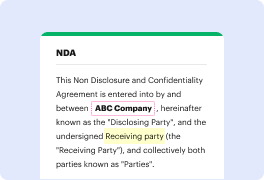
02. Add text, images, drawings, shapes, and more.
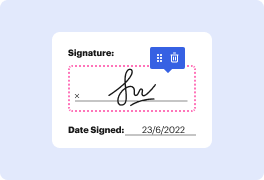
03. Sign your document online in a few clicks.
04. Send, export, fax, download, or print out your document.
Unlock PDF and Secure PDF File on Samsung
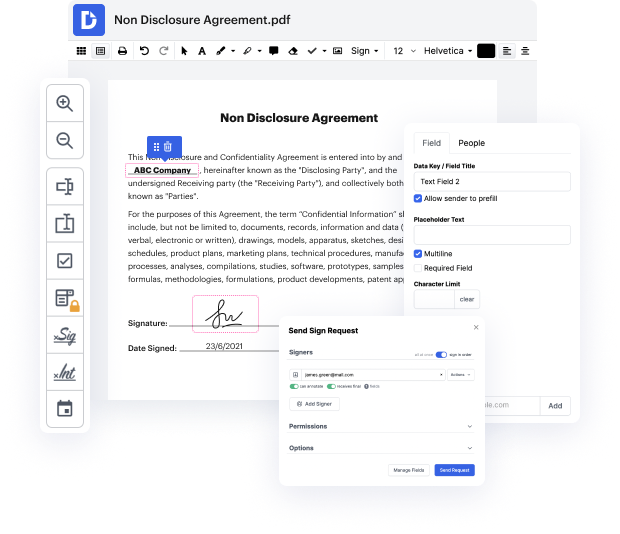
DocHub is an innovative platform that simplifies digital document management. Whether you're using a Samsung Galaxy S23 Ultra or a Galaxy A24, our editor allows you to seamlessly unlock PDF files and secure them for your needs. With features that enable easy editing, signing, and distribution, DocHub ensures that your document workflows remain efficient and effective. You can access these capabilities directly from your web browser, making it convenient for any Samsung device.
Follow the steps to Unlock PDF and Secure PDF File on Samsung
- Open the DocHub website on your Samsung device and log in with your credentials.
- Once logged in, upload the PDF file you want to unlock from your device or cloud storage.
- Use the designated tools to remove the security settings from your PDF, allowing you to edit or modify the document as needed.
- After unlocking, you can secure the PDF again by applying passwords or restrictions to ensure that only authorized users can access it.
- Once you’re satisfied with the changes, download the updated PDF file back to your Samsung Galaxy M05 or share it directly via email or cloud services.
Start using DocHub today for free and transform the way you manage your documents on your Samsung devices!
PDF editing simplified with DocHub

Seamless PDF editing
Editing a PDF is as simple as working in a Word document. You can add text, drawings, highlights, and redact or annotate your document without affecting its quality. No rasterized text or removed fields. Use an online PDF editor to get your perfect document in minutes.

Smooth teamwork
Collaborate on documents with your team using a desktop or mobile device. Let others view, edit, comment on, and sign your documents online. You can also make your form public and share its URL anywhere.

Automatic saving
Every change you make in a document is automatically saved to the cloud and synchronized across all devices in real-time. No need to send new versions of a document or worry about losing information.

Google integrations
DocHub integrates with Google Workspace so you can import, edit, and sign your documents directly from your Gmail, Google Drive, and Dropbox. When finished, export documents to Google Drive or import your Google Address Book and share the document with your contacts.

Powerful PDF tools on your mobile device
Keep your work flowing even when you're away from your computer. DocHub works on mobile just as easily as it does on desktop. Edit, annotate, and sign documents from the convenience of your smartphone or tablet. No need to install the app.

Secure document sharing and storage
Instantly share, email, and fax documents in a secure and compliant way. Set a password, place your documents in encrypted folders, and enable recipient authentication to control who accesses your documents. When completed, keep your documents secure in the cloud.






Drive efficiency with the DocHub add-on for Google Workspace
Access documents and edit, sign, and share them straight from your favorite Google Apps.
Install now
Got questions about how to open copyright protected pdf in samsung notes?
Here are some common questions from our customers that may provide you with the answer you need. If you can’t find the answer to your cant import secured pdf samsung notes-related question, please don’t hesitate to reach out to us.
Contact us
How do I remove a password from a PDF if I dont know the password?
1. Open the PDF in Acrobat Pro on Windows or Mac. 2. Choose Tools Encrypt Remove Security.
Can you open a password-protected PDF without password?
If your PDF document is protected with a Permissions Password, you can open it in UPDF without entering any password. You can open, view, and annotate the protected PDF document directly. However, if you want to make changes to the document, you will need to enter the password when you are trying to edit the text.
How do I remove restrictions and decrypt password protected PDF files with PDF unlocker?
How To Unlock a PDF: Drag drop your file into the PDF Password Remover. Confirm that you have the right to the file and click Unlock PDF! For strongly encrypted files, enter your password when prompted. Keep working with your PDF or download your now unlocked PDF.
What is the owner password to unlock PDF?
An Owner Password, Master Password, or Permissions Password is what you require in order to copy, edit, or print a PDF document. Without an Owner Password, you cant make changes within the PDF file. If youve got the Owner Password, youll be able to edit, print, change, or copy data from the PDF document.
How do you unlock a password protected PDF on Android?
Download and the PDF Expert app from the App Store. Open the apps main menu, navigate to the Files Folder, and locate the PDF file. Tap the file, enter the password to unlock it. Click the three dots in the top-right corner, select Change Password, and choose Remove Password.
How do you unlock a secured PDF file?
Open the PDF in Acrobat. Use the Unlock tool: Choose Tools Protect Encrypt Remove Security.
How do I unlock a PDF if I forgot the password?
Go to the PDF unlocker and click on the Unlock PDF button. Load the PDF files by clicking the +Add File button or drag and drop them into the upload area. If you still cannot remember the password, click Unlock. When the files have been processed, click Download File to receive your unrestricted PDFs.
How do I open a password protected PDF if I forgot the password?
Some suggestions for opening a password-protected PDF file when you have forgotten the password are: Check your email. If someone else sent you the PDF, you can check if they included the password in an email or other form of communication. Contact the sender. Use a password manager.
See why our customers choose DocHub
Great solution for PDF docs with very little pre-knowledge required.

A Valuable Document Signer for Small Businesses.

I can create refillable copies for the templates that I select and then I can publish those.

Security and compliance
At DocHub, your data security is our priority. We follow HIPAA, SOC2, GDPR, and other standards, so you can work on your documents with confidence.
Learn more


