

Easily sign any PDF with GIF attachments

Drag and drop document here to upload

Upload documents of up to 31 MB in PDF, DOC, DOCX, RTF, PPT, PPTX, JPEG, PNG, or TXT

Aug 6th, 2022
Icon decoration
0
forms filled out
Icon decoration
0
forms signed
Icon decoration
0
forms sent
Service screenshot
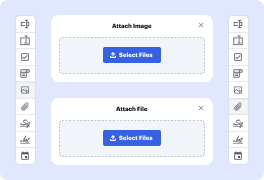
01. Drag and drop image or file attachment fields anywhere on the document.
Service screenshot
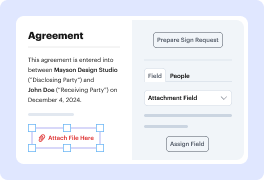
02. Change field properties, assign them to a specific recipient, or mark them as required.
Service screenshot
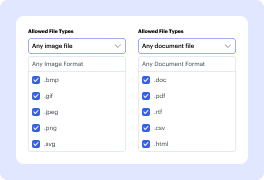
03. Attach files in the specified format, or ask the signer to upload them in the designated field.
Service screenshot
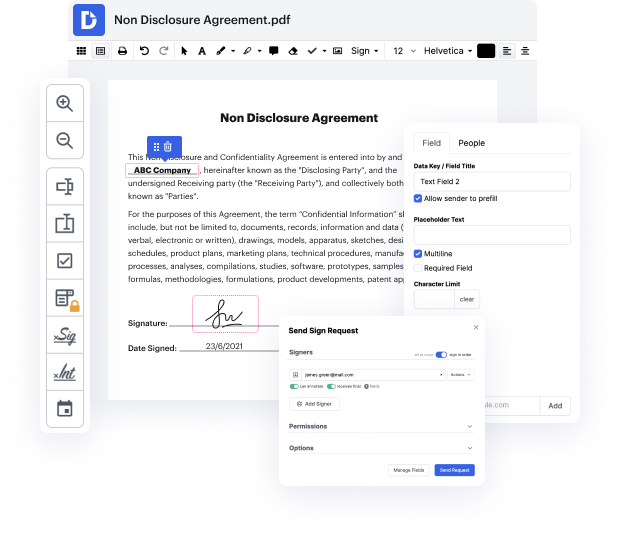
04. Download attachments as a separate PDF or bundle them with the document. Or view attachment fields in the audit trail.

Experience the benefits of attachment fields

icon
Simplify data and signature collection
Save time by collecting signatures and supporting information in one step. Ask your recipients to sign the document and upload the necessary attachments all at once.
icon
Boost teamwork and process visibility
Keep everyone updated on the signing process. Once the document is finalized, everyone can download attachments, and you can view attachment fields in the audit trail.
icon
Streamline workflows
Speed up the document turnaround by attaching all the necessary files right to the document. No more endless back-and-forth or long email threads.
icon
Simplify document management
Choose a preferred download option. Get the attached files as a single PDF, as separate PDF pages, or download all attachments and the main document in a compressed ZIP file.
!
Note: Attachment fields are available with the Pro plan or during a free trial. Upgrade your plan or start a free trial to use this feature.

See how easy it is to share and collect attachments

video background

A brief guide to signing PDFs with GIF attachments with DocHub

Form edit decoration

If you need to swiftly prepare your paperwork online and attach a Graphics Interchange Format to a PDF for signing, DocHub is the perfect tool to choose from. Our online solution facilitates the process, combining a user-friendly interface with powerful tools to manage and approve your documents securely and efficiently.

Here are the supported image formats:

  • .bmp
  • .gif
  • .jpg
  • .jpeg
  • .png
  • .svg
  • .tiff
  • .webp

Instructions to sign PDF forms with .gif attachments:

  1. Register with DocHub and log in after selecting the suitable paid subscription that provides attachment field options.
  2. Click New Document to add your paperwork to the editor from your device or cloud.
  3. Click Manage Fields -> Image and locate the cursor where you need to add an image attachment.
  4. In the right sidebar, define the allowed file format, and click on your field to add your .gif image.
  5. In the top panel, click Sign -> Create your signature, then upload a picture of your autograph, draw it, or type your name.
  6. Download or export your completed form or instantly share it with others via email, fax, or sign request.

Discover smooth and secure document management and signing with enclosed images, and get your paperwork done in moments. Sign up for a free trial to explore all DocHub’s capabilities now!

Get PDFs done faster – easier than ever

Explore the benefits of DocHub.

edit PDFs icon
Edit PDFs from anywhere
DocHub's editing tools make it easy to keep your work flowing from anywhere. Add text and images, exchange comments, highlight important content, redact information, and underline or strike out text with ease. Rearrange, add, or delete pages or merge PDFs to create polished documents.
documents signed icon
Get documents signed online
Close deals faster without chasing signatures for days and hassling with physical documents. Sign contracts and agreements electronically in seconds or send them for legally binding eSignature. With instant notifications and a detailed audit trail, you'll never lose sight of your deals.
data icon
Collect data with ease
Eliminate manual steps in your data collection process. Publish fillable forms online for quick completion on any device. Transform your documents into reusable templates, allowing recipients to easily fill out their copy in minutes.
document sharing icon
Simplify document sharing
Share PDFs via public or private links and allow others to review, edit, or complete them online. Send documents with role-based permissions for quick and secure approvals. Additionally, you can share your documents by email or fax.
Google apps icon
Work seamlessly in Google apps
DocHub integrates with your favorite Google Workspace apps, allowing you to import, edit, sign, and save documents right from Google Drive, Gmail, Google Classroom, or Chrome without any back-and-forth.
DocHub icon
Use DocHub on any device
Stay productive even on the go. DocHub works on mobile devices just as smoothly as on desktop computers. With DocHub's mobile and web app, you can edit, annotate, and sign documents conveniently from your smartphone or tablet.
dochub-logo
google-logo

Drive efficiency with the DocHub add-on for Google Workspace

Access documents and edit, sign, and share them straight from your favorite Google Apps.
Install now

Got questions?

Below are some common questions from our customers that may provide you with the answer you're looking for. If you can't find an answer to your question, please don't hesitate to reach out to us.
Contact us
Sign up with DocHub and choose one of its paid subscriptions that provides the Attachment Fields feature. After you upload and fill out the document in the editor, click Manage Fields -> Image, drag this field where needed, and customize it using the right sidebar. Upload the required visuals, then sign your PDF with .gif attachments using the appropriate button on the top toolbar.
You can customize your attachments by locating and resizing Image Fields wherever necessary on the PDF. This ensures your attachments fit with other document elements and sections. You can also add other image types to a PDF, except the .gif, if you select them in the Allowed File Types area in the field setting sidebar.
Once you endorse and save a PDF, you won’t be able to edit it anymore. Make sure you adjust image attachments before creating your eSignature and finalizing the form.
You can effortlessly change your .gif attachments by clicking on the Image Field. In the “Edit Image” dialog window, choose “Create New Image” to upload a new visual file, or “Reset Field” to remove the one you attached. This allows you to manage the content embedded in your PDF before signing it.
No, DocHub doesn't charge users above their subscription fees. However, the image attachment function is available only in certain plans. Verify your account plan offers this capability or upgrade it to utilize this functionality.
PDFs do not support animated GIFs. They only work in either EPUB or Publish Online. Youll have to find a different format (not PDF) or forgo animation in PDF.
Open your chosen file in docHub. In the toolbar on the left, click Edit text images. Once you have clicked on this button, choose Add Image and select your GIF. This will insert your GIF as a still picture in your PDF.
In just four steps you can use the tools in docHub software to convert GIF images to PDF: Navigate to the Create PDF option from the Tools menu. Click on Select A File. Select the GIF from which you wish to make a PDF. Choose Create. Follow the prompts to save your new PDF to the desired location.
Under the Tools tab, under Edit PDF, choose Advanced Editing then Touchup Object Tool. Right-click anywhere on the page and choose Place Image. In the new window that will pop up, from the drop-down, choose Compuserve GIF as the file type. Choose your preferred GIF, and the GIF will be placed.
Open Acrobat and choose the PDF file to which you want to add multimedia files. From the global bar in the upper-left, select All Tools. From the All tools pane, select View more Add rich media. Then choose either the 3D Media , Video , or Sound tool, depending on the type of multimedia file you want to add.

See why our customers choose DocHub

Great solution for PDF docs with very little pre-knowledge required.
"Simplicity, familiarity with the menu and user-friendly. It's easy to navigate, make changes and edit whatever you may need. Because it's used alongside Google, the document is always saved, so you don't have to worry about it."
Pam Driscoll F
Teacher
A Valuable Document Signer for Small Businesses.
"I love that DocHub is incredibly affordable and customizable. It truly does everything I need it to do, without a large price tag like some of its more well known competitors. I am able to send secure documents directly to me clients emails and via in real time when they are viewing and making alterations to a document."
Jiovany A
Small-Business
I can create refillable copies for the templates that I select and then I can publish those.
"I like to work and organize my work in the appropriate way to meet and even exceed the demands that are made daily in the office, so I enjoy working with PDF files, I think they are more professional and versatile, they allow..."
Victoria G
Small-Business
be ready to get more

Edit and sign PDF for free

Get started now