
Notarize a Template for Signature on Mobile mobile device
Aug 6th, 2022

0
forms filled out

0
forms signed

0
forms sent
01. Upload a document from your computer or cloud storage.
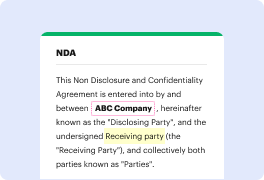
02. Add text, images, drawings, shapes, and more.
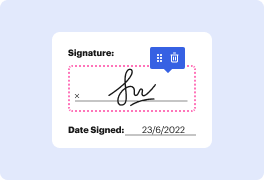
03. Sign your document online in a few clicks.
04. Send, export, fax, download, or print out your document.
How to Notarize a Template for Signature on Mobile with DocHub
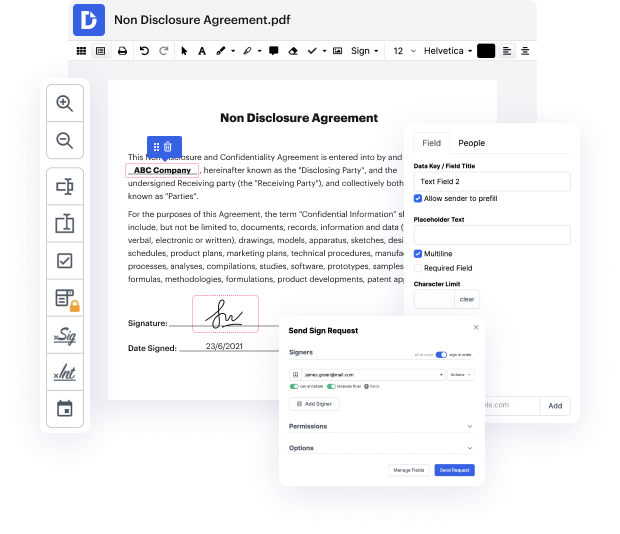
In today’s fast-paced world, managing documents efficiently is crucial, and our platform simplifies this process significantly. With features that allow seamless editing, signing, and distribution, you can notarize a template for signature on mobile quickly and for free. Whether you're using a Samsung Galaxy F14 4G, Apple iPhone 14 Plus, Xiaomi 13 Lite, Motorola Moto G 5G (2023), or Lenovo ThinkPhone 25, our editor ensures that your document management needs are met with ease and convenience.
Follow the steps to notarize your template for signature on mobile:
- Open the web browser on your mobile device and navigate to our platform.
- Log in to your account using your credentials.
- Upload the template you wish to notarize from your device or import it from your Google Drive.
- Once the document is open in the editor, use the editing tools to add any necessary fields, such as signature lines or date fields.
- Select the option to notarize the document, ensuring that all fields are correctly filled out.
- After notarization, review your document to confirm all details are accurate.
- Finally, download the notarized document, print it, or share it directly via email or a link.
Start managing your documents efficiently today with our powerful platform!
PDF editing simplified with DocHub

Seamless PDF editing
Editing a PDF is as simple as working in a Word document. You can add text, drawings, highlights, and redact or annotate your document without affecting its quality. No rasterized text or removed fields. Use an online PDF editor to get your perfect document in minutes.

Smooth teamwork
Collaborate on documents with your team using a desktop or mobile device. Let others view, edit, comment on, and sign your documents online. You can also make your form public and share its URL anywhere.

Automatic saving
Every change you make in a document is automatically saved to the cloud and synchronized across all devices in real-time. No need to send new versions of a document or worry about losing information.

Google integrations
DocHub integrates with Google Workspace so you can import, edit, and sign your documents directly from your Gmail, Google Drive, and Dropbox. When finished, export documents to Google Drive or import your Google Address Book and share the document with your contacts.

Powerful PDF tools on your mobile device
Keep your work flowing even when you're away from your computer. DocHub works on mobile just as easily as it does on desktop. Edit, annotate, and sign documents from the convenience of your smartphone or tablet. No need to install the app.

Secure document sharing and storage
Instantly share, email, and fax documents in a secure and compliant way. Set a password, place your documents in encrypted folders, and enable recipient authentication to control who accesses your documents. When completed, keep your documents secure in the cloud.






Drive efficiency with the DocHub add-on for Google Workspace
Access documents and edit, sign, and share them straight from your favorite Google Apps.
Install now
Got questions?
Here are some common questions from our customers that may provide you with the answer you're looking for. If you can't find an answer to your question, please don't hesitate to reach out to us.
Contact us
How to become a remote notary in Texas?
How to Become a Remote Online Notary in Texas Hold an existing commission as a traditional Notary Public. Choose a RON vendor. Buy a digital certificate and eseal that is compatible with the vendor you choose. Complete the form. Use the digital certificate and eseal you bought to sign the Statement of Officer form. How to Become a Remote Online Notary in Texas | NNA nationalnotary.org knowledge-center texas nationalnotary.org knowledge-center texas
Where can I docHub a document for free in Canada?
Service Canada branches ,most banks and credit unions ,hospitals , service organisations and other similar organisations have a member of staff available who holds a commission,. Also many representative organisations such as unions etc have lawyers on staff who will notarise as a free service to members. Cheapest way to get a document docHubd? - Financial Wisdom Forum financialwisdomforum.org viewtopic financialwisdomforum.org viewtopic
How much is notary fee in Canada?
FEES 1 seal:$16.90 2 seals: $33.80 3 seals: $50.65 4 seals: $64.25 5 seals: $77.8025 more rows
Can I docHub a document online in Canada?
Yes, remote commissioning (online notary service or online notarization) of affidavits, oaths and statutory declarations is legal pursuant to O Reg 431/20, Administering Oath or Declaration Remotely, a regulation under the Commissioners for Taking Affidavits Act. docHub.ca: Easy Online Notary Services docHub.ca docHub.ca
Can banks docHub in Canada?
A notary, also known as a notary public, is a public servant who is appointed by the provincial government to act as an unbiased witness when essential documents are signed. For customers who require documents docHubd, most banks and credit unions have a notary public on staff.
Where is the cheapest place to get a notary?
The Bank. The bank is often the first choice for notarization. Many banks offer free notarization services to their valued clients, depending on the legal document. Ensure you have an account with the bank and present your debit or credit card for free notarization.
Why do things need to be docHubd?
Notary publics witness the signing of important documents and verify the identity of the signer(s), their willingness to sign the documents, and their awareness of the contents of the document or transaction. Institutions rely upon notaries so they may have full faith in important documents. What Does it Mean to Have a Document docHubd With a Notary docHub.com blog what-does-it-mean-to- docHub.com blog what-does-it-mean-to-
Does TD Bank docHub documents in Canada?
Yes! To add credibility and support the authenticity of your Certificate of Independent Legal Advice, notarizing it is an important step in the process. Get started now and have your document docHubd online in just 4 simple steps! Review and approve the document we generate based on the information you provided.
See why our customers choose DocHub
Great solution for PDF docs with very little pre-knowledge required.

A Valuable Document Signer for Small Businesses.

I can create refillable copies for the templates that I select and then I can publish those.

Security and compliance
At DocHub, your data security is our priority. We follow HIPAA, SOC2, GDPR, and other standards, so you can work on your documents with confidence.
Learn more