
Notarize a PDF for Signature in Google Drive



Explore the simplest way to Notarize a PDF for Signature in Google Drive
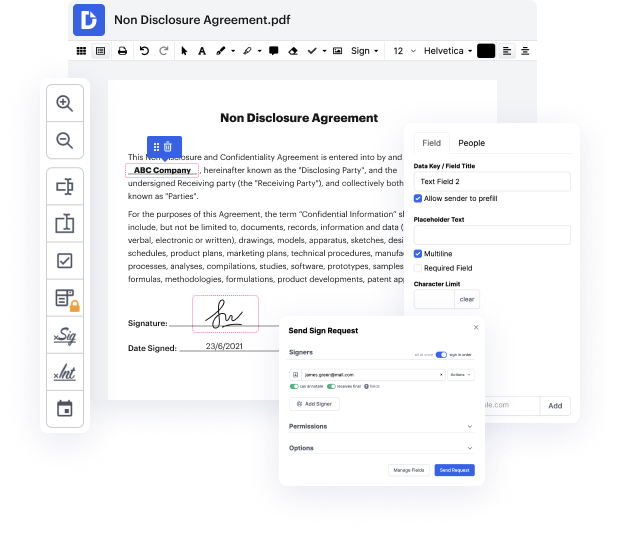
Google Drive, one of the best and most popular cloud storage services featuring excellent collaboration tools. Yet, the best part about using it lies in its flexibility to expand and boost its existing functionality with other document-driven options, like DocHub.
So, if you're looking for an easy and stress-free option to Notarize a PDF for Signature in Google Drive, DocHub is always at your fingertips. It’s a powerful, secure, and user-friendly document editing solution that provides native integrations with Google services, including Google Drive. It lets you easily Notarize a PDF for Signature in Google Drive and finished these kinds of other activities as:
- Creating, annotating, and editing files
- Managing and organizing paperwork in a secure way
- Completing copies with legally-binding signatures
Make sure to follow this quick guide to Notarize a PDF for Signature in Google Drive:
- Get started by creating your free account with DocHub or sign in if you already have one.
- Go to Google Workspace and install the DocHub - PDF Sign and Edit extension.
- Head to your Google Drive → right-click your file → Open with → select our extension.
- Once you’ve opened your file in our editor, proceed to Notarize a PDF for Signature in Google Drive.
- Check out and take advantage of all tools that help you edit and execute, and improve your document.
- If you're satisfied with your changes, you can download your file and save it to your choice of storage options or directly in DocHub.
When two robust platforms like Google Drive and DocHub combine, you end up with a frictionless document management experience.
Try DocHub for free and see for yourself!
PDF editing simplified with DocHub






Drive efficiency with the DocHub add-on for Google Workspace
How to Notarize a PDF for Signature in Google Drive
Heres a situation Im pretty sure youve come across. Someone sends you an electronic document, like a contract or a lease to a sign and send back. Now, of course you can print it, sign it, scan it and send it back but fortunately, there are much easier ways to get this done. No printing or scanning is necessary. Were going to cover how to quickly sign PDF and other digital documents and dont worry if you dont have a digital image of your physical signature Im going to show you how you can create one really fast. (upbeat music) Lets clarify one thing right away though. Often the terms electronic and digital signature are mixed up but theyre two very different things. A true digital signature is encrypted data to verify the signers identity by using digital keys. Its the online version of a docHubd signature. The more common type of signature that youre going to come across is an electronic signature. This is basically an image of your signature, thats placed on a document a

Got questions?
How do I add a signature to a PDF in Google Drive?
How do I add a handwritten signature to Google Drive?
How to do a signed signature on Google Docs?
Can you add a signature in Google Drive?
How do I sign an electronic signature?
How do I create a signature template in Google Docs?
See why our customers choose DocHub


Security and compliance
At DocHub, your data security is our priority. We follow HIPAA, SOC2, GDPR, and other standards, so you can work on your documents with confidence.
Learn more


