
Modify scanned in PDF on Website quickly


How to modify scanned in PDF on Website with DocHub
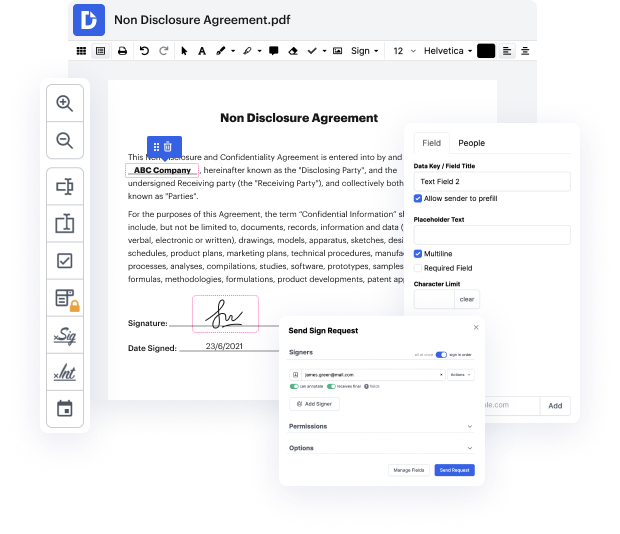
DocHub is a powerful online platform that simplifies document management by allowing users to edit, sign, and collaborate on PDFs seamlessly. With its deep integration with Google Workspace, our editor ensures that you can import, modify, and distribute your scanned documents directly from your favorite Google apps. Whether you're looking to make quick edits or fill out forms, DocHub makes the process efficient and user-friendly, empowering you to handle your documents for free from any web browser.
Follow the steps to modify your scanned PDF online
- Open the DocHub website and log in to your account.
- Upload the scanned PDF file that you want to modify by choosing the appropriate option from your device or importing it from Google Drive.
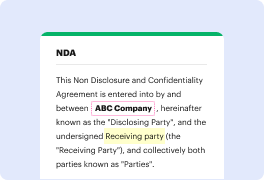
- Once the document is uploaded, use the editing tools available in the editor to add text, highlight important sections, or annotate the document as needed.
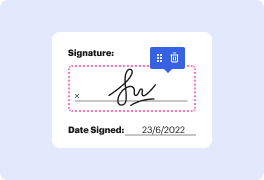
- If you need to fill out any forms within the PDF, navigate to the fields and enter the required information directly.
- Review your modifications to ensure everything appears as intended, making any final adjustments if necessary.
- When satisfied with your changes, download the modified document, export it, or share it directly with others via email or a link.
Start modifying your scanned PDFs today with DocHub and experience the convenience of online document management!
PDF editing simplified with DocHub






Drive efficiency with the DocHub add-on for Google Workspace
Got questions?
How do I edit a scanned PDF online?
How can I edit an existing PDF?
How can I edit text in a PDF online?
How do I make a PDF editable?
Can you edit a PDF that has been scanned?
How do I edit a PDF on a website?
Is it possible to edit PDF online?
How do I edit a PDF in Chrome online?
See why our customers choose DocHub


Security and compliance
At DocHub, your data security is our priority. We follow HIPAA, SOC2, GDPR, and other standards, so you can work on your documents with confidence.
Learn more