
Your go-to platform to Modify Mark Contract in Google Chrome
Aug 6th, 2022

0
forms filled out

0
forms signed

0
forms sent
01. Upload a document from your computer or cloud storage.
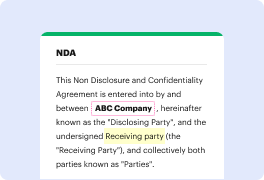
02. Add text, images, drawings, shapes, and more.
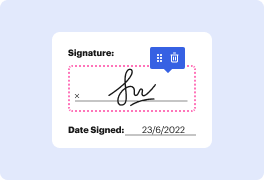
03. Sign your document online in a few clicks.
04. Send, export, fax, download, or print out your document.
Modify Mark Contract in Google Chrome with DocHub
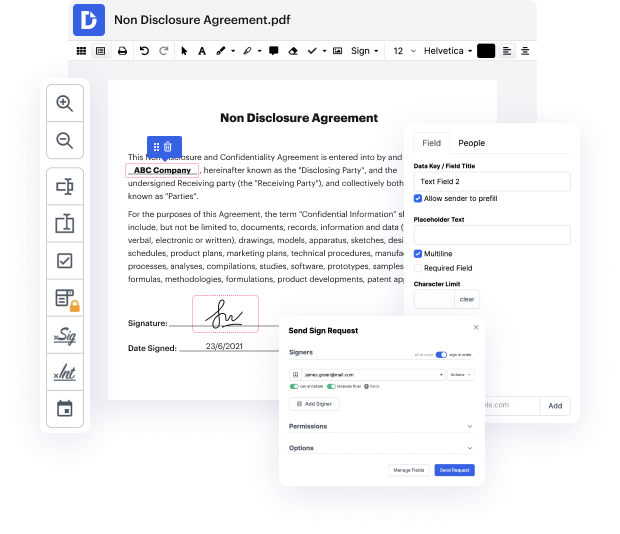
DocHub is an exceptional platform for managing your digital documents efficiently. It offers an array of features including document editing, signing, distribution, and form completion, all tailored to enhance your workflow. With seamless integration into Google Workspace, users can easily import, export, and modify documents directly from their favorite Google apps. This guide will empower you to modify a contract effectively, ensuring your business processes remain smooth and interactive.
Follow the steps to Modify Mark Contract in Google Chrome
- Open your preferred web browser, navigate to the DocHub website, and log in to your account.
- Once logged in, locate the option to import your contract from Google Drive or upload it directly from your computer.
- After the document is uploaded, access the editing tools available within the platform to make necessary modifications to the contract.
- Utilize the annotation features to highlight important sections or add comments that need attention.
- Once you've made all the necessary changes, save your document to ensure that all modifications are recorded.
- Finally, choose to download the modified contract, print it, or share it directly via email or through a link.
Start modifying your contracts effortlessly with DocHub today!
PDF editing simplified with DocHub

Seamless PDF editing
Editing a PDF is as simple as working in a Word document. You can add text, drawings, highlights, and redact or annotate your document without affecting its quality. No rasterized text or removed fields. Use an online PDF editor to get your perfect document in minutes.

Smooth teamwork
Collaborate on documents with your team using a desktop or mobile device. Let others view, edit, comment on, and sign your documents online. You can also make your form public and share its URL anywhere.

Automatic saving
Every change you make in a document is automatically saved to the cloud and synchronized across all devices in real-time. No need to send new versions of a document or worry about losing information.

Google integrations
DocHub integrates with Google Workspace so you can import, edit, and sign your documents directly from your Gmail, Google Drive, and Dropbox. When finished, export documents to Google Drive or import your Google Address Book and share the document with your contacts.

Powerful PDF tools on your mobile device
Keep your work flowing even when you're away from your computer. DocHub works on mobile just as easily as it does on desktop. Edit, annotate, and sign documents from the convenience of your smartphone or tablet. No need to install the app.

Secure document sharing and storage
Instantly share, email, and fax documents in a secure and compliant way. Set a password, place your documents in encrypted folders, and enable recipient authentication to control who accesses your documents. When completed, keep your documents secure in the cloud.






Drive efficiency with the DocHub add-on for Google Workspace
Access documents and edit, sign, and share them straight from your favorite Google Apps.
Install now
Got questions?
Here are some common questions from our customers that may provide you with the answer you're looking for. If you can't find an answer to your question, please don't hesitate to reach out to us.
Contact us
How do you add a bookmark to your browser?
Google Chrome Open Google Chrome browser. Go to the webpage you want to bookmark. Click the star icon on the right side of the address bar. Name the bookmark. Select the folder you want the webpage to be saved to. Click Done to bookmark the webpage.
How do I change the bookmark icon in Chrome?
0:17 1:44 And click on it. And then go to bookmarks. And go to bookmark manager. So once I go to bookmarkMoreAnd click on it. And then go to bookmarks. And go to bookmark manager. So once I go to bookmark manager Im going to see this is my bookmark bar right here.
How do I add a bookmark to Google Chrome?
Add a bookmark On your Android device, open Chrome . Go to a site you want to visit again in the future. To the right of the address bar, tap More Bookmark .
How do I add a bookmark to my desktop in Chrome?
Add desktop shortcuts to favorite pages Open Chrome browser, and go to the website you want to create the shortcut for. At the top right, click More Save and Share. Create Shortcut. Enter a name for the shortcut. (Optional) If you want the web page to open as a separate window, check the Open as window box. Click Create.
How do I manage my Bookmarks bar in Chrome?
On your computer, open Chrome. Bookmark Manager. Drag a bookmark up or down, or drag a bookmark into a folder on the left. You can also copy and paste your bookmarks in the order you want.
How do I add a bookmark to my Google home screen?
Add Chrome bookmarks to the Android home screen Launch Chrome for Android and open the website or web page you want to pin to your home screen. Tap the menu button and tap Add to homescreen. Youll be able to enter a name for the shortcut and then Chrome will add it to your home screen.
How do I edit a bookmark in Chrome?
Ensure your apps are up to date as the following steps apply to the most recent version. From a Home screen, navigate: Apps icon. (Google) Tap the. Menu icon. (upper-right). Bookmarks. . Tap the. Menu icon. Edit. . Enter or edit the appropriate info into the following fields then tap. Back arrow.
Where is Chrome bookmark button?
The Chrome menu: Click the Chrome menu in the top-right corner, hover over Bookmarks, then click the bookmark youd like to open. The Bookmarks bar: The Bookmarks bar is located on the New Tab page just below the Omnibox. Click a bookmark to navigate to that page.
See why our customers choose DocHub
Great solution for PDF docs with very little pre-knowledge required.

A Valuable Document Signer for Small Businesses.

I can create refillable copies for the templates that I select and then I can publish those.

Security and compliance
At DocHub, your data security is our priority. We follow HIPAA, SOC2, GDPR, and other standards, so you can work on your documents with confidence.
Learn more