



In today's fast-paced digital world, effective document management is crucial for any business. Our platform provides a seamless way to streamline document editing, signing, and distribution. With its deep integration with Google Workspace, users can easily import, export, modify, and sign documents directly from their Google apps. This guide will walk you through the process of inserting conditional fields to PDF for e-signature on server, enhancing your workflow and ensuring a hassle-free experience.
Start using our platform today to enhance your document management experience for free!


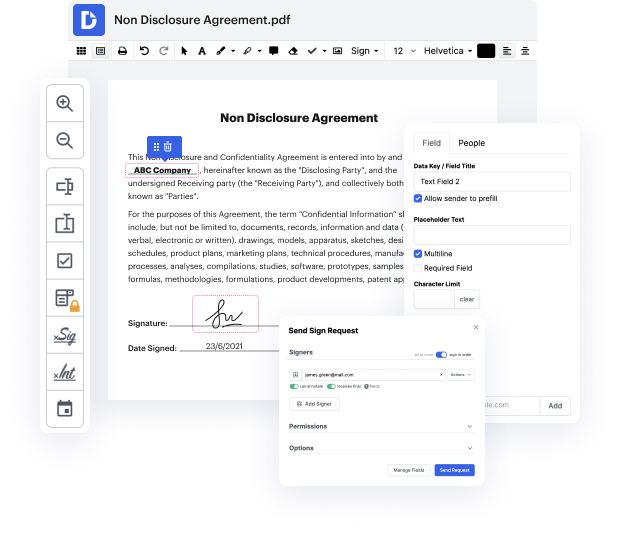
if you want your fillable forms to look more professional while ensuring the consistency and accuracy of the completion process consider setting up conditional fields a conditional field becomes available for filling once another specified field or fields is completed or left blank lets say you need a couple of text fields to appear in a form under the condition that one of your check boxes is checked heres how you do it with sign now first you need to add fillable fields to your document select the checkbox field in the left-hand toolbar and drop it on your document add as many checkbox fields as you need then add text fields adjust their size and positioning to properly fit in the blanks now you need to make sure that your text fields only become visible if your recipient checks the yes checkbox select the first text field open the advanced drop-down in the sidebar on the right and check the make this field conditional checkbox choose the field that will trigger the condition open


At DocHub, your data security is our priority. We follow HIPAA, SOC2, GDPR, and other standards, so you can work on your documents with confidence.
Learn more