
Your go-to platform to fill out PDF form in Safari
Aug 6th, 2022

0
forms filled out

0
forms signed

0
forms sent
01. Upload a document from your computer or cloud storage.
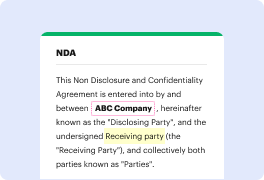
02. Add text, images, drawings, shapes, and more.
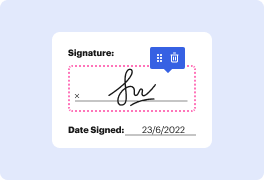
03. Sign your document online in a few clicks.
04. Send, export, fax, download, or print out your document.
How to fill out PDF form in Safari with DocHub
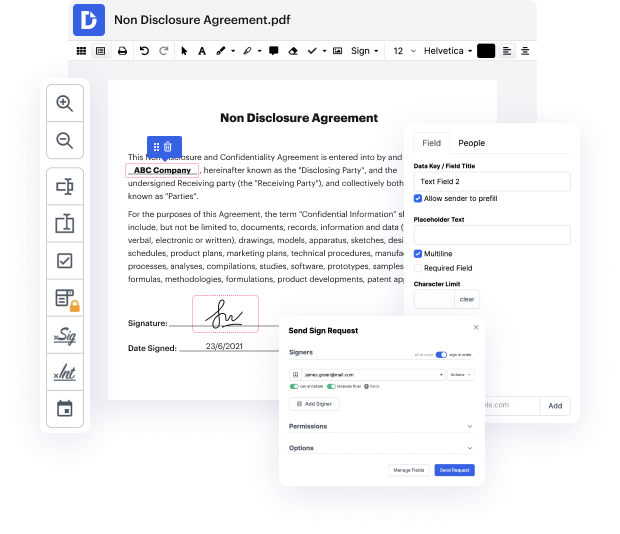
DocHub is your go-to solution for seamless document management, offering a robust platform for filling out PDF forms online for free. With an intuitive editor, users can easily edit, sign, and distribute documents, ensuring efficient workflows. Deep integration with Google Workspace enhances your experience by allowing you to manage your documents directly from your favorite apps, making the process smoother and more interactive.
Follow the steps to fill out PDF form in Safari
- Open the DocHub website in your Safari browser and log in to your account.
- Once logged in, upload the PDF form you wish to fill out from your device or import it directly from Google Drive.
- After the document is uploaded, access the editing features to begin filling out the necessary fields. Click on the areas you need to complete and type in your information.
- Utilize the additional tools available for annotating or signing the document as required. You can add comments or highlight important sections to emphasize key points.
- Once you've filled out the form, review all the information for accuracy. Make any necessary adjustments before finalizing your document.
- Finally, download or export the completed form to your device, print it directly, or share it via email to ensure it reaches the necessary recipients.
Start using DocHub today to simplify your PDF form filling in Safari and enhance your document management experience!
PDF editing simplified with DocHub

Seamless PDF editing
Editing a PDF is as simple as working in a Word document. You can add text, drawings, highlights, and redact or annotate your document without affecting its quality. No rasterized text or removed fields. Use an online PDF editor to get your perfect document in minutes.

Smooth teamwork
Collaborate on documents with your team using a desktop or mobile device. Let others view, edit, comment on, and sign your documents online. You can also make your form public and share its URL anywhere.

Automatic saving
Every change you make in a document is automatically saved to the cloud and synchronized across all devices in real-time. No need to send new versions of a document or worry about losing information.

Google integrations
DocHub integrates with Google Workspace so you can import, edit, and sign your documents directly from your Gmail, Google Drive, and Dropbox. When finished, export documents to Google Drive or import your Google Address Book and share the document with your contacts.

Powerful PDF tools on your mobile device
Keep your work flowing even when you're away from your computer. DocHub works on mobile just as easily as it does on desktop. Edit, annotate, and sign documents from the convenience of your smartphone or tablet. No need to install the app.

Secure document sharing and storage
Instantly share, email, and fax documents in a secure and compliant way. Set a password, place your documents in encrypted folders, and enable recipient authentication to control who accesses your documents. When completed, keep your documents secure in the cloud.






Drive efficiency with the DocHub add-on for Google Workspace
Access documents and edit, sign, and share them straight from your favorite Google Apps.
Install now
Got questions about dochub sign in?
Here are some common questions from our customers that may provide you with the answer you need. If you can’t find the answer to your are these secure-related question, please don’t hesitate to reach out to us.
Contact us
Does Safari have PDF editor?
If you want to Edit PDF in Safari, you can, so long as the editing system of your liking works with your internet browser. Try out DocHub to easily Edit PDF in Safari as its functionality is accessible from virtually any system. With DocHub, you have access to your documents and their edit histories from any device.
Does Apple have a PDF editor?
Does Mac come with a native PDF editor? Yes. Every macOS has a built-in tool for filling and signing PDFs.
Can you fill out a PDF form on Mac?
Fill out a PDF form In the Preview app on your Mac, open the PDF form. Click a field in the form, then type your text.
How to type on a PDF document on a Mac?
How to edit text in a PDF on a Mac. Select Tools. Select Annotate. Tap the text icon. Place your cursor on the PDF where you want to add new text. Type the text. Use the text icon to change the font, size, and style of the text.
How do I turn a PDF into a fill out form?
How to create fillable PDF files: Open Acrobat: Click on the Tools tab and select Prepare Form. Select a file or scan a document: Acrobat will automatically analyze your document and add form fields. Add new form fields: Use the top toolbar and adjust the layout using tools in the right pane. Save your fillable PDF:
How do I change PDF settings in Safari?
Safari on Mac or Windows - browser preferences In the Preferences window, click Security, and then click Website Settings next to Internet plug-ins. 3. Select docHub Reader in the list of plug-ins. Under When Visiting Other Websites, in the drop-down list choose Allow Always and click Done.
Can you edit a PDF in Safari?
Once you see the Dashboard, you can Edit PDF page in Safari by uploading it from your gadget or linking it from your online storage platform. Open the file for editing and then make any required changes with the help of our intuitive toolbar.
How do I edit a PDF document on my Mac?
Place your cursor on the PDF where you want to add new text. Type the text. Use the text icon to change the font, size, and style of the text. You can also change the text color by clicking the color box in the upper right corner and choosing a shade from the dropdown color palette.
See why our customers choose DocHub
Great solution for PDF docs with very little pre-knowledge required.

A Valuable Document Signer for Small Businesses.

I can create refillable copies for the templates that I select and then I can publish those.

Security and compliance
At DocHub, your data security is our priority. We follow HIPAA, SOC2, GDPR, and other standards, so you can work on your documents with confidence.
Learn more