
Export tick in PDF on Mobile mobile device


How to export tick in PDF on Mobile with DocHub
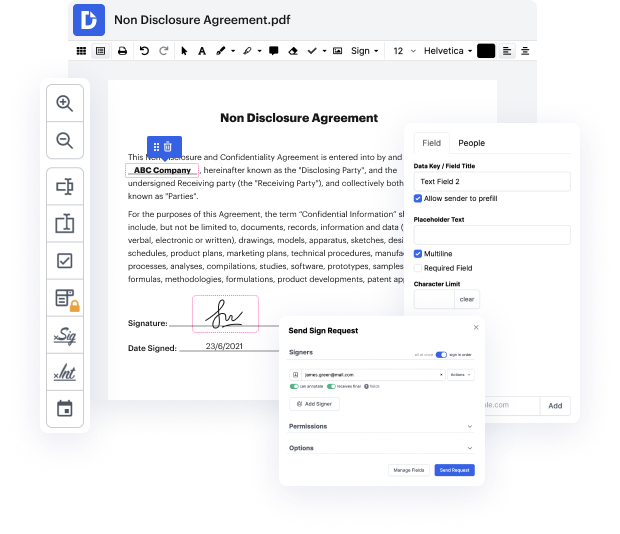
DocHub is an innovative platform that streamlines document editing, signing, distribution, and form completion, enabling users to manage their documents seamlessly. Whether you are using a Samsung Galaxy Z Fold 5, an Apple iPhone 15 Pro, a Xiaomi Redmi Note 12S, a Motorola Moto G05, or a Vivo X200, our editor allows you to effortlessly export your documents. With deep integration with Google Workspace, you can import, export, modify, and sign documents directly from Google apps, ensuring smooth business processes and interactive workflows—all for free.
Follow the steps to export tick in PDF on Mobile
- Open the web browser on your mobile device and navigate to the DocHub website. Log in to your account using your credentials.
- Once logged in, upload the document you wish to edit by selecting the appropriate option in the editor.
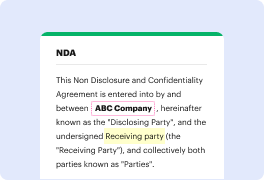
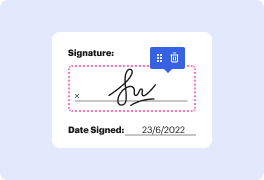
- Use the editing tools available to add ticks or marks to the PDF as needed. Customize your document to your satisfaction.
- After completing your edits, look for the option to export or download the document. Ensure the format is set to PDF.
- Confirm your export settings and initiate the download process. The document will be saved to your mobile device.
- You can now share, print, or send your exported PDF directly from your device.
Start using DocHub today to enhance your document management experience and enjoy the convenience of exporting PDFs on your mobile!
PDF editing simplified with DocHub






Drive efficiency with the DocHub add-on for Google Workspace
Got questions?
How do I tick a box in PDF?
How do I get symbols on a PDF?
How do I get a tick mark on a PDF?
How do I insert a tick box in PDF?
How to add tick mark in PDF in mobile?
How do I make the ✔ symbol in PDF?
How to do a check mark on keyboard in PDF?
See why our customers choose DocHub


Security and compliance
At DocHub, your data security is our priority. We follow HIPAA, SOC2, GDPR, and other standards, so you can work on your documents with confidence.
Learn more