

Explore new possibilities and Add fillable fields to Court Forms with AI

*Powered by ChatGPT
Coming soon
Aug 6th, 2022
forms filled out
0
forms filled out
forms signed
0
forms signed
forms sent
0
forms sent
Service screenshot
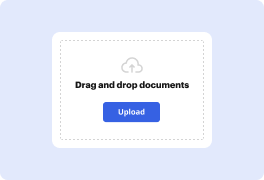
01. Upload a document from your computer or cloud storage service.
Service screenshot
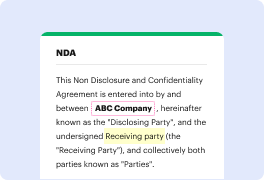
02. Modify your document or let the ai PDF editor summarize, rewrite, or proofread your PDF.
Service screenshot
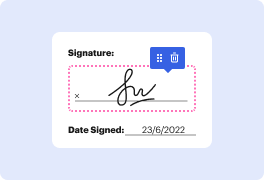
03. Sign your document online in a few clicks.
Service screenshot
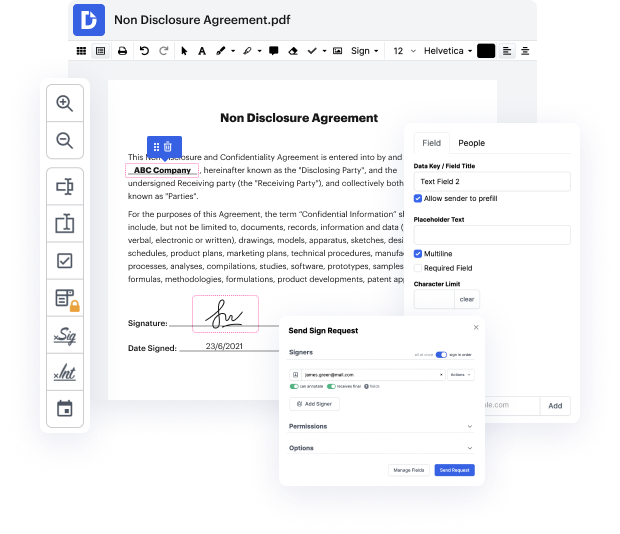
04. Send, export, fax, download, or print out your document.

Add fillable fields to Court Forms using AI without having batting an eyesight

Form edit decoration

Document managing is an important part of your daily tasks and workflows. However, this fundamental task might occasionally feel overwhelming without the proper software. Luckily, DocHub can change your experience for the better. Introducing ChatGPT-driven functions, we seek to accelerate your routine tasks so you can put your time and energy to better use. Add fillable fields to Court Forms, eSign, share, and securely store your documents in a single place without switching among solutions.

The best way to Add fillable fields to Court Forms with AI quickly

  1. Register a free DocHub profile to begin working.
  2. Add your file and wait for it to open within the editor.
  3. Start a ChatGPT Assistant and click on the Add fillable fields to feature.
  4. Add fillable fields to Court Forms and review the results.
  5. Make other changes using the Manage Fields sidebar.
  6. Assign people to fillable fields to accelerate the completion process.
  7. Download or share your document as an email attachment or invite link.

Your workflows don’t need to be complicated or demand expensive platforms. DocHub check all of the boxes for a modern, easy-to-use, and flexible software for your organization or individual use. Add fillable fields to Court Forms using AI, improve workflows, collect eSignatures, and reclaim your office hours. Start a free trial version right now to try out the strength of AI!

A single solution for all your PDF needs

icon
Lossless PDF editing
Edit a PDF as easily as you would a Word document. Add text, images, drawings, and highlight or white out information without affecting document quality. No rasterized text or removed fields.
icon
Secure collaboration and document sharing
Improve teamwork with comments and document permissions that allow others to view, edit, and sign your documents online. Securely send your document via email, fax, public or private link, and export the finalized PDF to the cloud or download it to your device.
icon
Quick data collection
Create and fill out PDF forms online on any device. Turn your form or document into a reusable template and share it via URL or email so anyone can fill out their own copy.
icon
Legally-binding eSignatures
Instantly sign any document — type or draw your signature, or upload an image of it. Request eSignatures from others and track them every step of the way. No need to print and scan.
icon
Google integrations
DocHub extends its PDF editing, form creation, and eSignature capabilities to Google Workspace so you can easily import, export, edit, fill out, and sign your documents directly from your favorite Google Apps.
icon
AI PDF functionality
Improve productivity with DocHub's ai tools. Get quick summaries with the ai PDF summarizer, enhance document readability with an ai that reads PDF, and use the ai PDF editor to ensure the quality of your document’s content.
dochub logo
google logo

Drive efficiency with the DocHub add-on for Google Workspace

Access documents and edit, sign, and share them straight from your favorite Google Apps.
Install now

Got questions?

Here are some common questions from our customers that may provide you with the answer you're looking for. If you can't find an answer to your question, please don't hesitate to reach out to us.
Contact us
How to create fillable PDF forms with Acrobat. Open Acrobat. Click on the Tools tab and select Prepare Form. Select a file or scan a document. Acrobat will automatically analyze your document and add form fields. Add new form fields. Save your fillable PDF.
The easiest way to autofill PDF forms is to use a dedicated PDF editing application. Many PDF editing software, like docHub, remember the information youve already entered and can use it to fill in new forms. You can also use these programs to sign forms with e-signatures.
Open your PDF form in docHub Pro, choose Prepare Form Fields and name the field(s) that you need the information to be copied to EXACTLY like the field where the information will be copied from. The system will then mark it with a # sign which means that fields are auto-populated. Step 2. Save changes.
Enable the Auto-Complete option From the hamburger menu, choose Preferences (Windows), or choose Acrobat / Acrobat Reader Preferences (macOS). In the Preferences dialog, select Forms as the preference category. Under Auto-Complete, choose Basic or Advanced from the menu.
Create a Form Place the text cursor where you want to insert the form field. Click the Developer tab on the ribbon. Click the Design Mode button in the controls group. Click a Content Control buttons to insert the selected type of control. When youre done, click the Design Mode button again to exit Design Mode.
2:11 6:22 How To Create a Fillable PDF Form For FREE! - YouTube YouTube Start of suggested clip End of suggested clip So heres mine im going to drag and drop it right here once uploaded youll see your pdf. FileMoreSo heres mine im going to drag and drop it right here once uploaded youll see your pdf. File right away like. So we are in the editor. Mode.
How to create fillable PDF files: Open Acrobat: Click on the Tools tab and select Prepare Form. Select a file or scan a document: Acrobat will automatically analyze your document and add form fields. Add new form fields: Use the top toolbar and adjust the layout using tools in the right pane. Save your fillable PDF:
Heres a quick 7-step tutorial to help you create your editable PDF. Create the design in Illustrator, Photoshop or InDesign. Save your design as a PDF file. Open the file in docHub Pro and add text fields. Edit your Text Field Properties. Save it as an editable template. Test your template and send it to your client.

See why our customers choose DocHub

Great solution for PDF docs with very little pre-knowledge required.
"Simplicity, familiarity with the menu and user-friendly. It's easy to navigate, make changes and edit whatever you may need. Because it's used alongside Google, the document is always saved, so you don't have to worry about it."
Pam Driscoll F
Teacher
A Valuable Document Signer for Small Businesses.
"I love that DocHub is incredibly affordable and customizable. It truly does everything I need it to do, without a large price tag like some of its more well known competitors. I am able to send secure documents directly to me clients emails and via in real time when they are viewing and making alterations to a document."
Jiovany A
Small-Business
I can create refillable copies for the templates that I select and then I can publish those.
"I like to work and organize my work in the appropriate way to meet and even exceed the demands that are made daily in the office, so I enjoy working with PDF files, I think they are more professional and versatile, they allow..."
Victoria G
Small-Business

Security and compliance

At DocHub, your data security is our priority. We follow HIPAA, SOC2, GDPR, and other standards, so you can work on your documents with confidence.

Learn more
ccpa2
pci-dss
gdpr-compliance
hipaa
soc-compliance
be ready to get more

Edit and sign PDFfor free

Get started now