
Your go-to platform to Add Conditional Fields to Template for E-signature in Google Chrome



Add Conditional Fields to Template for E-signature in Google Chrome
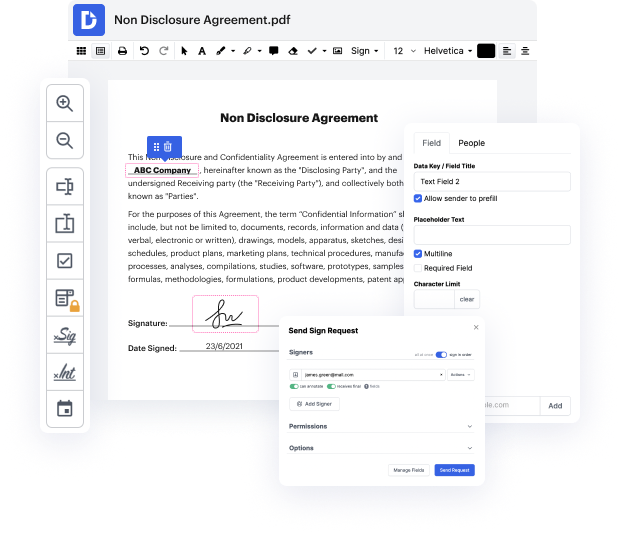
In today’s fast-paced digital landscape, managing documents efficiently is paramount. Our platform empowers users to streamline their document editing, signing, and distribution processes seamlessly. With its deep integration with Google Workspace, you can easily import, modify, and sign documents directly, ensuring a smooth workflow. This guide will walk you through the process of adding conditional fields to your templates for e-signature using our editor in Google Chrome, making your document management experience both convenient and effective.
Follow the steps to add conditional fields:
- Open the DocHub website and log in to your account.
- Navigate to your templates section and select the desired template you wish to edit.
- Once the template is open in the editor, locate the option to add fields. Choose the conditional fields option to start customizing your template.
- Drag and drop the conditional fields into the appropriate sections of your template. You can set specific rules for when these fields should appear based on user responses.
- After configuring your fields, save your changes. You can then preview the template to ensure everything is set correctly.
- Finally, export or share the template for e-signature, allowing users to easily fill out the necessary information.
Start enhancing your document management experience today with our powerful features!
PDF editing simplified with DocHub






Drive efficiency with the DocHub add-on for Google Workspace
See why our customers choose DocHub


Security and compliance
At DocHub, your data security is our priority. We follow HIPAA, SOC2, GDPR, and other standards, so you can work on your documents with confidence.
Learn more


