
Add Conditional Fields to PDF for Sign on Huawei mobile device




Add Conditional Fields to PDF for Sign on Huawei
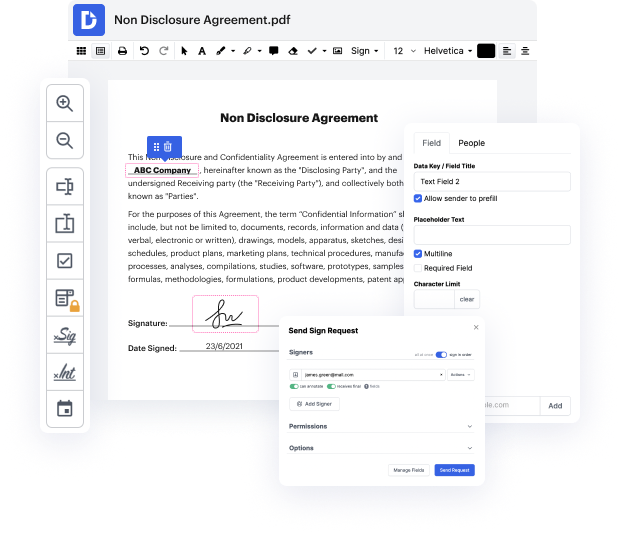
DocHub provides an efficient way to manage your documents online, enabling users to edit, sign, and share PDFs seamlessly. With its deep integration with Google Workspace, our platform simplifies the process of importing and exporting documents, allowing users on devices like the Huawei Mate 60 Pro, Huawei Mate X6, and Huawei Enjoy 70z to enhance their workflows. Whether you're using the Huawei Pura 70 Pro or Huawei Enjoy 70, you'll find that adding conditional fields to your PDFs is straightforward and convenient.
Follow the steps to add conditional fields to your PDF for sign on Huawei
- Open the online editor and log into your account using your credentials.
- Upload the PDF document you wish to modify by selecting it from your device or importing it directly from your Google Drive.
- Navigate to the section where you want to add conditional fields and select the appropriate option from the editing tools.
- Customize the conditional fields by setting criteria that determine when each field should appear based on user inputs.
- After finalizing the fields, review your document for any additional edits and ensure all conditional fields function as intended.
- Once satisfied, download your completed document, print it, or share it directly via email or a link.
Experience the convenience of managing your PDFs effortlessly—start using our platform today!
PDF editing simplified with DocHub






Drive efficiency with the DocHub add-on for Google Workspace
Got questions?
How to sign a PDF document on Huawei phone?
How do I add a signature to a PDF on my phone?
How do I sign a PDF on my Huawei phone?
How do I add a signature to my Huawei phone?
See why our customers choose DocHub


Security and compliance
At DocHub, your data security is our priority. We follow HIPAA, SOC2, GDPR, and other standards, so you can work on your documents with confidence.
Learn more


