
Adapt PDF on Desktop quickly


How to adapt PDF on Desktop with DocHub
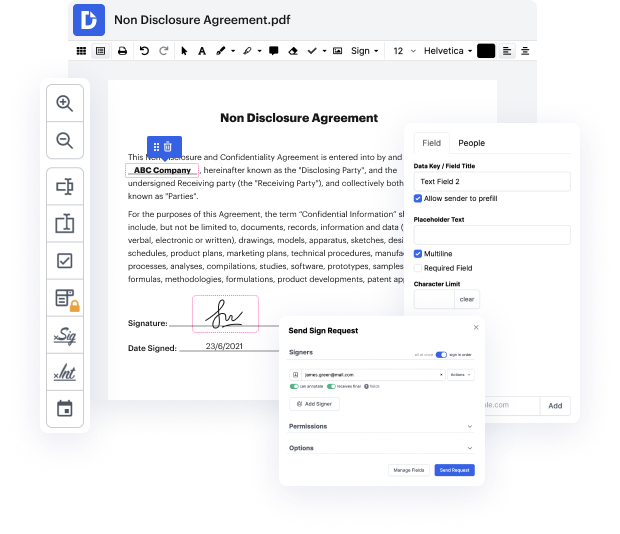
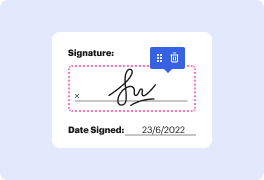
DocHub is an innovative platform that simplifies document management, allowing users to edit, sign, and distribute PDFs seamlessly. Designed for efficiency, it integrates deeply with Google Workspace, enabling a streamlined workflow. Whether you need to modify a document for a presentation or prepare a contract for signing, our editor offers a user-friendly interface to adapt PDFs on Desktop effortlessly. Best of all, you can utilize its features for free, making it an ideal choice for businesses and individuals alike.
Follow the steps to adapt your PDF on Desktop
- Open the website and log into your account to access the document management features.
- Upload the PDF you wish to adapt by selecting it from your files or importing it directly from Google Drive.
- Once uploaded, navigate through the editor to start making changes, whether it's adding text, images, or annotations.
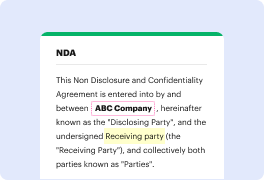
- Utilize the available tools to highlight important sections, insert checkboxes, or draw directly on the document to enhance clarity.
- After completing your edits, review the document to ensure everything is accurate and meets your needs.
- Finally, download or export your modified PDF, print it, or share it directly with others via email or link.
Start adapting your PDFs today with DocHub and experience the convenience of online document management!
PDF editing simplified with DocHub






Drive efficiency with the DocHub add-on for Google Workspace
Got questions about best online service to insert pdfs?
How do I write on a PDF on my desktop?
Why cant I edit a PDF on my computer?
How do I move a PDF file to my desktop?
How do I change the default PDF viewer on my desktop?
How do I adapt a PDF document?
Can I edit a PDF on my desktop?
Does Microsoft have a PDF editing tool?
How do I edit a PDF on my computer without docHub?
See why our customers choose DocHub


Security and compliance
At DocHub, your data security is our priority. We follow HIPAA, SOC2, GDPR, and other standards, so you can work on your documents with confidence.
Learn more