Create your Professional Letter Template from scratch

Start Building Now
Title decoration

Here's how it works

01. Start with a blank Professional Letter Template
Open the blank document in the editor, set the document view, and add extra pages if applicable.
02. Add and configure fillable fields
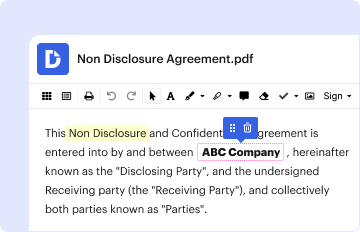
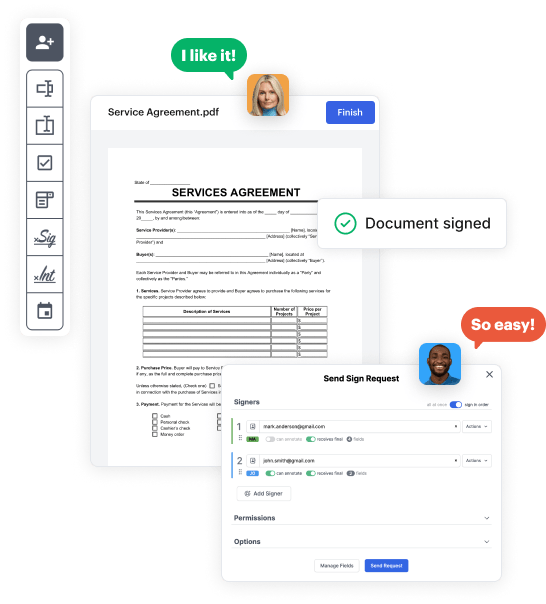
Use the top toolbar to insert fields like text and signature boxes, radio buttons, checkboxes, and more. Assign users to fields.
03. Distribute your form
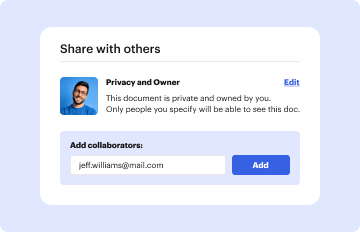
Share your Professional Letter Template in seconds via email or a link. You can also download it, export it, or print it out.

A simple tutorial on how to set up a polished Professional Letter Template
Form edit decoration

Step 1: Log in to DocHub to begin creating your Professional Letter Template.

First, sign in to your DocHub account. If you don't have one, you can simply sign up for free.

Step 2: Head to the dashboard.

Once signed in, go to your dashboard. This is your main hub for all document-based operations.

Step 3: Kick off new document creation.

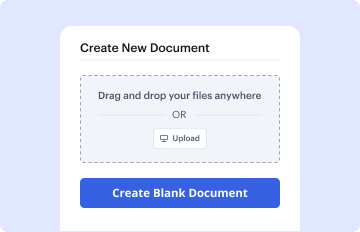
In your dashboard, hit New Document in the upper left corner. Choose Create Blank Document to create the Professional Letter Template from scratch.

Step 4: Insert form elements.

Add various items like text boxes, images, signature fields, and other fields to your form and assign these fields to particular recipients as required.

Step 5: Configure your form.

Personalize your template by incorporating walkthroughs or any other necessary information leveraging the text tool.

Step 6: Review and tweak the document.

Meticulously check your created Professional Letter Template for any discrepancies or required adjustments. Utilize DocHub's editing features to perfect your form.

Step 7: Share or export the form.

After finalizing, save your file. You may opt to keep it within DocHub, transfer it to various storage solutions, or forward it via a link or email.

be ready to get more

Build your Professional Letter Template in minutes

Start creating now

Got questions?

We have answers to the most popular questions from our customers. If you can't find an answer to your question, please contact us.
Contact us
Open the Word document that you want to save as a template. On the File menu, click Save as Template. In the Save As box, type the name that you want to use for the new template. (Optional) In the Where box, choose a location where the template will be saved.
Tip: If youre already in Word for the web, get to the letter templates by going to File New, and then below the template images click More on Office.com. Youll be on the Templates for Word page. In the list of categories, click Letters. As you work on the letter, youll probably want to rename it.
What are the components of a professional letter? Your return address. The recipients address. A greeting. The Body (the content of the letter) A closing (such as sincerely) Both your handwritten signature and your name typed.
Use a formal salutation like Dear [Recipients Name], with a colon. Write the body of your letter in clear, concise paragraphs. End with a formal closing like Sincerely, followed by your handwritten signature and typed name. Proofread the letter for spelling and grammar errors before sending.
A professional greeting: Use a business greeting to address the reader and show your respect. The most common professional greeting is Dear, which you can use effectively in nearly every situation.
be ready to get more

Build your Professional Letter Template in minutes

Start creating now

Related Q&A to Professional Letter Template

How to write a formal letter in block style Step 1: Write the contact information and date. Step 2: Write the salutation. Step 3: Write the body of the letter. Step 4: Write the complimentary close. Step 5: Mention enclosed materials. Step 1: Put the date at the top (optional) Step 2: Write the salutation.
The most common layout of a business letter is known as block format. Using this format, the entire letter is left justified and single spaced except for a double space between paragraphs. Another widely utilized format is known as modified block format.
Professional letter formats Three common layouts you might find on a template include: Block: All the text in the letter aligns to the left, with a space between each paragraph or section. Modified block: Contact information and signature are in the center, and the body text aligns to the left.

Additional resources on building your forms