
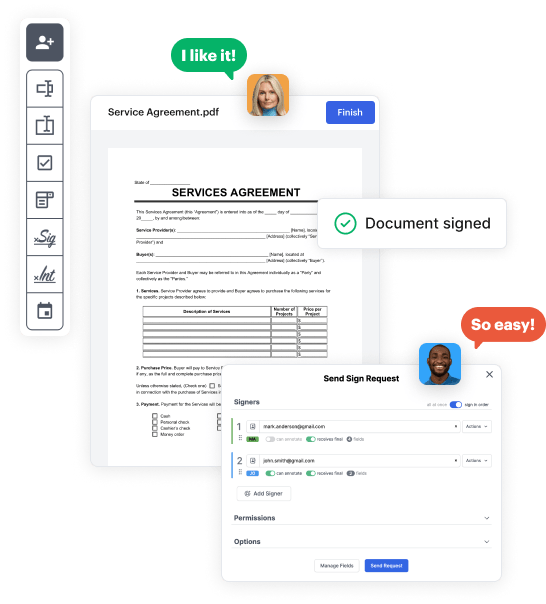
Create your No Child Will from scratch

Start Building Now
Title decoration

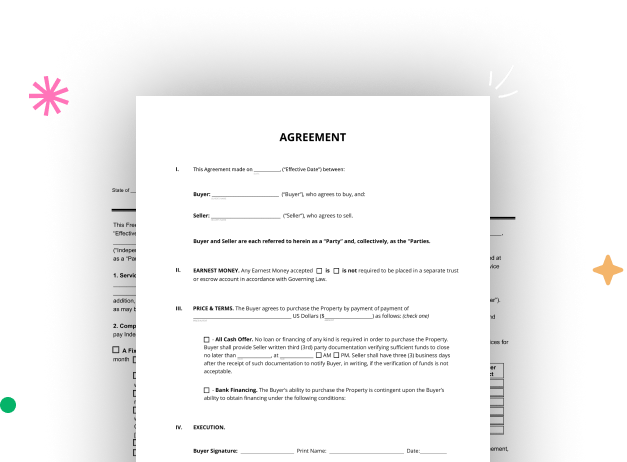
Here's how it works

01. Start with a blank No Child Will
Open the blank document in the editor, set the document view, and add extra pages if applicable.
02. Add and configure fillable fields
Use the top toolbar to insert fields like text and signature boxes, radio buttons, checkboxes, and more. Assign users to fields.
03. Distribute your form
Share your No Child Will in seconds via email or a link. You can also download it, export it, or print it out.

Build No Child Will from scratch by following these detailed guidelines

Form edit decoration

Step 1: Open DocHub and get going.

Start by signing up for a free DocHub account using any available sign-up method. Just log in if you already have one.

Step 2: Sign up for a 30-day free trial.

Try out the whole collection of DocHub's advanced features by registering for a free 30-day trial of the Pro plan and proceed to craft your No Child Will.

Step 3: Build a new blank form.

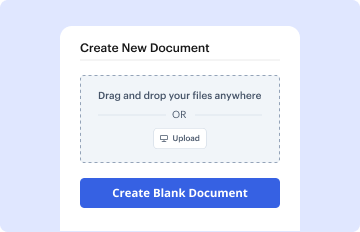
In your dashboard, choose the New Document button > scroll down and hit Create Blank Document. You’ll be taken to the editor.

Step 4: Arrange the view of the document.

Utilize the Page Controls icon marked by the arrow to toggle between two page views and layouts for more convenience.

Step 5: Begin by adding fields to design the dynamic No Child Will.

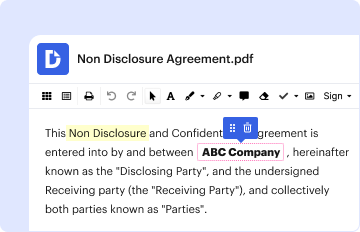
Explore the top toolbar to place document fields. Add and arrange text boxes, the signature block (if applicable), add photos, and other elements.

Step 6: Prepare and configure the incorporated fields.

Arrange the fillable areas you incorporated per your chosen layout. Adjust each field's size, font, and alignment to ensure the form is straightforward and professional.

Step 7: Finalize and share your template.

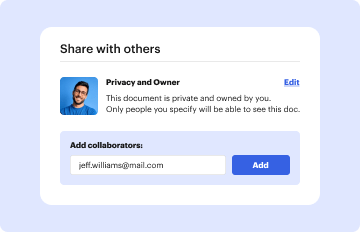
Save the finalized copy in DocHub or in platforms like Google Drive or Dropbox, or create a new No Child Will. Distribute your form via email or get a public link to reach more people.


be ready to get more

Build your No Child Will in minutes

Start creating now

Got questions?

We have answers to the most popular questions from our customers. If you can't find an answer to your question, please contact us.
Contact us
From the Family other users options, select Add a family member. Select Add a child, enter the new users email address, then click Next. The new member will then need to confirm the addition to your family group from his or her inbox. Once this is done, select Manage family settings online.
Each person can Microsoft 365 on all their devices and be signed in to Microsoft 365 on five devices at the same time. To Microsoft 365, they sign in to .microsoft365.com using their own Microsoft account.
Once youre signed in, follow these steps: Go to family.microsoft.com. Sign in with the Microsoft account you want to use to manage your childrens accounts. Click Add a Family Member. Enter your childrens account information, including their email address, name, and date of birth. Click Next.
Create an account Open the Family Link app . If you dont have the Family Link app, visit the Family Link setup page to get started. At the top left, tap Menu. Add child . Follow the on-screen instructions. When youre done, youll get an on-screen confirmation.
Turn on the new device and follow the instructions on screen to set up the device. When youre asked to sign in with your Google Account, tap Create new account. If you dont see Create new account, tap More options first. Enter your childs name, birthday, gender, email address, and password.
be ready to get more

Build your No Child Will in minutes

Start creating now

Related Q&A to No Child Will

You can use the Settings app to add a user account. In the Settings app on your Windows device, select Accounts Other user or use the following shortcut: Under Add other user , select Add account. Enter the account information for this person to sign in: Follow the instructions to finish setting up the account.
Go to Family Center and log into your Meta account. Click Add family member. Select Create an account for a child from the options available, then click Continue. Follow the on-screen instructions to set up your childs account.
A parent or guardian must create and manage a Meta account for a child between the ages of 10 and 12 (or the applicable age in your region). Parents cannot create an account for a child under 10 and children under 10 cannot use Meta Quest 2 and 3.

Additional resources on building your forms