
Create your Google Business Form from scratch
Start Building Now




Here's how it works
A simple tutorial on how to create a professional-looking Google Business Form
Step 1: Sign in to DocHub to create your Google Business Form.
First, log in to your DocHub account. If you don't have one, you can easily register for free.
Step 2: Head to the dashboard.
Once signed in, access your dashboard. This is your central hub for all document-centric tasks.
Step 3: Start new document creation.
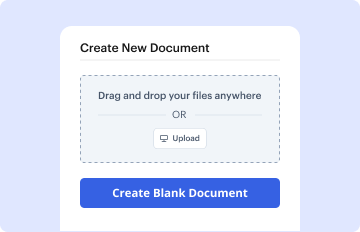
In your dashboard, hit New Document in the upper left corner. Opt for Create Blank Document to craft the Google Business Form from a blank slate.
Step 4: Insert form elements.
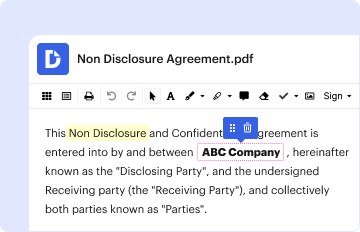
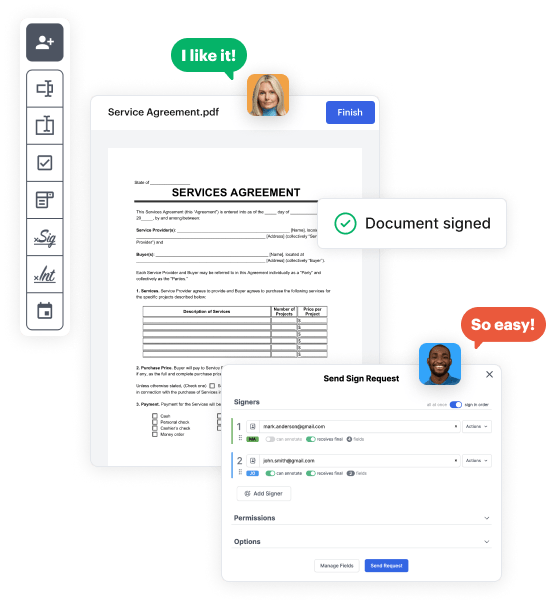
Add different fields like text boxes, images, signature fields, and other options to your form and assign these fields to specific individuals as required.
Step 5: Customize your form.
Refine your form by including instructions or any other necessary tips leveraging the text tool.
Step 6: Double-check and modify the document.
Meticulously check your created Google Business Form for any typos or necessary adjustments. Take advantage of DocHub's editing features to polish your form.
Step 7: Share or export the form.
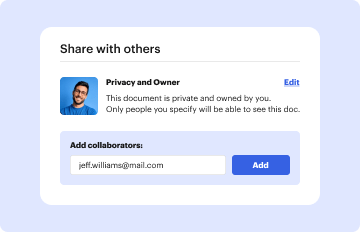
After completing, save your work. You can opt to keep it within DocHub, transfer it to various storage options, or forward it via a link or email.