
Create your Meeting conference room Booking Template from scratch

Start Building Now
Title decoration

Here's how it works

01. Start with a blank Meeting conference room Booking Template
Open the blank document in the editor, set the document view, and add extra pages if applicable.
02. Add and configure fillable fields
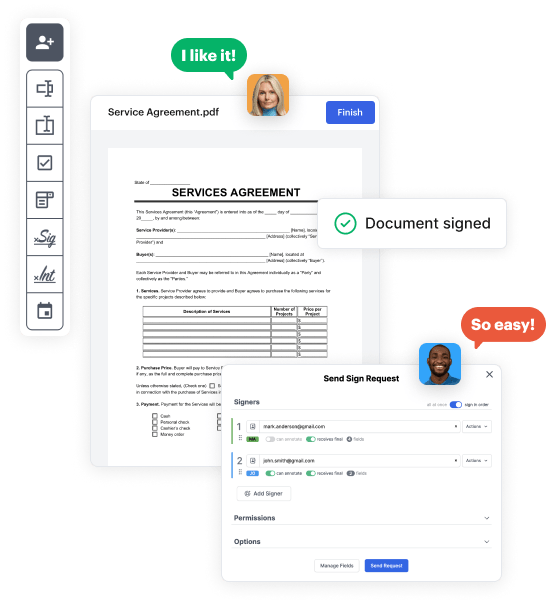
Use the top toolbar to insert fields like text and signature boxes, radio buttons, checkboxes, and more. Assign users to fields.
03. Distribute your form
Share your Meeting conference room Booking Template in seconds via email or a link. You can also download it, export it, or print it out.

A detailed walkthrough of how to build your Meeting conference room Booking Template online

Form edit decoration

Step 1: Start with DocHub's free trial.

Go to the DocHub website and sign up for the free trial. This gives you access to every feature you’ll require to create your Meeting conference room Booking Template without any upfront cost.

Step 2: Access your dashboard.

Sign in to your DocHub account and go to the dashboard.

Step 3: Initiate a new document.

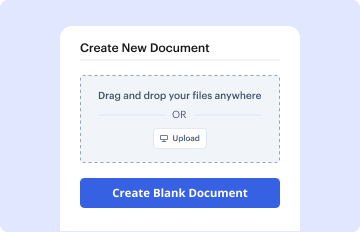
Hit New Document in your dashboard, and choose Create Blank Document to craft your Meeting conference room Booking Template from the ground up.

Step 4: Use editing tools.

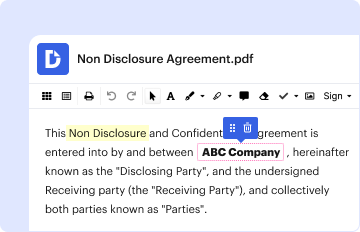
Insert various fields such as text boxes, radio buttons, icons, signatures, etc. Organize these fields to match the layout of your form and designate them to recipients if needed.

Step 5: Organize the form layout.

Rearrange your form in seconds by adding, moving, removing, or combining pages with just a few clicks.

Step 6: Create the Meeting conference room Booking Template template.

Transform your newly designed form into a template if you need to send many copies of the same document repeatedly.

Step 7: Save, export, or share the form.

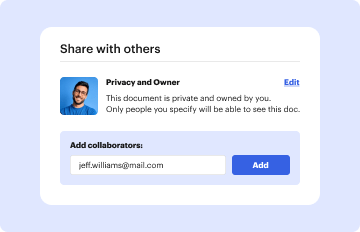
Send the form via email, share a public link, or even post it online if you want to collect responses from a broader audience.


be ready to get more

Build your Meeting conference room Booking Template in minutes

Start creating now

Got questions?

We have answers to the most popular questions from our customers. If you can't find an answer to your question, please contact us.
Contact us
How to add a room list to Outlook Calendar: Open Outlook Calendar. Look for the +Add button on the top menu. In the drop-down menu, click From a room list In the pop-up, select the room calendar youd like to view. Double click the room and press ok. The calendar will appear on the right-hand side of your screen.
Use the Room Finder In a new meeting, select the Scheduling Assistant button on the ribbon. Use the Show a room list drop-down to pick a list of rooms. Select an available room to add the room to the Scheduling Assistant and to the meeting as a recipient.
If youre more of a visual learner, check out our step-by-step guide below: Step 1: Open Outlook Calendar to begin adding a room list. Step 2: Look for the +Add Button on Outlook Calendar. Step 3: Select from room list in the drop-down menu. Step 4: Select the room list youd like to add to your Outlook Calendar.
Open Outlook and create a new meeting. Add the room or equipment to the meeting as if it were a person and select Scheduling Assistant to see a live calendar view of the room or equipments availability. If the hour slot is clear, its available; if its blue, its reserved.
Schedule a calendar event or meeting Select the calendar. Select New event. Enter the details, location, start time and end time. If this is a meeting, add the names or email addresses of the people you want to invite. To make this a recurring meeting, select Repeat, and choose how often. Select Save or Send.
be ready to get more

Build your Meeting conference room Booking Template in minutes

Start creating now

Related Q&A to Meeting conference room Booking Template

Invite a room to a meeting Select Room Finder in the meeting scheduler or type the conference room email address. Select Show a room list and find a building or list. Choose a room from the list of available rooms. Complete the meeting invitation as you would for any other meeting before sending.
Users can add the Bookings app to the left rail for convenient access: Open Outlook or Microsoft Teams. Navigate to the left rail. Select the Apps icon. Search for Microsoft Bookings. Select Add to integrate it into your Outlook or Teams interface. Pin the app to the left rail for easy and quick access.
Open your meeting window. For an existing meeting, double-click the meeting in your Outlook calendar to open and edit it. 2. In the meeting window, click Locations to locate the room you want to reserve.

Additional resources on building your forms