Create your Confirmation message Booking Template from scratch
Start Building Now




Here's how it works
A detailed guide on how to build your Confirmation message Booking Template online
Step 1: Start with DocHub's free trial.
Go to the DocHub website and register for the free trial. This gives you access to every feature you’ll require to create your Confirmation message Booking Template without any upfront cost.
Step 2: Navigate to your dashboard.
Log in to your DocHub account and proceed to the dashboard.
Step 3: Craft a new document.
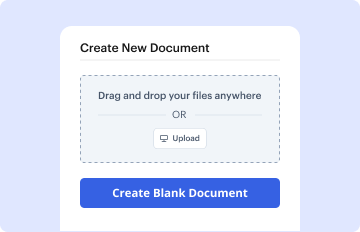
Hit New Document in your dashboard, and choose Create Blank Document to craft your Confirmation message Booking Template from the ground up.
Step 4: Utilize editing tools.
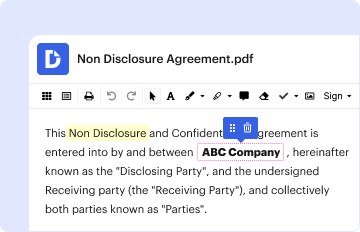
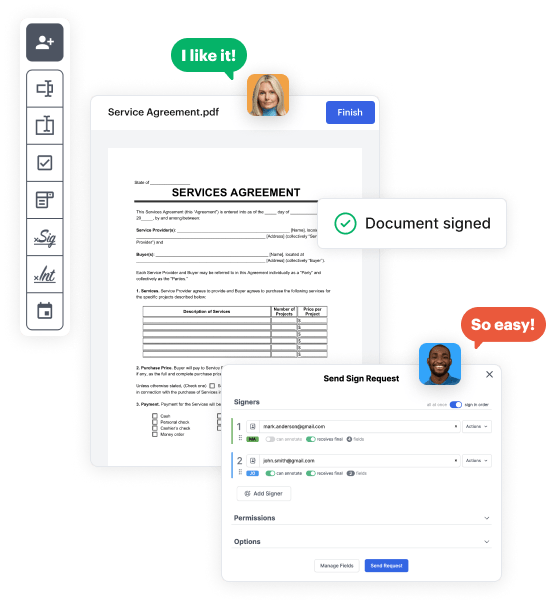
Insert various fields such as text boxes, radio buttons, icons, signatures, etc. Organize these elements to match the layout of your document and assign them to recipients if needed.
Step 5: Organize the form layout.
Rearrange your document quickly by adding, repositioning, deleting, or combining pages with just a few clicks.
Step 6: Craft the Confirmation message Booking Template template.
Turn your newly designed form into a template if you need to send multiple copies of the same document multiple times.
Step 7: Save, export, or share the form.
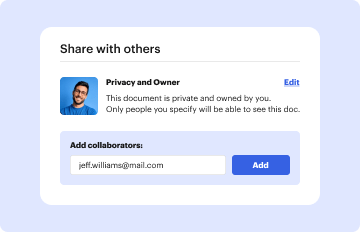
Send the form via email, share a public link, or even publish it online if you want to collect responses from a broader audience.