Create your Confirmation email Booking Template from scratch
Start Building Now




Here's how it works
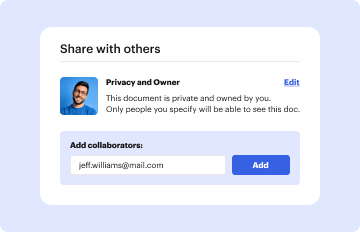
Build Confirmation email Booking Template from the ground up by following these detailed instructions
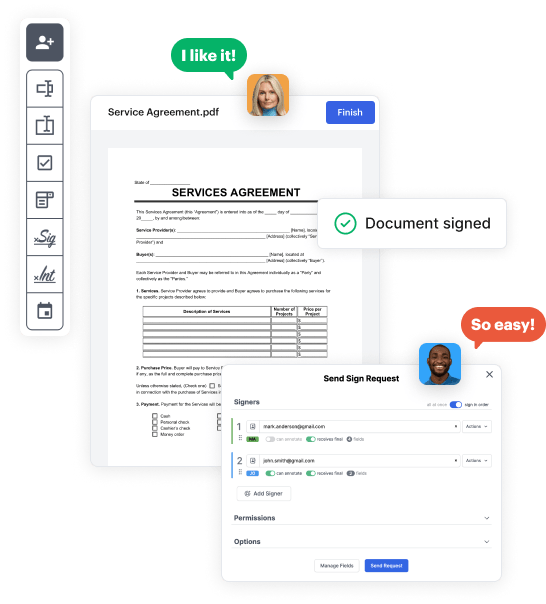
Step 1: Start off by launching DocHub.
Start by creating a free DocHub account using any available sign-up method. If you already have one, simply log in.
Step 2: Register for a 30-day free trial.
Try out the whole collection of DocHub's pro tools by signing up for a free 30-day trial of the Pro plan and proceed to build your Confirmation email Booking Template.
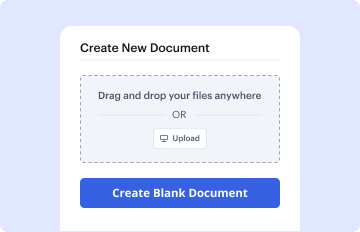
Step 3: Add a new empty document.
In your dashboard, click the New Document button > scroll down and hit Create Blank Document. You’ll be taken to the editor.
Step 4: Organize the document’s layout.
Use the Page Controls icon marked by the arrow to switch between two page views and layouts for more flexibility.
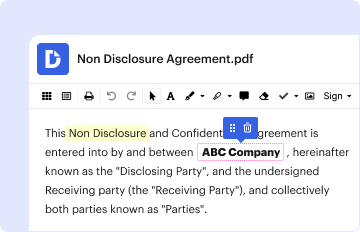
Step 5: Begin by inserting fields to create the dynamic Confirmation email Booking Template.
Explore the top toolbar to add document fields. Insert and format text boxes, the signature block (if applicable), insert images, etc.
Step 6: Prepare and configure the added fields.
Configure the fillable areas you added per your chosen layout. Modify the size, font, and alignment to ensure the form is easy to use and polished.
Step 7: Finalize and share your form.
Save the finalized copy in DocHub or in platforms like Google Drive or Dropbox, or craft a new Confirmation email Booking Template. Share your form via email or use a public link to reach more people.