



Definition and Meaning
The term "share Google" typically refers to the process of sharing files or documents using Google’s suite of tools, such as Google Drive or Google Docs. These tools allow users to share content with specific individuals or groups, ensuring collaboration and easy access. By using "share Google," individuals and organizations can control who has access to view, edit, or comment on a document, offering different levels of permissions for privacy and collaboration purposes.
How to Use the Share Google Functionality
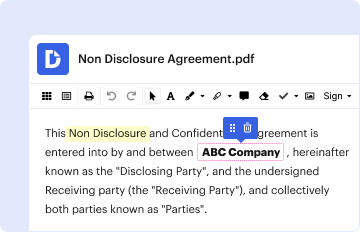
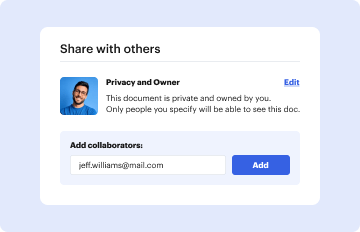
To use the share feature in Google tools, start by opening the document or file you wish to share. Click on the "Share" button, usually located in the top-right corner of the window. You will be prompted to enter email addresses of the individuals with whom you wish to share the document. You can also adjust permissions to determine if these individuals can view, comment on, or edit the document. After setting the desired permissions, clicking the "Send" button will notify the recipients via email.
Step-by-Step Process
- Open the document in Google Drive or Google Docs.
- Click "Share" in the top-right corner.
- Enter the email addresses of the intended recipients.
- Set the permissions (view, comment, edit).
- Click "Send" to notify recipients.
Why Should You Share Google Documents
Sharing Google documents streamlines collaboration, making it easier for multiple users to work on a single file. It facilitates real-time updates and ensures that all contributors have access to the most current version of the document. This functionality is particularly beneficial for teams working on joint projects, as it reduces the need for multiple versions or lengthy email threads. Additionally, sharing documents through Google tightens project timelines by promoting instant feedback and reducing the waiting time for input from others.
Key Elements of the Share Google Feature
The key components of Google's sharing feature are the permissions settings and the notification method. Permissions can be set to allow various levels of interaction with the document:
- View Only: Recipients can see the document but cannot make changes.
- Comment: Users can add remarks or suggestions without altering the original content.
- Edit: Full access for editing the document as needed.
The notification process includes sending an invitation email to the recipient, which they can use to access the document directly.
Examples of Using the Share Google Feature
Consider a scenario where a team is working on a project proposal. Using Google Docs, the project manager can share the initial draft with the team. Team members can then contribute by making edits or adding comments directly on the document. Another example is a teacher sharing a worksheet on Google Classroom, allowing students to collaboratively work on exercises in real-time.
Software Compatibility
Google’s sharing features are compatible with various software platforms and applications. Users can seamlessly integrate shareable links within collaborative tools such as Slack for team discussions or Microsoft Teams for integrated workflow management. Additionally, compatibility with cloud storage solutions like Dropbox and OneDrive further enhances document sharing and accessibility.
Supported Platforms
- Google Drive and Google Docs
- Collaboration tools: Slack, Microsoft Teams
- Cloud Storage: Dropbox, OneDrive
Digital vs. Paper Version
The digital nature of Google’s sharing feature lies in its instantaneous and convenient access, as opposed to traditional paper methods. Electronic sharing allows for quick modifications and collaborations without the limitations of physical documentation. Furthermore, digital sharing ensures environmental sustainability by reducing the reliance on paper-based processes.
Who Typically Uses the Share Google Feature
A wide range of users take advantage of Google’s sharing capabilities. Educational institutions utilize it for teacher-student interactions, businesses incorporate it into their workflow for interdepartmental collaborations, and individual users employ it for personal projects or freelance work. It is especially favored among remote teams and organizations that value efficient communication and document management.

Important Terms Related to Share Google
Understanding key terms can aid in better utilization of Google's sharing features:
- Permissions: The level of access granted to collaborators (view, comment, edit).
- Link Sharing: A method to share a document through a generated link, often used for group access.
- Real-time Collaboration: The ability for multiple users to work on the document simultaneously.
These terms are integral to efficiently managing shared documents and ensuring secure access.