Banner Budget Transfer form - Vincennes University MIC 2026

Get Form
Banner Budget Transfer form - Vincennes University MIC Preview on Page 1

Here's how it works

01. Edit your form online
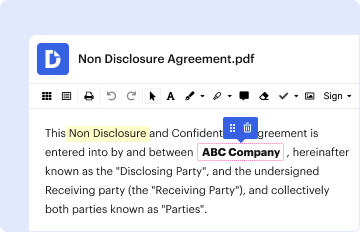
Type text, add images, blackout confidential details, add comments, highlights and more.
02. Sign it in a few clicks
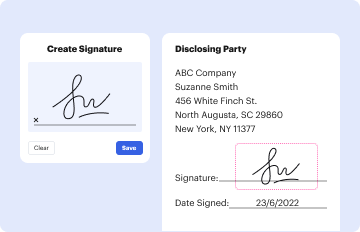
Draw your signature, type it, upload its image, or use your mobile device as a signature pad.
03. Share your form with others
Send it via email, link, or fax. You can also download it, export it or print it out.

How to use or fill out Banner Budget Transfer form - Vincennes University MIC with our platform

Form edit decoration
9.5
Ease of Setup
DocHub User Ratings on G2
9.0
Ease of Use
DocHub User Ratings on G2
  1. Click ‘Get Form’ to open the Banner Budget Transfer form in the editor.
  2. Begin by filling out the 'Increase Account (Transfer To)' section. Enter the Department, Fund, Org, and Account details for the account you are transferring funds to.
  3. Next, move to the 'Decrease Account (Trf From)' section. Similarly, provide the Department, Fund, Org, and Account information for the account from which funds will be deducted.
  4. In the 'Amount' field, specify the total amount being transferred. Ensure this matches your budgetary needs.
  5. Use the 'Notes' section for any additional comments or explanations regarding this transfer. This can help clarify your intentions for future reference.
  6. Complete the form by signing in the 'Submitted By' field and obtaining necessary approvals in both 'Budget Office Approval' and 'Approved By' sections.
  7. Finally, enter today's date and include your Division/Department Supervisor's name along with a Document Number if applicable.

Start using our platform today to streamline your document editing and form completion process for free!

be ready to get more

Complete this form in 5 minutes or less

Get form
be ready to get more

Complete this form in 5 minutes or less

Get form