FIELDS IN RED OR MARKED WITH AN * ARE MANDATORY 2025

Get Form
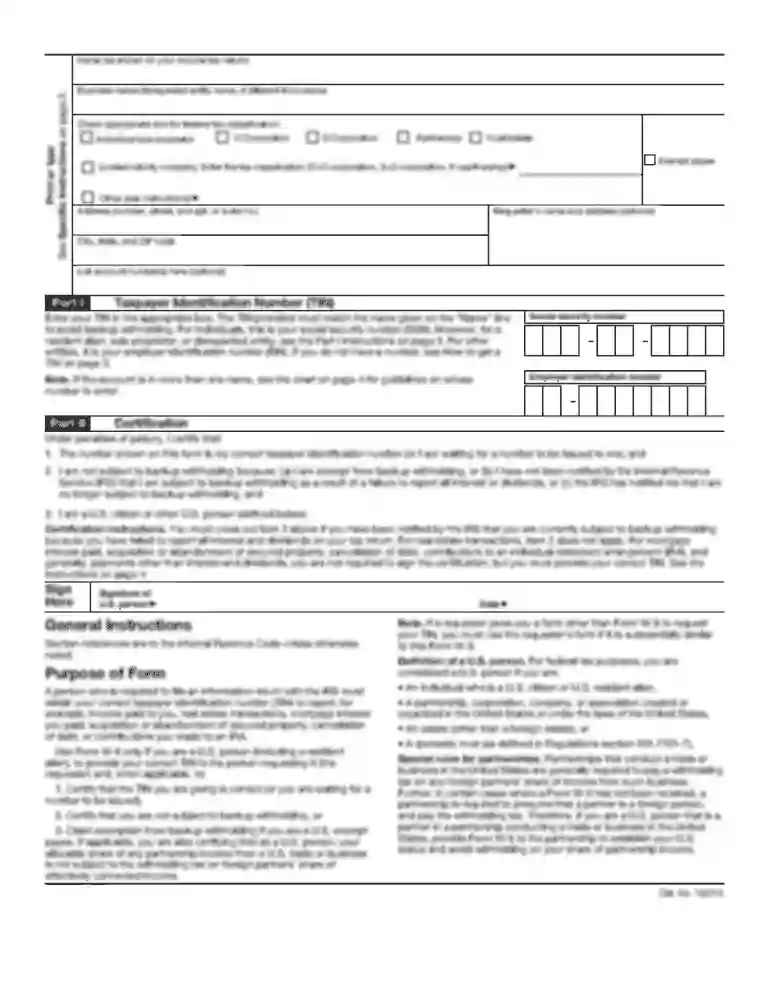
FIELDS IN RED OR MARKED WITH AN * ARE MANDATORY Preview on Page 1

Here's how it works

01. Edit your form online
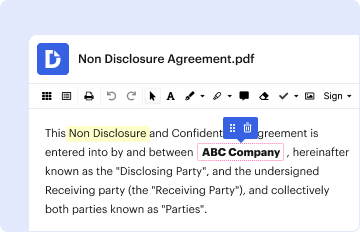
Type text, add images, blackout confidential details, add comments, highlights and more.

02. Sign it in a few clicks
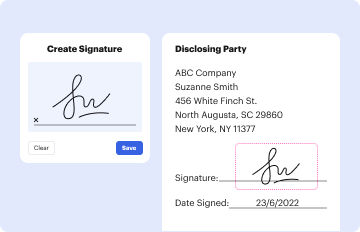
Draw your signature, type it, upload its image, or use your mobile device as a signature pad.

03. Share your form with others
Send it via email, link, or fax. You can also download it, export it or print it out.

How to use or fill out FIELDS IN RED OR MARKED WITH AN * ARE MANDATORY

Form edit decoration
9.5
Ease of Setup
DocHub User Ratings on G2
9.0
Ease of Use
DocHub User Ratings on G2
  1. Click ‘Get Form’ to open it in the editor.
  2. Begin by filling out your personal data. Ensure that all fields marked in red or with an asterisk (*) are completed, including your name, social security number, address, and contact information.
  3. In the employment interests section, indicate your availability and preferred job positions by checking the appropriate boxes. Remember to fill in the minimum salary acceptable.
  4. Complete the applicant history section for the past seven years. All fields marked as mandatory must be filled out accurately, including employer details and job responsibilities.
  5. For license information, provide your driver's license number and class. Ensure you answer any questions regarding license status truthfully.
  6. Finally, review your entries for accuracy before submitting. The certification section requires your acknowledgment of the information provided.

Start using our platform today to complete your application effortlessly!

See more FIELDS IN RED OR MARKED WITH AN * ARE MANDATORY versions

We've got more versions of the FIELDS IN RED OR MARKED WITH AN * ARE MANDATORY form. Select the right FIELDS IN RED OR MARKED WITH AN * ARE MANDATORY version from the list and start editing it straight away!
Versions Form popularity Fillable & printable
2018 4.8 Satisfied (230 Votes)
2015 4.1 Satisfied (40 Votes)
2002 4.4 Satisfied (283 Votes)
be ready to get more

Complete this form in 5 minutes or less

Get form

Got questions?

We have answers to the most popular questions from our customers. If you can't find an answer to your question, please contact us.
Contact us

Of course, electronically drawing your signature is appropriate, but only if you use a tool that complies with industry laws and regulations. Try DocHub, which guarantees eSignature validity under ESIGN and UETA requirements. All you need to approve your FIELDS IN RED OR MARKED WITH AN * ARE MANDATORY electronically is an account with DocHub and an internet connection. Once you open your document in our editor, click Sign and choose the Draw option.

If you need to edit your FIELDS IN RED OR MARKED WITH AN * ARE MANDATORY online quickly, it does not matter what internet browser you employ. DocHub’s simple editing tools are available using any internet browser. Just open the appropriate tab within our editor, add your document, and fill it out without stress.

A required form field must be completed before you submit a form. The best way to indicate a required field is to include the word required as part of the label. Many forms use a red asterisk, *, in the label. The asterisk is often not announced to screen reader users because its considered punctuation.
A Mandatory Field is a required attribute in a table that must be instantiated in order to access or store data properly. It corresponds to essential information that needs to be defined for the system to function correctly.
Fields marked by asterisk (*) are mandatory. Each box, wherever provided, should contain only one character (alphabet /number / punctuation sign) leaving a blank box after each word. Those already allotted a ten-digit alphanumeric PAN shall not apply again as having or using more than one PAN is illegal.

People also ask

These fields are essential for gathering crucial information and ensuring that the form submission is valid. Typically, required fields are marked with an asterisk (*) or another visual indicator to make it clear to users that they must be filled out.
Using an asterisk to mark required fields is an easy way to improve the usability of your forms. Only marking optional fields makes it difficult for people to fill out the form.
Use universally recognized symbols, such as an asterisk (*), alongside mandatory fields. This allows for quick identification and is widely understood by users.
Asterisk (*) next to a form controls label usually indicates it as required. Oftentimes, this asterisks purpose is then explained somewhere else on the page. Many users (especially screen reader users) may be confused with that, so be sure to make this information easily accessible.

Related links