






Definition & Meaning
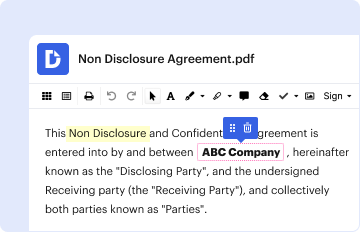
The term "form online" refers to digital forms that can be accessed and completed over the internet, eliminating the need for paper-based submissions and empowering users to complete various documentation processes digitally. These forms are commonly utilized for applications, registrations, surveys, and official document submissions. With the increasing adoption of online services, these forms play a pivotal role in enhancing efficiency and accuracy in data collection.
Types of Online Forms
- Application Forms: Often used for job applications, school admissions, or service sign-ups.
- Registration Forms: Ideal for event registration, membership sign-ups, or course enrollments.
- Feedback Forms: Commonly used in customer feedback and surveys.
Advantages of Online Forms
- Accessibility: Users can access forms from any internet-enabled device.
- Efficiency: Streamlines the submission and processing of information.
- Paper Reduction: Decreases the reliance on paper, benefiting environmental sustainability.
How to Use the Form Online
Using online forms involves several steps, from accessing the form to submitting it with complete and accurate information. Here’s how to effectively use an online form.
Steps to Access and Complete an Online Form
- Locate the Form: Access the form via a website or email link.
- Read Instructions: Carefully review any instructions or requirements before filling out the form.
- Fill Out the Form: Enter the required information in the designated fields, ensuring accuracy and completeness.
- Review Your Entries: Verify the information for any errors or omissions before submission.
- Submit: Follow the instructions to submit your completed form, ensuring any necessary supporting documents are attached.
Tips for Effective Use
- Save Frequently: If possible, save your progress regularly to prevent data loss.
- Use Clear Formats: When entering data, follow any specified formats for dates, numbers, or other information types.
- Confirm Submission: Look for confirmation or acknowledgment after submitting to ensure your form was received.
How to Obtain the Form Online
Obtaining online forms is a straightforward process, often completed with a few clicks.
Methods to Access Online Forms
- Official Websites: Forms are commonly available on official websites of organizations or governmental agencies.
- Direct Downloads: Some forms are downloadable as PDFs or other file formats direct from the website.
- Email Requests: For some organizations, you may request the form via email and receive a download link.
Best Practices for Accessing Forms
- Use Trusted Sources: Ensure that you are downloading forms from legitimate and secure websites.
- Check for Updates: Periodically check for the latest version of the form, as forms may be updated with new information or requirements.
Steps to Complete the Form Online
Completing an online form demands careful attention to detail and accuracy. The following outlines a typical completion process:
- Access the Form: Navigate to the form’s online location via a provided link or as directed by the issuing entity.
- Fill in Personal Details: Start with personal data such as name, address, contact information.
- Input Specific Information: Enter data specific to the purpose of the form, following guidelines.
- Attachments: If required, upload any necessary documents or images.
- Review: Ensure all fields are filled out correctly and review the form for errors.
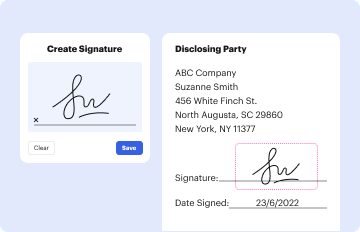
- Certification: Electronically sign or certify the form if needed.
- Submit & Confirm: Complete the process by submitting the form and confirming submission receipt.
Common Challenges
- Technical Glitches: Encountering errors or slow response times when attempting to submit the form.
- Formatting Errors: Failing to follow proper data entry formats for specific fields.
Why Should You Form Online
Digital forms offer numerous benefits, both for individual users and organizations. Understanding these benefits highlights the advantages of transitioning to online submissions.
Benefits of Using Online Forms
- Convenience: Submit forms at any time, from anywhere.
- Speed: Reduces processing times as digital information is more easily transferred and indexed.
- Cost-Effective: Eliminates the cost associated with physical mailing and handling of documents.
User Benefits
- Time-Saving: Real-time data entry and submission negates lengthy manual processing.
- Immediate Acknowledgment: Receive instant confirmations once a form is submitted, reducing waiting times.
Organizational Advantages
- Streamlined Operations: Automates data entry and reduces error rates, enhancing overall operational efficiency.
- Scalability: Easily adaptable for businesses or services growing in scale.
Who Typically Uses the Form Online
Various users rely on online forms across different sectors, reflecting their versatility.

Key User Groups
- Businesses: For internal processes, surveys, and client onboarding.
- Educational Institutions: For admissions, registrations, and student feedback.
- Government Agencies: To facilitate tax filings, permits, and benefits applications.
Example Use Cases
- Job Applications: Prospective employees fill out online forms to apply for job positions.
- Subscription Services: Users fill out forms to subscribe to newsletters or services.
Important Terms Related to Form Online
Being familiar with the terminology associated with online forms enhances user understanding and usage efficiency.
Key Terms
- Field: An individual section of the form where information is entered.
- Dropdown: A list from which users can select options.
- Checkbox: Offers a way to select one or more options.
- Digital Signature: Electronic authentication of the document.
Explanation of Terms
- Field Types: May include text inputs, numerical entries, or specific data formats like dates.
- Validation: The process ensuring entered data meets required standards.
Key Elements of the Form Online
Digital forms integrate essential components for successful data collection and submission.
Fundamental Elements
- Title: Clearly states the purpose of the form.
- Instructions: Provides users with guidelines for completion and submission.
- Mandatory Fields: Indicates which data entries are required for submission.
- Submission Buttons: Used to finalize and send the form to the recipient.
Structuring Your Online Form
- Logical Flow: Arrange fields in a coherent order to guide the user logically through the form.
- Navigation Aids: Employ progress bars or sections for longer forms to illuminate the completion process.
These detailed blocks deliver comprehensive insights into utilizing and understanding the concept of an online form, equipping users with necessary information for efficient online document management.