



Definition & Meaning
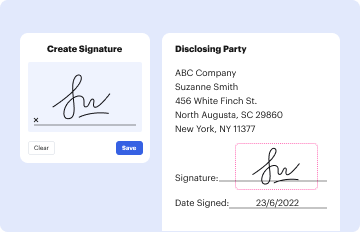
The main function of a PDF signer, especially when leveraging X.509 digital certificates, is to ensure authenticity and integrity for PDF documents. Digital signatures using these certificates are analogous to handwritten signatures but offer an added layer of security through cryptographic processes. The X.509 certificate embeds elements such as a cryptographic key and the signatory's credentials, which work together to validate the signer's identity. This method prevents alterations post-signature, ensuring the document remains unchanged from the point of signing.
How to Use PDF Signer to Sign PDF Documents Using X.509
To utilize a PDF signer for digitally signing documents with X.509 certificates, follow these steps:
- Prepare the Document: Ensure the PDF is ready and correctly formatted.
- Open the PDF in the PDF Signer: Use software compatible with X.509 certificate integration.
- Choose the Signature Field: Select where the signature will appear on the document.
- Select your X.509 Certificate: Import your certificate or choose from stored options within the PDF signer.
- Apply the Signature: Use the software’s interface to place your digital signature.
- Save and Verify: After signing, save the document and verify the signature's validity.
Steps to Complete the PDF Signing Process
Completing the PDF signing process requires attention to ensure all elements are correctly handled. Here are detailed steps:
- Upload the PDF: Open the PDF signer and upload your document.
- Initiate the Signing Process: Navigate to the signing function and select the X.509 certificate from your repository.
- Set Signature Appearance: Customize how the signature will be displayed – you might add date/time stamps or select a preferred font.
- Authenticate the Certificate: Follow prompts to verify the certificate's validity, ensuring it hasn’t been revoked or expired.
- Finalize and Export: Once signed, export the PDF for distribution. Make sure each recipient can verify the signature.
Key Elements of the PDF Signing Process Using X.509
Understanding the key elements involved in the PDF signing process with X.509 can enhance compliance and efficiency:
- Public Key Infrastructure (PKI): The foundation for managing digital certificates, ensuring document and identity security.
- Certificate Authority (CA): An organization that issues digital certificates, validating the holder's identity.
- Signature Verification: A process where the recipient system checks the certificate’s validity, issuer, and the cryptographic signature to authenticate the signer.
Legal Use of Digital Signatures
Digital signatures using X.509 certificates are legally recognized under laws like the ESIGN Act in the U.S. They provide the same legal standing as traditional signatures and must meet certain conditions:
- Intent to Sign: The signer must intend to sign the document.
- Consent to Do Business Electronically: All parties must consent to using electronic signatures.
- Record Retention: Signed records must be maintained and accessible for future reference.
Examples of Using PDF Signer
Real-world scenarios where PDF signers prove indispensable:
- Contract Signing: Businesses finalize agreements securely and expediently.
- Government Filings: Secure and verify the authenticity of documents submitted to federal and state agencies.
- Legal Documents: Maintain the integrity of notable documents requiring high security.
Software Compatibility
Choosing the right tools for signing PDF documents with X.509 certificates is vital. Popular software includes:
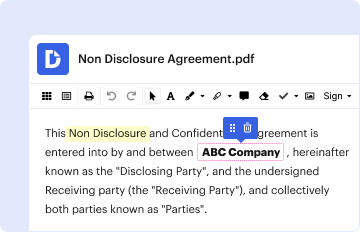
- DocHub: Offers a robust platform for managing digital signatures, with fresh features for document handling.
- Adobe Acrobat: Supports X.509-based digital signatures with extensive certificate management features.
- Foxit PDF Editor: Widely used for its compatibility and user-friendly design.
Business Types That Benefit Most
Certain business entities can greatly benefit from integrating PDF signers into their infrastructure:
- Legal Firms: Handle multiple contracts and legal paperwork while ensuring compliance and security.
- Financial Institutions: Use digital signatures to verify transactions and secure financial documents.
- Technology Companies: Leverage electronic signatures for swift and authenticated communication and document approvals.
Who Typically Uses PDF Signers with X.509
Various professionals and organizations are adopting PDF signers:
- IT Professionals: Implement digital signatures to enhance data security protocols.
- Corporate Executives: Expedite contract approvals and secure business documents.
- Government Agencies: Maintain authentication and non-repudiation with sensitive and regulated documents.
These tools amplify workflow security and efficiency across sectors, making compliance and document management stress-free.