Managing assignments in Moodle 2026

Get Form
Managing assignments in Moodle Preview on Page 1

Here's how it works

01. Edit your form online
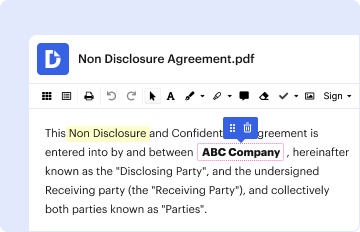
Type text, add images, blackout confidential details, add comments, highlights and more.
02. Sign it in a few clicks
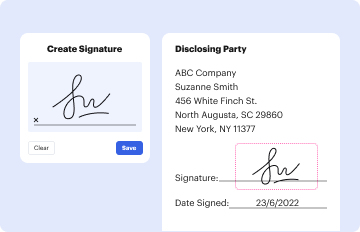
Draw your signature, type it, upload its image, or use your mobile device as a signature pad.
03. Share your form with others
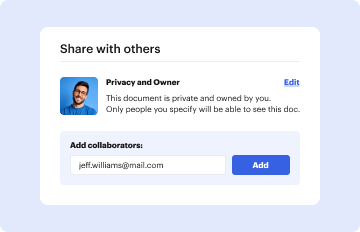
Send it via email, link, or fax. You can also download it, export it or print it out.

How to use or fill out Managing assignments in Moodle with DocHub

Form edit decoration
9.5
Ease of Setup
DocHub User Ratings on G2
9.0
Ease of Use
DocHub User Ratings on G2
  1. Click ‘Get Form’ to open it in the editor.
  2. Begin by reviewing the Grading action menu at the top of the page. This menu will change based on whether assignments are marked or unmarked.
  3. For unmarked assignments, download all submissions as a zip file using the Download all submissions link. Extract this folder and add your comments to each submission while keeping the original file names.
  4. Zip the modified files into a new folder and upload this zipped folder back into Moodle using the Upload option.
  5. If you have already marked assignments, you can download the grading worksheet as a CSV file for Excel, edit it, and then upload it back along with any feedback files.
  6. Utilize the submission table to manage student submissions effectively. Use checkboxes to select students and apply bulk actions like locking submissions or granting extensions.

Start managing your assignments efficiently today with our platform!

be ready to get more

Complete this form in 5 minutes or less

Get form

Got questions?

We have answers to the most popular questions from our customers. If you can't find an answer to your question, please contact us.
Contact us
Add user override Search for and select the relevant student from the results returned in the Override user field. Change the relevant settings. You can override when the assignment allows submissions from, the due date, cut-off date and the time limit. Select Save.
Access Site Administration Users Permissions Define roles. Click the tab Allow role assignments. Click the checkbox where the teacher row and column intersect. Click the Save changes button.
0:02 0:58 So I see on the left that module 2 has an assignment. Im going to click on the big green buttonMoreSo I see on the left that module 2 has an assignment. Im going to click on the big green button that says add submission. Ill scroll down add submission area Im going to click in the center.
How is it set up? In a course, with the editing turned on, choose Assignment from the activity chooser. Give it a name and, in the description explain what the students must submit. Expand the other settings to select, for example, availability times, how you want them to submit and how you plan to give them feedback.
Select the Assignment title from the relevant section on the module homepage. Select the link to Assignments from the Module Dashboard to open a list of all your Moodle assignments. On Grid format, open the Block drawer and navigate to the Activities block, select the link to Assignments.
be ready to get more

Complete this form in 5 minutes or less

Get form

People also ask

How to lock student submissions Navigate to the Assignment activity on the Moodle page. Select users using the tick box in the Select field of the table. Scroll to the bottom of the page. With selected users Select Go. The students status field will display Submission - changes not allowed.
Late submission Ensure that you note down your deadline day and time for each assignment when you receive your assignment brief. If you think your deadline has not passed and you are still unable to submit you will need to contact your Module Leader to inform them of this issue and request their advice.
Creating Assignments In the upper right-hand corner, click the Edit Mode on the top right: Next click Add an activity or Resource on the course front page within a topic or a week field: Select Assignment. Add a title in the assignment name box and add the assignment details in the description box:

Related links