January 2016 Credit Card Statement - Mountain Sage-2026

Get Form
January 2016 Credit Card Statement - Mountain Sage Preview on Page 1

Here's how it works

01. Edit your form online
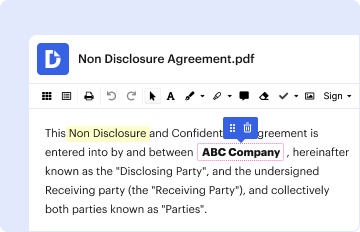
Type text, add images, blackout confidential details, add comments, highlights and more.
02. Sign it in a few clicks
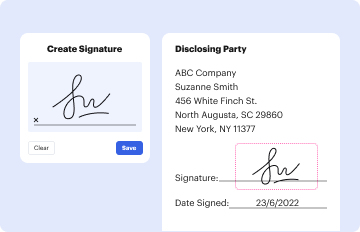
Draw your signature, type it, upload its image, or use your mobile device as a signature pad.
03. Share your form with others
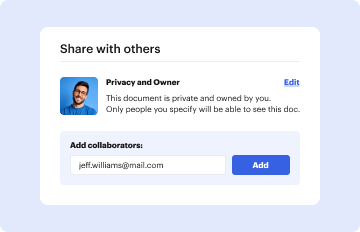
Send it via email, link, or fax. You can also download it, export it or print it out.

How to use or fill out January 2016 Credit Card Statement - Mountain Sage with DocHub

Form edit decoration
9.5
Ease of Setup
DocHub User Ratings on G2
9.0
Ease of Use
DocHub User Ratings on G2
  1. Click ‘Get Form’ to open the January 2016 Credit Card Statement - Mountain Sage in our editor.
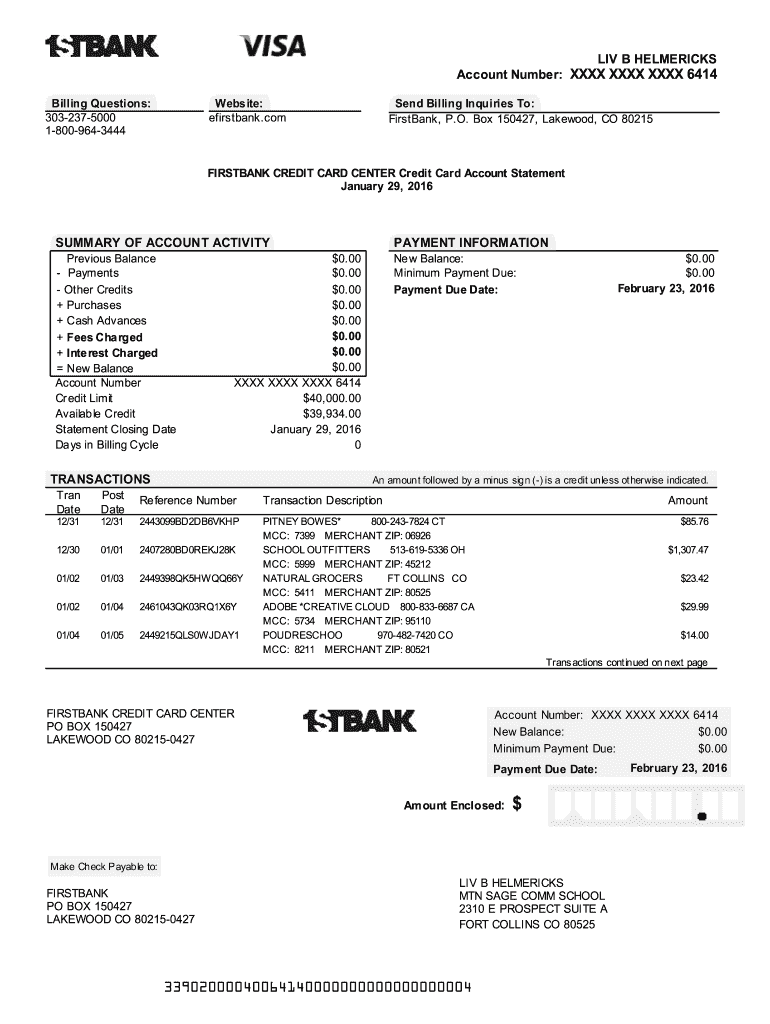
  2. Begin by reviewing the 'Summary of Account Activity' section. Here, you will find your previous balance, payments made, and new balance. Ensure all amounts are accurate.
  3. Next, navigate to the 'Payment Information' area. Fill in the minimum payment due and payment due date as indicated on your statement.
  4. Proceed to the 'Transactions' section. This part lists all transactions during the billing cycle. Verify each transaction for accuracy and note any discrepancies.
  5. If you need to make a payment, locate the 'Amount Enclosed' field at the bottom of the document. Enter your payment amount here.
  6. Finally, review all filled sections for completeness before saving or printing your document directly from our platform.

Start using our platform today to easily manage and fill out your credit card statements for free!

be ready to get more

Complete this form in 5 minutes or less

Get form

Got questions?

We have answers to the most popular questions from our customers. If you can't find an answer to your question, please contact us.
Contact us
The safest way is to find someone with a fireplace, pick a night, and have a wine party chucking old statements in the fire. If you do not have a fireplace and or a friend that does, buy a shredder. Otherwise, tear them into tiny pieces and preferably put them into two separate garbage cans. That should do the trick.
Log in to the Mobile Banking app and select your credit card account, then select the Statements Documents link in the Account Management section. After selecting a statement (and depending on the specific apps and settings on your phone), you can download, print and email your statement.
Login to the credit card providers official website using your banking credentials and navigate to the Statement or Transactions section. You can view or download the statement for the last six months from there. You can also request the same via email or a customer care number or visit the nearest branch.
Online: Card issuers usually send credit card statement to your registered email ID on the same date every month, which is known as the billing date. Another way to access your credit card statement online is by logging into your banks net banking portal.
You can order statements for your closed credit card a few different ways. We keep copies of your statements for up seven years. Heres how you can request copies: Digital banking: If theres still a balance on the closed account, youll have access to your electronic statements.