




Definition and Purpose of Online Forms
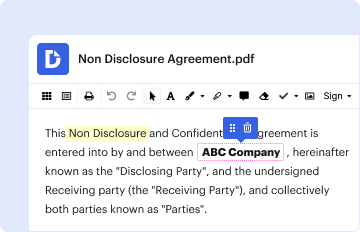
Online forms are digital documents used to gather information efficiently and accurately. They eliminate the need for paper-based data collection, allowing users to complete and submit required information electronically. These forms can serve multiple purposes, from simple contact forms on websites to complex tax or legal documents requiring detailed financial or personal data. Their primary goal is to streamline the process of collecting, managing, and storing form data.
Benefits of Using Online Forms
- Efficiency: Completing forms online reduces time spent on manual data entry and processing.
- Accessibility: Forms can be accessed from any device with an internet connection, making them convenient for users.
- Data Accuracy: Built-in validations ensure that the information submitted meets required criteria, minimizing errors.
- Automation: Automated workflows can be integrated, such as sending confirmation emails or directing data to specific departments.
Steps to Complete Forms Online
Completing a form online typically involves several key steps, beginning with accessing the document and ending with submitting it for processing.
- Access the Form: Locate the online form you need. This might be hosted on a specific platform, website, or provided via email.
- Fill Out Personal Information: Enter all required personal details accurately. Some forms might auto-fill based on stored data if using secure portals.
- Review and Edit: Carefully review all entries for accuracy and completeness. Many platforms allow you to hover over fields for more information.
- Submit: Once verified, submit the form. Ensure you receive confirmation to know it was successfully sent.
- Save a Copy: Download or print the completed form for personal records.
Common Challenges and Tips
- Data Security: Always use trusted platforms to ensure your personal data remains secure.
- Technical Difficulties: Ensure a stable internet connection and browser compatibility to avoid submission issues.
- Clarity: If uncertain about specific fields, look for FAQ sections or contact support for clarification.
Creating and Managing Fillable Forms
Creating online forms can be an efficient way to gather required information directly from users, with options for customization and integration within existing workflows.
Key Features
- Customization: Tailor form fields to suit specific requirements, such as text boxes, dropdowns, and checkboxes.
- Interactive Elements: Use dynamic sections that adjust based on user input, improving user experience.
- Validation Rules: Set rules to ensure accuracy, such as mandatory fields or input format limitations.
Practical Examples
- Survey Forms: Used for feedback collection, they often employ multiple-choice and open-ended questions.
- Registration Forms: Essential for events or courses, these might include fields for attendee information and preferences.
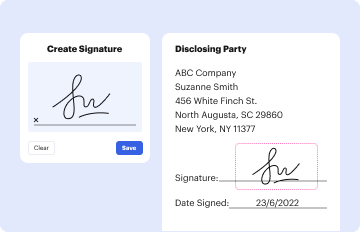
- Legal Documents: Can include signature fields for binding agreements, adaptable for individual parties or teams.
Legal Use and Compliance of Online Forms
Online forms must adhere to legal standards and privacy laws, especially when handling sensitive information such as personal identification or financial data.
Compliance Considerations
- Data Protection Laws: Ensure compliance with regulations like GDPR or CCPA when collecting personal data.
- Electronic Signatures: Use platforms that comply with ESIGN Act to ensure signatures are legally binding.
- Privacy Policies: Clearly mention how user data will be used and seek consent where necessary.
Software Compatibility for Online Forms
Ensuring compatibility with different software systems can enhance functionality and broaden the usability of online forms.
Integration Capabilities
- Cloud Storage: Connection with services like Google Drive or Dropbox allows seamless document management.
- CRM Software: Integration with tools like Salesforce or HubSpot can automate data entry and streamline customer interactions.
- Accounting Software: Forms that link to QuickBooks or FreshBooks facilitate efficient financial data management.
Examples of Use
- Corporate Environments: Forms integrated with HR systems for employee onboarding or feedback collection.
- Educational Institutions: Utilizing forms for enrollment processes or capturing feedback on courses.
- Healthcare: Patient information forms compatible with medical record systems, ensuring secure data processing.
Different Types of Online Forms
Online forms come in various types, each tailored for specific needs and sectors. Recognizing which form to use and the associated requirements is crucial for accurate data collection.
Common Form Types
- Application Forms: Used for job applications, credit requests, or membership enrollments, requiring detailed personal and financial data.
- Feedback Forms: Often used in customer satisfaction surveys or product evaluations, focusing more on user experience and qualitative data.
- Order Forms: Implemented by businesses for efficient product or service ordering, integrating payment gateways for seamless transactions.
Specialized Forms
- Tax Forms: Such as the W-9, often mandatory for independent contractors to report earnings, requiring fields for tax identification numbers and addresses.
- Legal Agreements: Forms used for confidential agreements or consent, needing secure processing and storage.
- Healthcare Consent: Designed to capture patient consent for treatments or sharing medical data, ensuring compliance with healthcare regulations.
Form Submission Methods
The method chosen for form submission can influence how quickly and efficiently the information is processed. Modern practices leverage digital submission for swift handling and feedback.
Primary Submission Methods
- Online Submission: Direct entry on web platforms, which allow for immediate processing and feedback.
- Email Submissions: Forms sent via email, allowing attachments and additional documentation if needed.
- In-person Drop-offs: Although less common, used for legal forms requiring physical verification or original documents.
Factors Influencing Method Choice
- Urgency: Online submissions tend to be quickest; however, some forms might require postal services if original signatures or notarizations are necessary.
- Complexity: Lengthy or complex forms might have additional guidance and technical support available online.
- Technical Resources: Availability of internet or digital devices might dictate when mail or in-person submissions are used.
Digital vs. Paper Forms
Understanding the advantages and limits of digital versus traditional paper forms can help in choosing the best method for information gathering.
Advantages of Digital Forms
- Environmentally Friendly: Reduce paper consumption by adopting digital versions.
- Automated Workflow: Eliminates manual input, directs data automatically into databases or CRM systems.
- Quick Modifications: Changes can be implemented instantly without the need for reprinting.
Considerations for Paper Forms
- Reliability: Physical copies might be necessary where digital access is limited or for highly sensitive data needing physical evidence.
- Tangible Record-Keeping: Some prefer hard copies for tangible archiving or when required by strict regulatory environments.
- Handwritten Corrections: Allows for immediate annotations, though impractical for extensive edits.