




Definition and Meaning of Online Forms
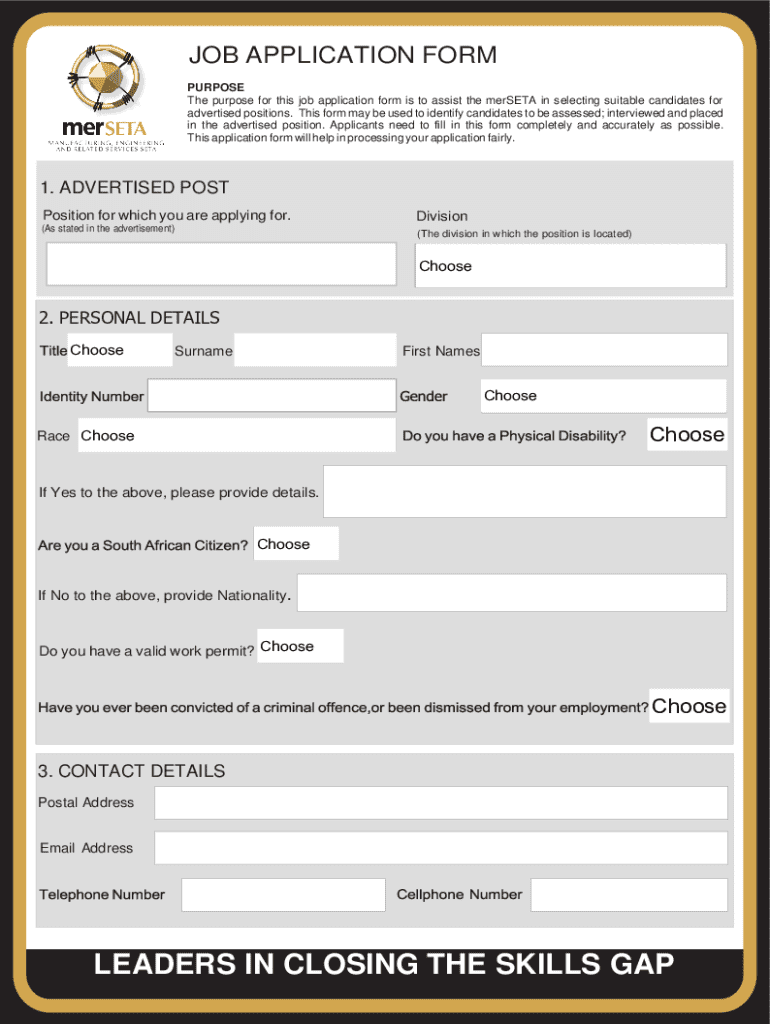
Online forms are digital versions of traditional paper forms used for various purposes such as collecting data, applying for services, and conducting surveys. These forms can be accessed and completed via the internet, eliminating the need for physical paperwork. They are designed to streamline processes by allowing users to fill in, edit, and submit information electronically. The flexibility and accessibility of online forms make them a preferred choice for both individuals and organizations aiming to enhance efficiency and improve data accuracy.
Key Characteristics
- Accessibility: Can be accessed from any internet-enabled device.
- Versatility: Support a wide range of data types and formats.
- Real-Time Processing: Immediate data collection and analysis.
- User-Friendly Interfaces: Intuitive design for ease of use.
Benefits
- Error Reduction: Automated validation checks minimize manual input errors.
- Time Efficiency: Reduces the time needed for data entry and processing.
- Resource Saving: Eliminates the costs associated with printing and distributing paper forms.
How to Use Online Forms
Using online forms effectively requires understanding their structure and functionality. Users typically start by accessing the form through a link provided on a website or via email. Online forms are designed to guide users through the information collection process with clear instructions and prompts.
Steps for Effective Use
- Access: Click on the provided link to open the form.
- Read Instructions: Carefully go through any initial guidance or requirements.
- Input Data: Enter the requested information in the designated fields.
- Review: Double-check all entries for accuracy and completeness.
- Submit: Click the submit button to send the form for processing.
Considerations
- Ensure a stable internet connection to avoid interruptions.
- Save a copy of the completed form if offered by the platform.
Steps to Complete the Form Online
Completing an online form involves a sequential process that usually starts with accessing the form and ends with submission. Proper completion of each step ensures that the information collected is both accurate and comprehensive.
Detailed Steps
- Launch Form: Open the online form in your web browser.
- Enter Personal Information: Provide necessary personal details such as name and contact information.
- Add Specific Details: Depending on the form's purpose, fill in additional sections like qualification or work experience.
- Attach Documents: Upload any required supporting documents, ensuring they meet the specified format and size limits.
- Review and Edit: Carefully check all information entered for any errors or omissions.
- Submit: Send the form for further processing, typically by clicking a dedicated button.
Important Terms Related to Online Forms
Understanding key terminology associated with online forms can enhance comprehension and usability. These terms provide insight into both technical aspects and general functionalities of online forms.
Key Terms
- Dropdown Menu: A list of predefined options from which a user can select.
- Data Validation: The process of ensuring entered information meets specified criteria.
- Captcha: A security measure to confirm the user is not an automated bot.
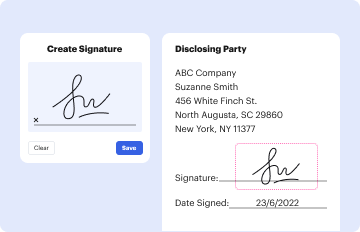
- Digital Signature: An electronic form of signature that verifies a document's authenticity.
Usage Examples
- Dropdown Menus: Used for selecting states or countries.
- Captcha: Often seen in sign-up forms to prevent spam submissions.
Examples of Using the Form Online
Online forms find application in numerous areas, supporting a range of activities from simple data collection to complex transactions.
Common Use Cases
- Job Applications: Candidates submit resumes along with personal and professional details.
- Feedback Surveys: Gather customer opinions and suggestions based on service or product experience.
- Registration Forms: For events, courses, or subscriptions, allowing seamless sign-ups.
Real-World Scenarios
- Higher Education: Institutions use online forms for student enrollment, capturing data related to academic history and personal details.
- Healthcare: Patients fill online forms for appointments and medical history, streamlining administrative processes.
Legal Use of Online Forms
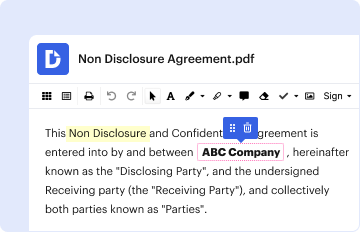
Using online forms for legal purposes is governed by regulations to ensure compliance and maintain the integrity of data collected. Online agreements, contracts, and signatures hold the same legal validity as their paper counterparts when they adhere to specific legal frameworks.
Legal Frameworks
- ESIGN Act: Grants electronic signatures the same legal standing as traditional ones in the United States.
- Data Protection Laws: Regulate the collection, storage, and handling of personal information, ensuring user privacy and data security.
Compliance Considerations
- Ensure all forms capture consent when collecting personal data.
- Use compliant platforms that adhere to relevant legal standards for electronic transactions.
Key Elements of Online Forms
A well-designed online form contains essential components that facilitate user interaction and data collection. These elements ensure forms are both functional and user-friendly.
Essential Components
- Form Fields: Include text boxes, radio buttons, checkboxes, and dropdowns for data entry.
- Instructional Text: Guidance on form completion and error prevention.
- Submit Button: Finalizes the process by sending the data for processing.
Design and Functionality
- Responsive Design: Adaptability to different devices and screen sizes.
- Clear Layout: Logical flow that directs the user smoothly from start to end.
Software Compatibility with Online Forms
Compatibility with various software platforms enhances the functionality and accessibility of online forms. Integration with productivity tools facilitates seamless data transfer and management.
Compatible Software
- Google Workspace: Allows importing and exporting directly with Google Drive and Gmail.
- CRM Systems: Simplifies customer data management by linking form entries to customer profiles.
- Accounting Software: Integration with systems like QuickBooks for direct data input.
Benefits of Compatibility
- Data Consistency: Ensures alignment between external systems and form data.
- Improved Workflow: Streamlines processes by reducing the need for manual data entry. By offering comprehensive details on the utility, functionality, and technical aspects of online forms, this content is designed to assist users in maximizing the potential of online form usage effectively.