



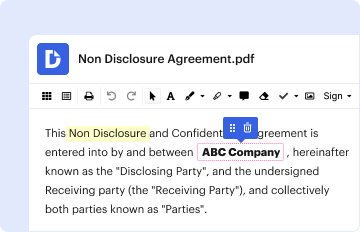
01. Edit your pan card format in word online
Type text, add images, blackout confidential details, add comments, highlights and more.

Type text, add images, blackout confidential details, add comments, highlights and more.
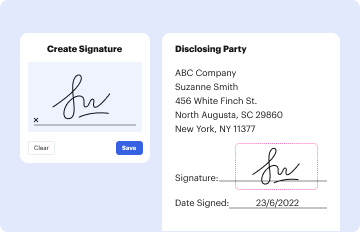
Draw your signature, type it, upload its image, or use your mobile device as a signature pad.

Send pan card form word format via email, link, or fax. You can also download it, export it or print it out.
The PAN card format in Word refers to a standardized template or document structure used for applying for a Permanent Account Number (PAN) in India. This document is essential for individuals and entities who need to conduct financial transactions, including banking, taxation, and investments. The term "PAN" stands for Permanent Account Number, issued by the Income Tax Department of India. The format typically includes fields that require personal information, such as the applicant's name, date of birth, address, and other pertinent details necessary for generating the PAN.
Understanding the format is crucial as it ensures that applicants provide accurate and complete information, which is essential for the efficient processing of their PAN applications. Using a Word format allows users to easily fill out the required fields and edit the document as needed. The convenience of having a PAN card form in a word processing application facilitates greater accessibility, enabling users to customize the document without facing technical barriers.
Using the PAN card format in Word involves several key steps that ensure the applicant meets all requirements set by authorities. Follow these guidelines for effective use:
Download the Format: Ensure you have access to the official PAN card format in Word. This can often be found on official government or financial websites.
Fill in Your Details: Open the document in Microsoft Word and fill in the required personal information clearly. This typically includes:
Format the Document: Maintain clear formatting by using capital letters where indicated, aligning text correctly, and ensuring all fields are appropriately completed.
Proofread Your Information: Double-check all entered details for accuracy. Mistakes in your application can lead to delays or rejections.
Print the Final Copy: Once completed and verified, print the document for submission as instructed by the relevant authorities.
Using a Word document allows for easy editing and adjustments, which is especially beneficial for those needing to fine-tune their application details.
Completing the PAN card format in Word follows a straightforward process. Here’s a step-by-step guide:
Locate the Official Template: Access the official PAN card format in Word. Look for recognized sources to ensure you are using the correct form.
Open the Document: Launch the Word application and open the downloaded PAN card format.
Input Personal Details: Fill in your personal details as per the required sections. Common fields include:
Attach Necessary Documents: Prepare scanned copies of mandatory documents such as identity proof, address proof, and a recent passport-sized photograph. These documents may not be filled in the format but will be needed for the application.
Review the Final Document: Carefully review the filled document to ensure all information is correct and conforms to the guidelines.
Submit the Completed Form: Follow the instructions for submitting the completed PAN card application. This may include mailing the printed format along with the required documents to the appropriate authority.
By systematically following these steps, applicants can efficiently complete and submit their PAN applications without errors.
When working with the PAN card format in Word, it's essential to be familiar with certain terms that will aid understanding and clarity:
Understanding these terms helps applicants navigate the PAN card application process with greater confidence and clarity.
The PAN card format in Word can be utilized in various real-world contexts. Here are some illustrative examples:
Individual Tax Filings: A freelancer or self-employed individual might use the PAN card format in Word to obtain their PAN, necessary for filing income tax returns.
Business Registration: Small business owners may need a PAN card when registering their entities with the relevant government bodies or for opening a business bank account.
Loan Applications: Applicants for personal or business loans are often required to present a PAN card as part of their financial documentation.
Investment Purposes: Individuals looking to invest in mutual funds, stocks, or other financial instruments must provide their PAN to comply with regulatory norms.
Identity Verification for Banking: Banks often require a PAN card for opening accounts or applying for credit cards, making the format essential for customers.
These scenarios highlight the critical role that the PAN card format in Word plays in various financial and identity verification processes.
At DocHub, your data security is our priority. We follow HIPAA, SOC2, GDPR, and other standards, so you can work on your documents with confidence.
Within the Format Page Numbers dialog, the primary option is the Number format dropdown. Here, you can change the numbering style to Arabic numerals (1, 2, 3)
by R Roopalakshmi 2026 Figure 3a presents the sample snapshot of PAN card images extracted from the input document database. Figure 3b highlights only the handwritten signaturesRead more


