



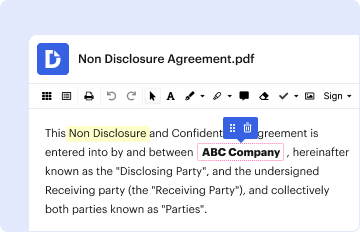
01. Edit your gconnect forms online
Type text, add images, blackout confidential details, add comments, highlights and more.

Type text, add images, blackout confidential details, add comments, highlights and more.
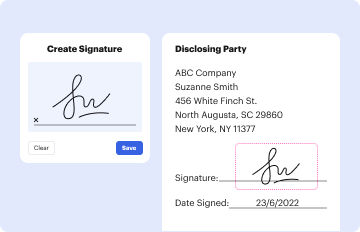
Draw your signature, type it, upload its image, or use your mobile device as a signature pad.
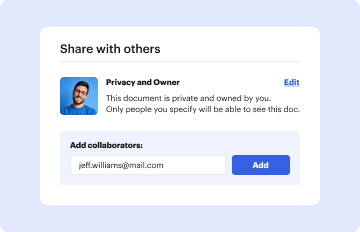
Send it via email, link, or fax. You can also download it, export it or print it out.
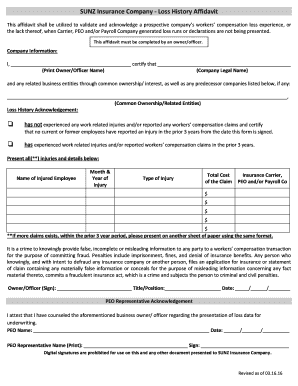
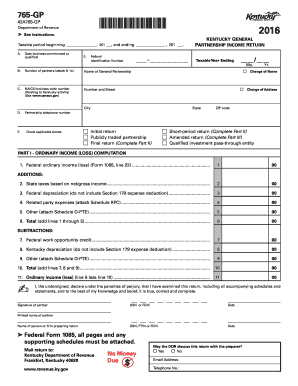
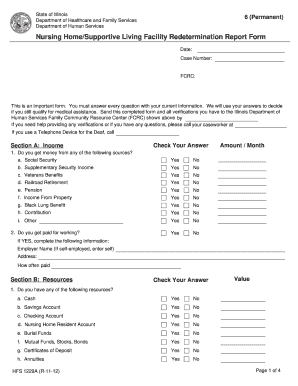
The term "gconnect forms" generally refers to a set of digital forms that can be used for various document-related transactions, typically involving government or administrative processes. They allow users to interact with government services or fulfill obligations that require documentation submission. These forms facilitate streamlined processes for document exchanges, ensuring efficiency and uniformity in handling information.
Using gconnect forms involves several key steps to ensure proper completion and submission. First, identify the specific form required for your task, which may range from application forms to tax filings. Once you have the correct form:
Access the Form: Visit the official platform or website where the form is hosted, often provided by government bodies or authorized service providers.
Fill in Details: Enter the required information accurately. This may include personal details, contact information, and specific data related to the transaction.
Attach Required Documents: Some forms may require additional documentation. Ensure you have digital copies ready for upload.
Review and Validate: Double-check all entries for accuracy and completeness before submission to avoid processing delays.
Submit the Form: Choose your preferred submission method, whether online, via mail, or in-person, and follow any additional instructions provided.
Confirmation: After submission, you should receive confirmation, which can typically be saved or printed for your records.
Completing gconnect forms effectively requires attention to detail and adherence to instructions. Follow these steps for efficient completion:
Gather Information: Ensure you have all necessary details and documents ready before you begin. This includes personal identification, relevant certificates, and any required supporting documents.
Access the Correct Form: Use official sources to download or fill out the form electronically, which ensures you have the most current version.
Follow Instructions Carefully: Each form usually comes with a set of instructions. Read these carefully to avoid common errors.
Fill Out Personal Information: Start with entering your personal and contact details, ensuring accuracy.
Enter Specific Data: Depending on the form type, additional sections may need to be filled out with specific data such as financial figures, relationship details, or service numbers.
Verify Entries: It's crucial to review all entered data to confirm its correctness and completeness.
Attach Additional Documents: Many forms require attachment of supplementary documents. Ensure they meet the specified formats and size limits.
Sign and Date: If required, electronically sign the form using compliant methods or provide a physical signature for paper submissions.
Understanding key terms is vital for navigating gconnect forms:
Gconnect forms must be used in accordance with legal and regulatory guidelines applicable to their specific context. This involves:
Compliance with Regulations: Ensuring that all provided information adheres to the relevant legal frameworks, such as privacy laws and anti-fraud regulations.
Accurate Disclosure: All information disclosed through these forms must be truthful and accurate to avoid legal penalties.
Storage and Protection: Both electronic and paper versions of completed forms should be securely stored to protect sensitive data and ensure compliance with data protection laws.
Gconnect forms typically consist of several crucial components:
Each gconnect form may require submission of specific documents as proof of eligibility or identity:
Ensure that all documents meet format and certification requirements.
Gconnect forms can be submitted through various channels, each suited to different needs:
Different variants of gconnect forms may exist, catering to specific needs or demographic groups:
Working with gconnect forms electronically can be facilitated by using compatible software:
The application process using gconnect forms typically involves several stages:
Approval times depend on factors such as form type, completeness of submission, and the efficiency of the processing authority.
Failing to comply with the requirements related to gconnect forms can result in significant penalties:
Ensuring adherence to all guidelines and requirements is crucial to avoid these pitfalls.
We've got more versions of the gconnect forms form. Select the right gconnect forms version from the list and start editing it straight away!
At DocHub, your data security is our priority. We follow HIPAA, SOC2, GDPR, and other standards, so you can work on your documents with confidence.



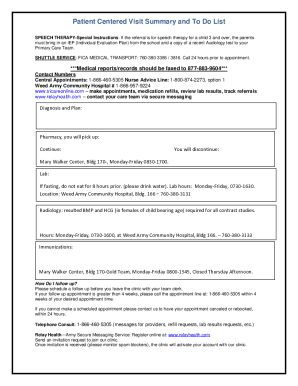
myconneCT is the Connecticut Department of Revenue Services (DRS) online portal to file tax returns, make payments, view your filing history and register your
Enter time, request absences, enroll in and manage retirement savings plans, and view other HR and payroll information. 1-877-251-2644 support@usg.edu


