




Here's how it works
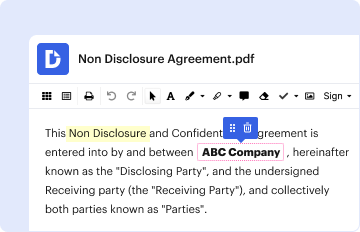
01. Edit your schedule 13 warranty online
Type text, add images, blackout confidential details, add comments, highlights and more.
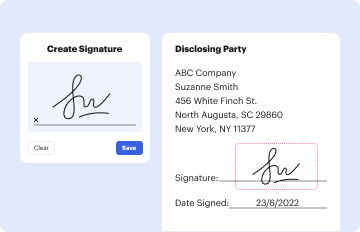
02. Sign it in a few clicks
Draw your signature, type it, upload its image, or use your mobile device as a signature pad.
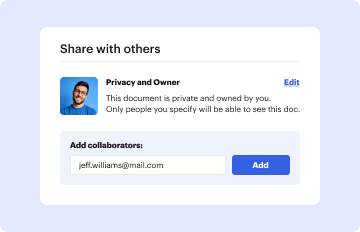
03. Share your form with others
Send schedule 13 warranty form nz via email, link, or fax. You can also download it, export it or print it out.
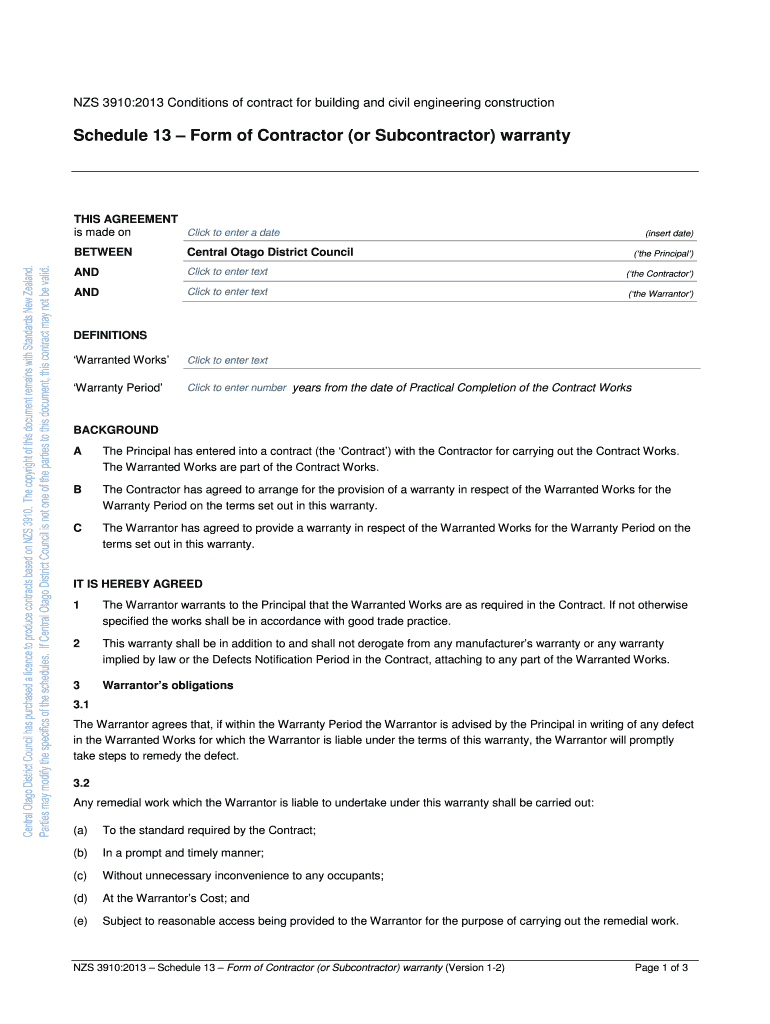
How to use or fill out 3910 schedule 13 contract with our platform

- Click ‘Get Form’ to open the 3910 Schedule 13 contract in the editor.
- Begin by entering the date of the agreement in the designated field. This is crucial for establishing the timeline of the warranty.
- Fill in the names of the parties involved: Central Otago District Council as 'the Principal', and provide details for 'the Contractor' and 'the Warrantor'. Ensure accuracy to avoid any legal complications.
- In the 'Definitions' section, specify the 'Warranted Works' and enter the duration of the 'Warranty Period'. This information is essential for clarity on obligations.
- Review each clause carefully, especially those outlining obligations and exclusions. Use our platform's commenting feature to note any questions or required clarifications.
- Once completed, ensure all signatures are added where indicated. Utilize our platform’s signature tool for a seamless signing process.
Start using our platform today to fill out your 3910 Schedule 13 contract online for free!
Fill out 3910 schedule 13 contract online
It's free
It's free
See more 3910 schedule 13 contract versions
We've got more versions of the 3910 schedule 13 contract form. Select the right 3910 schedule 13 contract version from the list and start editing it straight away!
| Versions | Form popularity | Fillable & printable |
|---|---|---|
| 2013 | 4.8 Satisfied (129 Votes) |
Security and compliance
At DocHub, your data security is our priority. We follow HIPAA, SOC2, GDPR, and other standards, so you can work on your documents with confidence.
Learn more


Related forms

Form online
The document outlines the requirements and procedures for changing ownership of DStv devices under different scenarios: ...
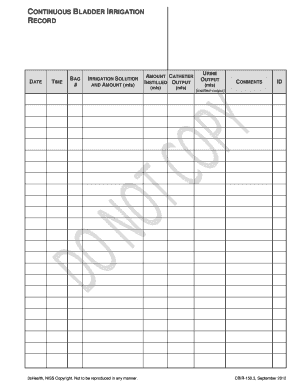
Continuous Bladder Irrigation Record
The document is a Continuous Bladder Irrigation (CBI) record template used for tracking the date, time, irrigation solut ...

EFT Termination Request Authorization
The document is a termination request form for discontinuing electronic funds transfer (EFT) payments to Foremost Insura ...
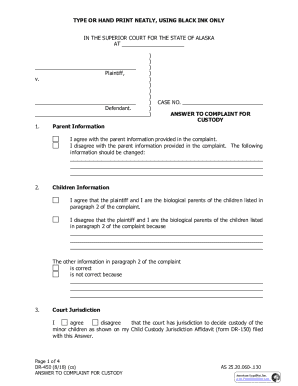
Answer to Complaint for Custody
The document is a legal form titled 'Answer to Complaint for Custody' used in the Superior Court of Alaska. It allows a ...
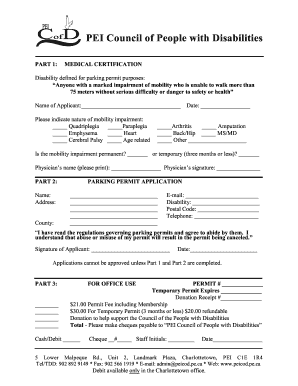
PEI Disability Parking Permit Application
The document is an application form for a parking permit issued by the PEI Council of People with Disabilities. It inclu ...
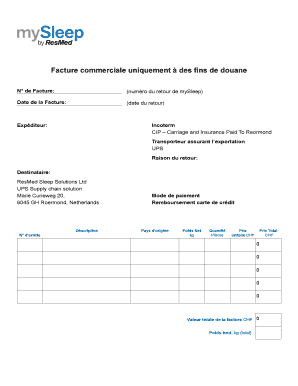
Commercial Invoice for Customs
This document is a commercial invoice intended solely for customs purposes, detailing a return shipment to ResMed Sleep ...

Texas Benefits Election Form
The document is a Benefits Election Form used by employees to manage their benefits under the Texas Employees Group Bene ...


